The Self-Checkout Connector (SCO) is a bridge between LS Central and self-checkout (SCO) devices from different hardware manufacturers. It enables seamless communication through web services to support core checkout operations such as item scanning, transaction processing, tender handling, and device workflows.
The Connector communicates with LS Central web services and implements the necessary mapping between LS Central and the specific SCO hardware device information, data, and functionality. It is not used when the LS Central POS itself runs as the user interface on a self-service checkout terminal.
The SCO Connector is flexible and can be deployed at different levels within the store. For example, it can run centrally on a store server connecting to multiple SCO devices while communicating with LS Central in the cloud. Alternatively, it can run directly on a SCO device, where all communication happens locally on the terminal.
This documentation guides you through preparing and configuring LS Central for integration with the SCO Connector. It covers technical and functional prerequisites, authentication methods, configuration packages, profile assignments, and tender type mappings. Step-by-step instructions take you from preparing your Business Central environment to completing the SCO installation, ensuring smooth deployment and reliable operation.
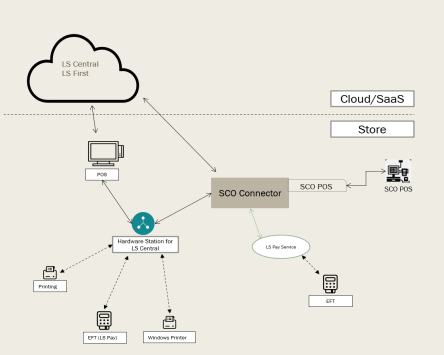
Help articles for the SCO Connector are grouped into the following sections. Click the links to access each topic:
| Task / Topic | Link |
|---|---|
| Review system requirements before installing SCO | Prerequisites |
| Configure LS Centralto work with SCO | LS Central Configuration Steps |
| Set up and manage the Self-Checkout Connector card | SCO Connector Configuration |
| Install SCO on different platforms | Installation Common Flow, On-Premises Installation, SaaS Installation, NCR Connector Installation |
| Understand and configure available feature flags | Feature Flags |
| Monitor and manage SCO while it is running | SCO Service Administration Portal |
| Check supported POS device types and learn about custom configurations | Custom Device Configuration, Diebold Nixdorf Configuration, NCR Configuration, SCO Architecture Overview, What is SCO? |
| Getting started with the SCO installer | SCO Installer |