In this Article
Import and Apply SCO Configuration Package
Assign Self-Checkout Device Type
Before installing and using the Self-Checkout Connector (SCO), ensure that Business Central (BC) is configured correctly. This includes SCO cards, terminals, hardware profiles, staff permissions, tender types, item profiles, and feature flags.
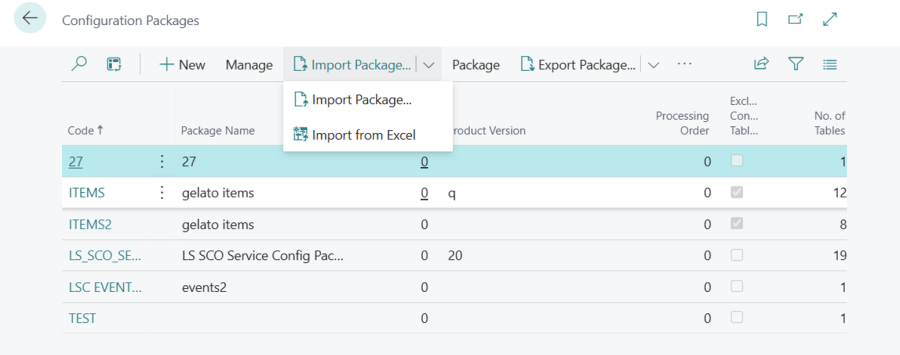
Import and Apply SCO Configuration Package
Partners can request the latest .rapidstart configuration package from the Support portal. Applying this package sets up default SCO records, device types, terminals, and initial configuration in BC.
- Import the provided
*.rapidstartpackage. - Apply the package to initialize SCO configuration settings.
Assign Hardware Profile
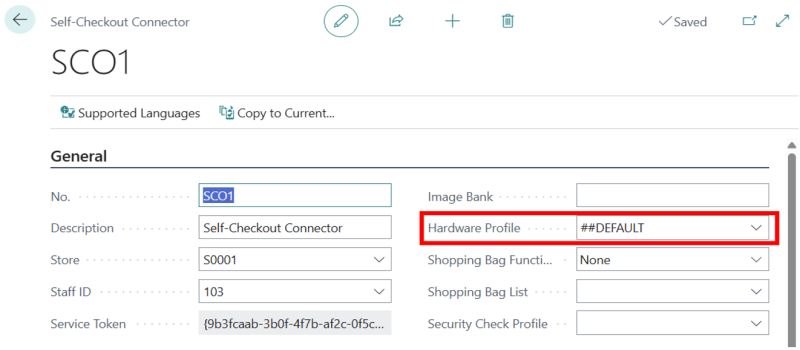
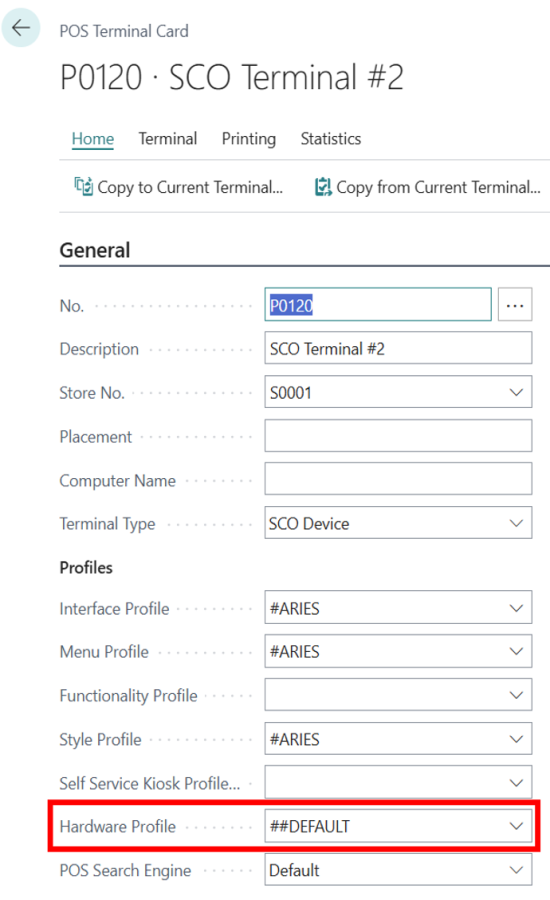
The Hardware Profile defines which hardware devices (EFT, printers, scanners, scales) SCO communicates with through Hardware Station.
Assign Hardware Profiles in these BC cards:
- Self-Checkout Connector
- POS Terminal
- Store
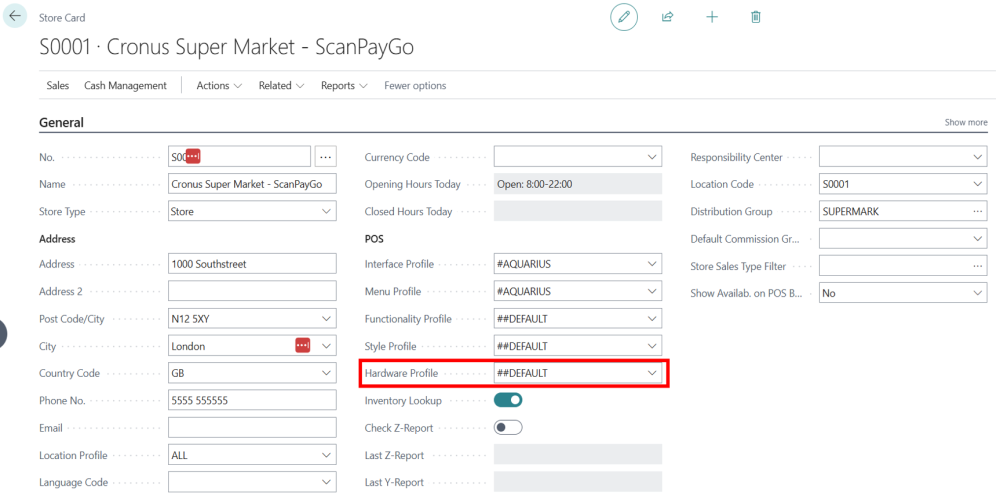
SCO uses the Hardware Profile in the following order of precedence: SCO Card → POS Terminal → Store.
Assign Self-Checkout Device Type
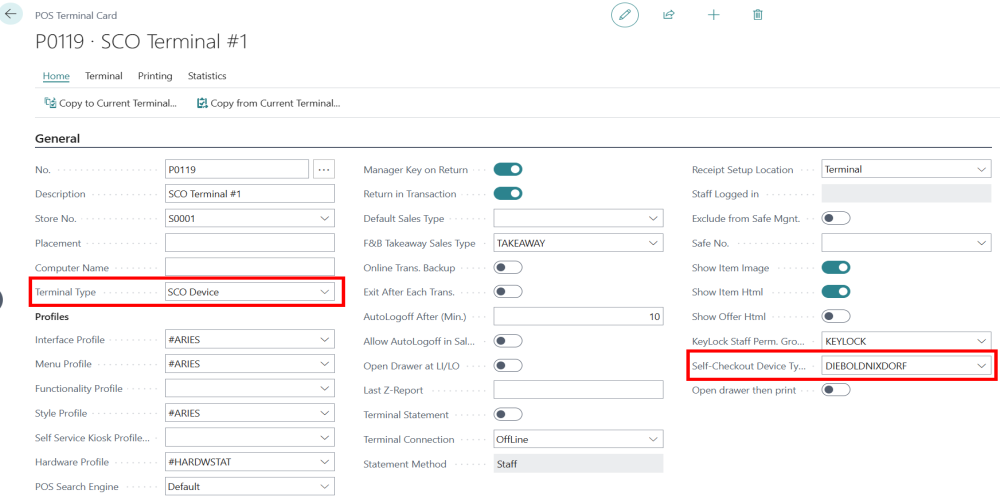
On each POS Terminal used by SCO:
- Set Terminal Type = SCO Device
- Assign a Self-Checkout Device Type (defines connection settings for the POS system)
Configure Store and Staff
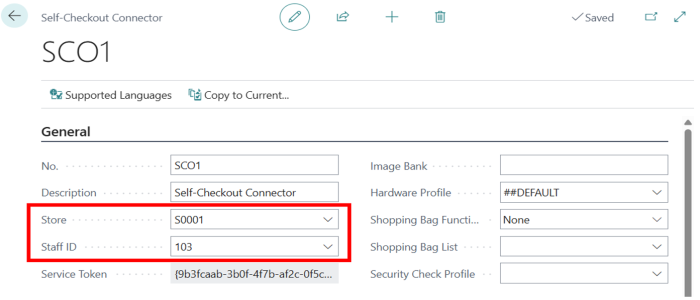
- On the SCO card:
- Assign Store.
- Assign Staff ID.
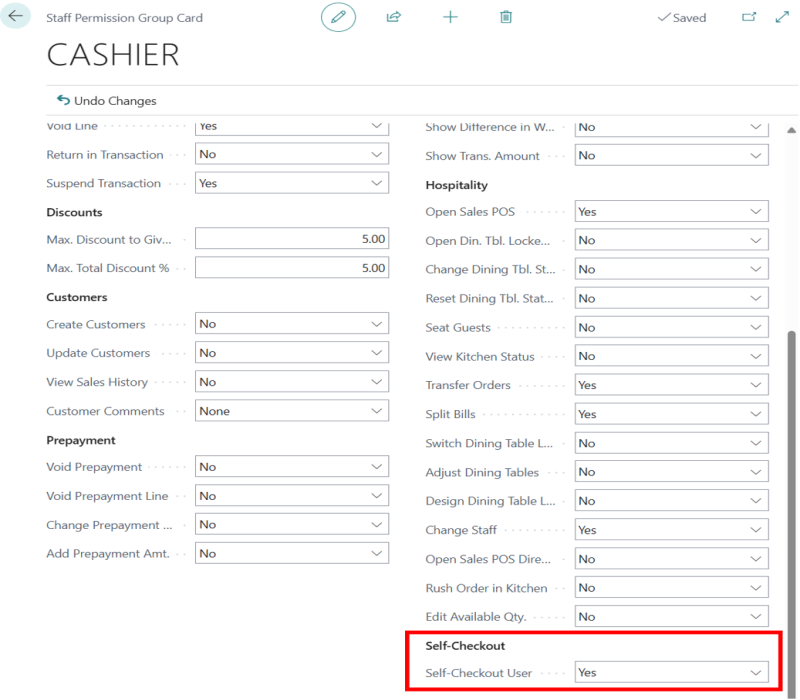
- On the Staff Permission Group card:
- Set Self-Checkout User = Yes for the assigned staff member
Add Feature Flags
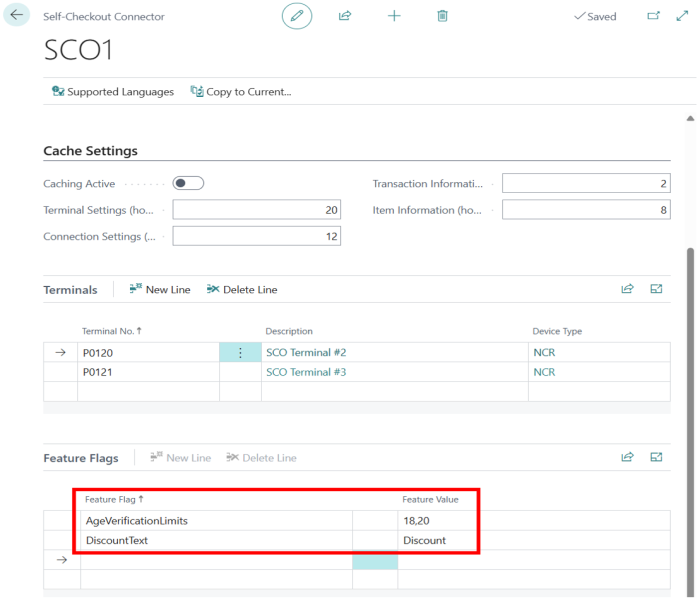
Add the following default Feature Flags on the SCO card:
DiscountText→DiscountAgeVerificationLimit→18,20
For a full list of supported Feature Flags, see Feature Flags for SCO Connector.
Setup Tender Type Mapping
Required if the Tender Type IDs used in LS Central and the SCO Device do not match. Create a Tender Type Mapping Profile to translate between the two systems.
- Tender Type Mapping Profile fields:
- Mapping Profile – Identifier
- Store No. – Store where mapping applies
- Mapping Tender Type – Tender ID on SCO device
- Tender Type – Tender ID in LS Central
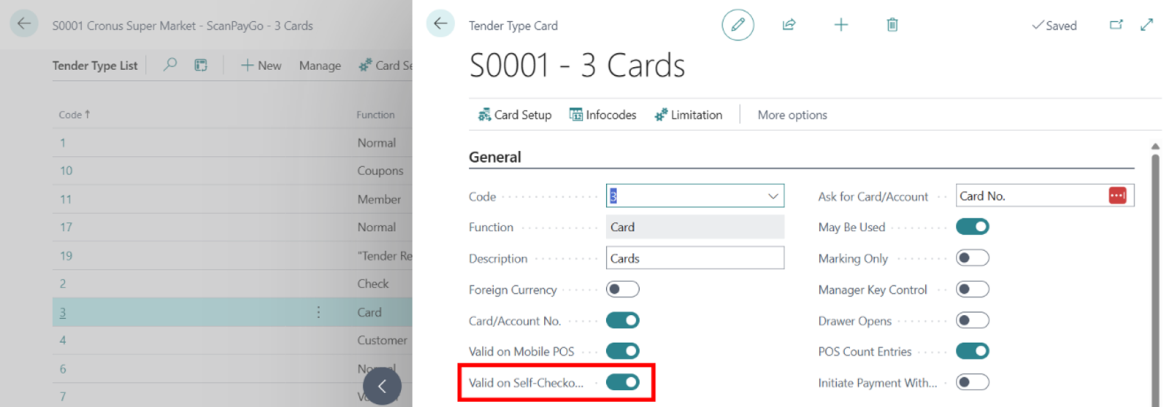
- Ensure the selected Tender Type in the Store Card → Cash Management → Tender Types has Valid on Self-Checkout POS checked.
Configure Items for SCO
Items must be configured to indicate whether they can be sold on SCO and to apply feature rules.
Retail Item Card Settings
- Self-Checkout Security Weight – Expected item weight for security validation
- Self-Checkout Item Profile – Defines eligibility and rules for the item
Self-Checkout Item Profile
Profiles are reusable and contain:
- Item Profile Code – Unique identifier
- Description – Descriptive name
- Can be sold on Self-Checkout – Must be selected
- Feature Flags – Optional table for item-specific rules
Hierarchy Usage
Profiles can be applied at Division → Retail Product Group → Item Category → Item levels. SCO evaluates from the item upward, using the first profile it finds.
Feature Flags on Item Profiles
Feature Flags allow extra rules at item level:
- Feature Flag – Name of the feature (such as, AgeLimit)
- Feature Value – Value of the feature (such as, 18)
- Feature Option (Device Type) – Device type (such as, DIEBOLDNIXDORF)
Example: An alcoholic beverage with AgeLimit = 18 and Device Type = DIEBOLDNIXDORF.
Blocking an Item from SCO
- Open Retail Item card → Related → Master Data → Groups and Links → Item Status
- Set Status Code = BLSALE to block item on all POS and SCO devices
Once these steps are complete, the Business Central environment is ready for SCO installation.