In this article
The Administration Portal is a central interface for managing, monitoring, and troubleshooting the Self-Checkout Connector (SCO). It allows users to:
- Configure SCO connection and device settings.
- Monitor the status of connected terminals and services.
- Validate SCO configuration and detect missing or incorrect settings.
- Access and download detailed log files for troubleshooting.
Quick Start Workflow
- Open the portal by navigating to localhost:8077 in a web browser.
- Verify the Setup tab configuration (Manufacturer, SCO server, Hardware Station).
- Validate terminal connections using the Status Overview tab.
- Check terminal service status under Terminal Status.
- Review logs if errors or warnings are detected.
Setup
The Setup tab is where you configure the main settings for the SCO Connector, including manufacturer, connection info, and plugin paths.
- After making changes, click Save configuration and restart the connector for settings to take effect.
- For detailed device setup, see:
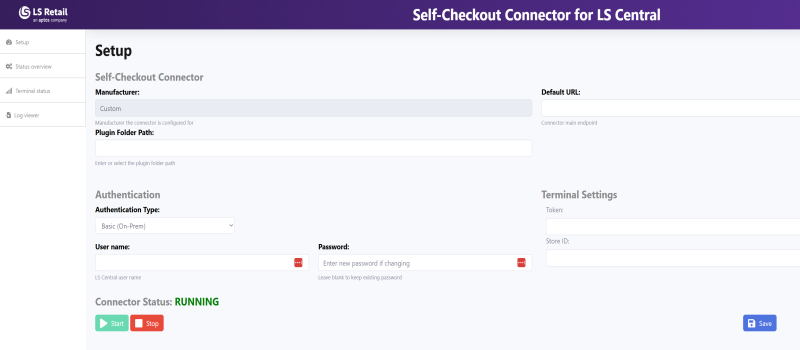
| Configuration | Description |
|---|---|
| Manufacturer | Select the manufacturer of the SCO device. This ensures SCO loads the correct communication plugin and Feature Flags. |
| User Name | The user used to log onto LS Central web services. |
| Password | Password for the above user. |
| Default URL | Main endpoint for LS Central Web Services. Copy from the Web Service Setup card in BC. Ensure the URL ends with /Codeunit. |
| Hardware Station API URL | Network address for Hardware Station API communication. |
| Token | Unique token for this SCO Connector. See SCO Connector card. |
| Store ID | The store where the SCO Connector runs. |
| Plugin Folder Path | Folder containing custom POS plugin DLLs. Visible only if Manufacturer = Custom. SCO automatically detects and loads assemblies from this folder at startup. |
Status Overview
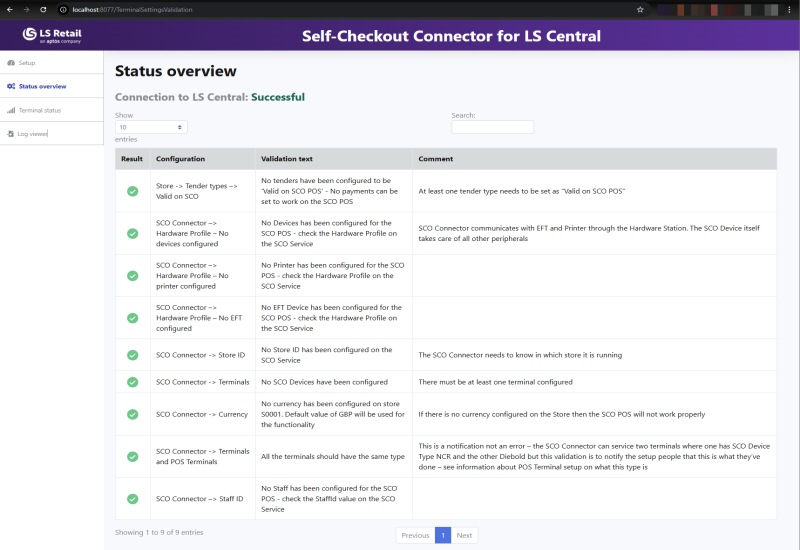
The portal validates the SCO configuration received from LS Central and reports missing or incorrect settings.
- Example messages: "No tender types configured for SCO device".
- These same validations occur at SCO startup and are written to the logs.
Terminal Status
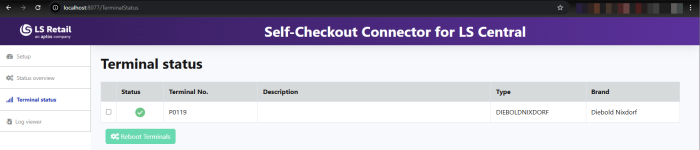
Displays the status of each SCO terminal, including Connected, Online, or Stopped.
Log Viewer
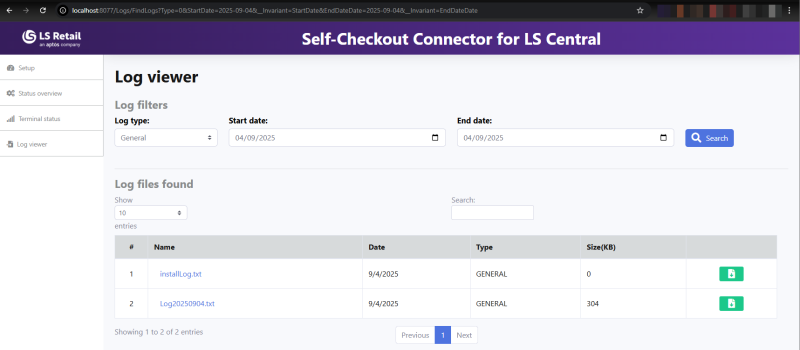
- Access logs via Utilities → Logs.
- Filter by date or log type: General or Error.
- Logs can be downloaded or viewed in the portal.
- Tip: Large logs may only be available for download.
Troubleshooting Tips
| Issue | Possible Cause | Solution |
|---|---|---|
| Terminal not connecting | Incorrect Hardware Profile or Device Type | Check SCO card and terminal assignment |
| Plugin DLL not loaded | Incorrect PluginFolderPath or missing DLLs | Verify DLLs are in correct folder and restart SCO |
| Error in logs: "Invalid Token" | Token mismatch in BC SCO card | Ensure SCO card Token field matches connector |
| No tender types configured | Tender types not assigned in BC SCO card | Assign tender types to SCO in BC |
Next Steps
- Verify terminal connections and SCO service status.
- Check logs for errors or warnings.
- Ensure SCO is properly configured for the selected Manufacturer and Device Type.
See Also
- SCO Connector Home – Overview of the Self-Checkout Connector and its architecture.
- Feature Flags for SCO Connector – Learn about configurable feature flags for devices and the connector.
- SCO Connector Card Configuration – Steps to configure and manage the SCO BC card in LS Central.
- Device Configuration – Configure SCO devices and custom implementations.
- SCO Prerequisites – System and software requirements for SCO installation.