In this article
Publishing the pharmacy web services
This topic describes the pharmacy settings for customer orders. The fields are in the Pharmacy FastTab on the Customer Order Setup page and on the Store Card. The standard customer order setup options still apply to pharmacy orders. See Customer Order Setup and BackOffice Settings.
Pharmacy FastTab
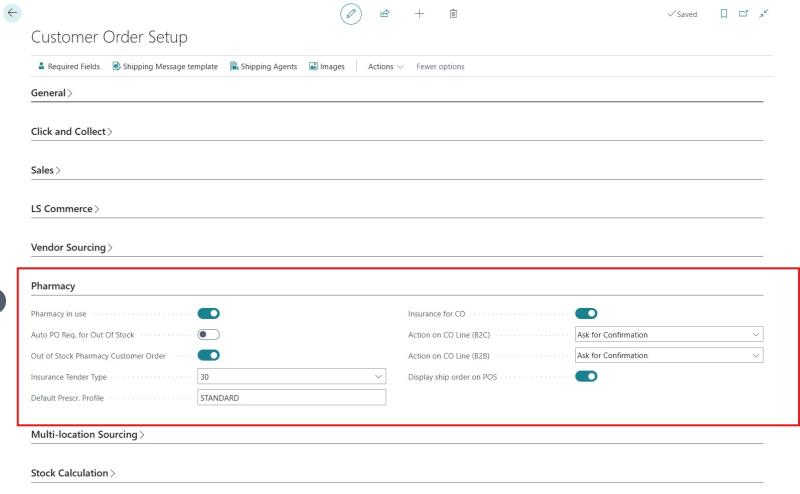
Click the  icon, enter Customer Order Setup, and select the relevant link. Fill in the fields in the Pharmacy FastTab as described in the table.
| Field | Description |
|---|---|
| Pharmacy in use | Specifies whether the pharmacy extension for customer orders is turned on. Most pharmacy behavior for customer orders only applies when this field is turned on. |
| Insurance for CO | Specifies whether customer orders use insurance-aware payment handling. See Customer Order Pharmacy Insurance Handling. |
| Insurance Tender Type | Specifies the tender type that represents money from an insurer or reimbursement scheme on a customer order payment. See Customer Order Pharmacy Insurance Handling. |
| Default Prescr. Profile | Specifies the default prescription profile that is used when prescription documents are created from a customer order. |
| Out of Stock Pharmacy Customer Order | Specifies that when you confirm a prescription order line in the POS and there is not enough available stock, the POS offers to turn the prescription into a customer order. If you confirm, all lines on the prescription order, not only the line you are confirming, are flagged for customer order creation. For this to work, the Stock Check In Prescription field on the Pharmacy Inventory Setup page must be set to Full Check and Ordering. The offer is not made if the prescription order already has a paper-format line or is already linked to a customer order. |
| Action on CO Line (B2C) | Specifies what happens to a B2C customer order line when its linked prescription line is cancelled. Options are Do Nothing, Ask for Confirmation, and Cancel CO Line. See Cancellation from the prescription side. |
| Action on CO Line (B2B) | Specifies the same action as Action on CO Line (B2C), but for B2B customer order lines. |
| Display ship order on POS | Specifies whether ship orders are shown in the POS customer order lists for Pharmacy. Ship orders are delivered from a warehouse through a sales order, so the delivery itself does not happen in the POS. The prescription work for the RX lines, such as picking and creating and processing the prescription order, still takes place in the POS. Turn this field on if the order must appear there. |
Store Card fields
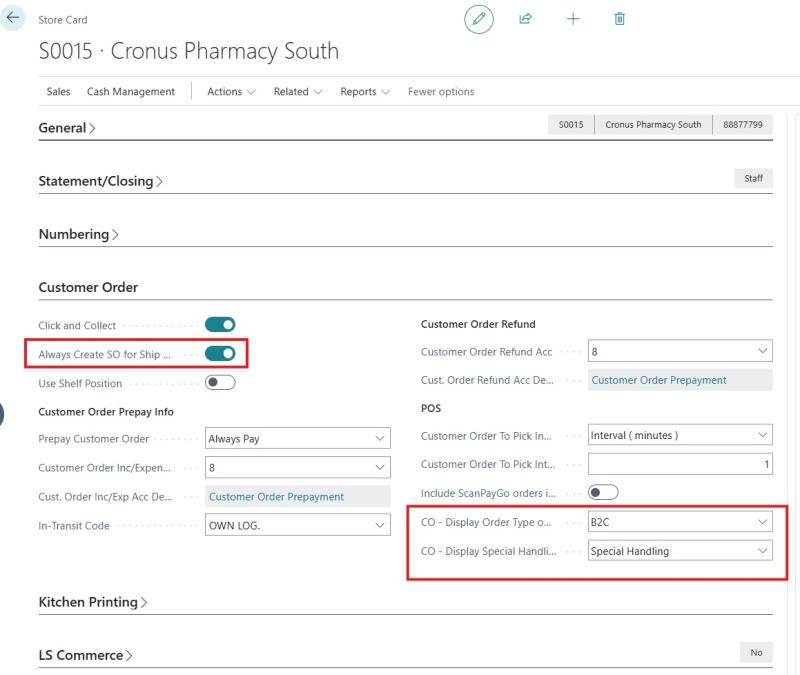
Some pharmacy settings for customer orders can differ per store, so they are on the Store Card, in the Customer Order FastTab.
| Field | Description |
|---|---|
| Always Create SO for Ship Orders | Specifies that a ship order line created through the web service for this store always goes through a sales order instead of being eligible for click and collect. |
| CO - Display Order Type on POS | Specifies which orders appear in the POS customer order lists for this store. Select B2B or B2C to show only that order type, or Any for no restriction. |
| CO - Display Special Handling on POS | Specifies which lines appear in the POS customer order lists for this store. You can show only lines that have the Special Handling flag, only lines that do not have it, or select Any for no restriction. |
Add POS settings for Pharmacy
Use the Add POS settings for Pharmacy action on the Customer Order Setup page to create the POS data table and panel configuration that the pharmacy customer order screens need, for example the columns in the picking lines grid. Run the action once when you set up customer orders for Pharmacy in a new environment, after you have set up customer orders as described in BackOffice Settings.
Publishing the pharmacy web services
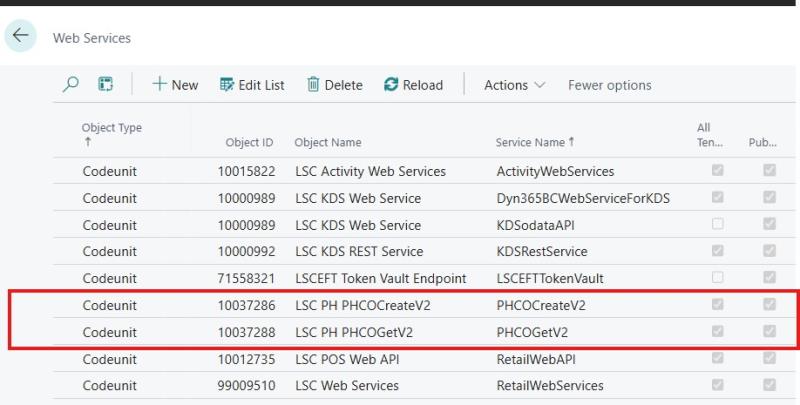
The Customer Order Registration page, and the creation and retrieval of pharmacy customer orders from eCommerce and loyalty apps, use two web services. They are not published automatically. Add and publish them on the Business Central Web Services page, in the same way as the standard customer order web services.
| Service name | Description |
|---|---|
| PHCOCreateV2 | Creates a pharmacy customer order. Codeunit LSC PH PHCOCreateV2. |
| PHCOGetV2 | Retrieves a pharmacy customer order. Codeunit LSC PH PHCOGetV2. |
See also
Customer Order Pharmacy Process
Customer Order Pharmacy POS and BackOffice Functionality
Customer Order Pharmacy Insurance Handling