In this article
Creating a pharmacy customer order
Picking a pharmacy customer order
Protection while a line is linked to a prescription order
Changing and cancelling the sales order of a B2B order
Handling a payment amount deviation
This topic describes the pharmacy additions to POS Functionality and BackOffice Settings. The standard flows for creating, picking, collecting, and depositing still apply. This topic only describes what changes for pharmacy lines and B2B pharmacy orders.
Creating a pharmacy customer order
At the POS or through eCommerce and loyalty channels
You create a pharmacy customer order line in the same way as a standard customer order line. There is no separate pharmacy entry point. The system sets automatically whether a line is a prescription (RX) line:
- For a B2C order, the RX flag is set from the item, based on whether the item is set up as a prescription item. This check can only turn the flag on. A line that already has a Prescription No. stays flagged as RX, even if the item is a non-prescription item.
- For a B2B order, the RX flag is set from the Cust.Order to B2B Prescription field on the Pharmacy Product Type page. All items that belong to a product type with this field turned on are treated as RX on a B2B order.
The calculation runs whenever a customer order line is created, regardless of whether it comes from the POS, the web service used by eCommerce and loyalty apps, or BackOffice registration.
The Special Handling flag is also set automatically on a line. By default, it is set when the line is an RX line, when the item requires cold storage, or when the item requires FMD verification. For ship orders that are delivered from a warehouse through a sales order, only orders with at least one special handling line that still needs pharmacy attention are normally of interest in the POS. See CO - Display Special Handling on POS in Store Card fields. Orders without such a line are typically fulfilled entirely through the sales order.
The customer order card and list show these additional pharmacy fields:
- Order Type (B2C or B2B) and Delivered from Store No. on the card and the list.
- Advice Requested and Advice Phone Number on the card, to show that the customer asked to be contacted by a pharmacist.
- Lines to Pharmacy on the list, which shows the number of lines that still wait for the pharmacy workflow.
- CO RX(s) in the document FactBox, with drill-down to the RX lines of the order. The RX Order field shows whether the order has any RX line, and is available as a column in the POS customer order lists.
- Comment fields for communication between the POS, BackOffice, and the pharmacy: Comment, Pharmacy Comment, and Customer Comment on the order, and Pharmacist Comment on each line. The pharmacy comment is also shown on the posted customer order.
RX lines are not linked to a prescription order immediately. See Creating the prescription order from a customer order.
From BackOffice (B2B orders)
For B2B pharmacy orders, for example an order placed on behalf of a nursing home, BackOffice staff can use the Customer Order Registration page instead of the POS.
- Select the Pharmacy Customer No.. The customer name and address are filled in, and RX Purchase Allowed shows whether the customer is allowed to buy RX items.
- Select the Ship Method: From Warehouse if the order is shipped to the customer, or Click & Collect if the customer collects the order at the store that you select in Collect Store No.. The lookup is limited to sourcing locations that allow order collection for the creating store.
- Add order lines on the Lines part. Enter an item number or use the item lookup. A line without an item is removed automatically when the order is created.
- Select Create. The order is created with the same web service pipeline that eCommerce and loyalty orders use, so the normal customer order validation and setup apply. When the order has been created, its Document ID is shown on the page with a link to open it.
Select New to clear the page and start a new registration.
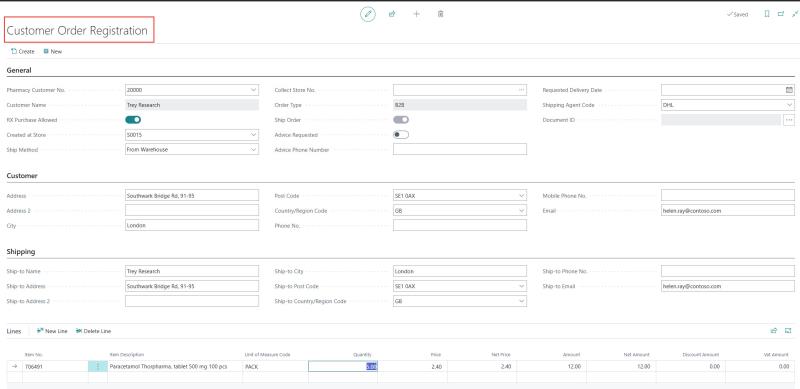
If the order is a ship order with an amount greater than zero, a payment line for the full order amount is created automatically. It uses the first tender type with the Customer function for the creating store. You do not need to add a payment line manually before the order can be shipped and invoiced.
This makes the registration page suitable for the on-account billing that is typical for institutional B2B customers. The order is delivered through a sales order instead of being paid in the POS, the amount is registered against the customer account through the tender type with the Customer function, a sales invoice is generated, and the customer pays the invoice afterwards.
Creating or viewing the prescription requisition from a B2B sales order
Instead of using the Create Prescription Order action on the customer order card, you can use these actions on the sales order that fulfills a B2B order:
- Create B2B Requisition creates a prescription order for the RX lines on the sales order that do not yet have one. It uses the outstanding quantity to ship of each line.
- View B2B Requisition opens the prescription orders that are linked to the customer order of the sales order. If there is only one, it opens directly. Otherwise, a list is shown.
Picking a pharmacy customer order
Non-RX lines are picked in the same way as standard customer order lines. See POS Functionality. RX lines behave differently:
- When you pick an RX line that has no linked prescription order, its picked quantity moves from Qty. To Pharmacy to Qty. to Rx and the workflow status changes to To Rx. The line is handed over to the pharmacy instead of being picked to a shelf or collect location. See Pharmacy workflow status.
- After an RX line is linked to a prescription order, you must pick, short, or cancel its outstanding quantity as a whole. You cannot do it partially. For B2C orders, the quantity stepper in the picking panel therefore goes directly to the full remaining quantity of the line.
- Lines that are completely processed are left out of the picking panel the next time you open it.
- If confirming the picking panel would close it while RX lines are still waiting to be handed over to the pharmacy, the panel stays open until the hand-over is finished.
Protection while a line is linked to a prescription order
At any stage, including collection, you cannot cancel a customer order line, or the sales line that it is mirrored to, or change its item, quantity, or price, while it is linked to an active prescription order. An error is shown. First clear the link. This happens automatically as part of the cancellation rules described in Cancellation from the prescription side.
Changing and cancelling the sales order of a B2B order
A B2B pharmacy customer order is shipped through a sales order in the same way as a standard customer order. See BackOffice Settings. The pharmacy extension adds actions on the sales order to change it, or cancel part of it, after it has been created, while keeping the customer order in sync.
Changing a B2B order after creation
The B2B Order Change action puts the sales order in change mode. In change mode you can add lines and change the item, quantity, price, or discount of existing lines in a dedicated change grid. Item substitution suggestions are offered where available. Select B2B Save Order Changes to apply the changes.
Change mode is only available when all of these conditions are met:
- The order is a B2B order that is linked to a customer order.
- The order is still Open, has no shipped or shipped-not-invoiced quantity, has no shipping number assigned, and has no open warehouse shipment line.
- Every store that is used in the payments of the customer order has a tender type with the Customer function.
When you save, the quantity and pharmacy fields of the linked customer order line, including the RX flag and Qty. To Pharmacy, are updated to match. You cannot reduce the quantity below what has already moved past To Pharmacy on the customer order line.
Cancelling or shorting quantity on a fulfilling sales order
Instead of editing a sales order line directly, you register the quantity that will not be fulfilled in the Qty. to Cancel field on the sales line, with these actions:
- Autofill Qty. to Cancel fills Qty. to Cancel with the outstanding quantity of each line as a starting point.
- Register Shortage/Cancellation asks, for each line with a Qty. to Cancel greater than zero, whether to register it as a Shortage or a Cancellation. It then reduces the quantity of the sales line and updates the shortage and cancellation quantities and the reservation entries of the linked customer order line.
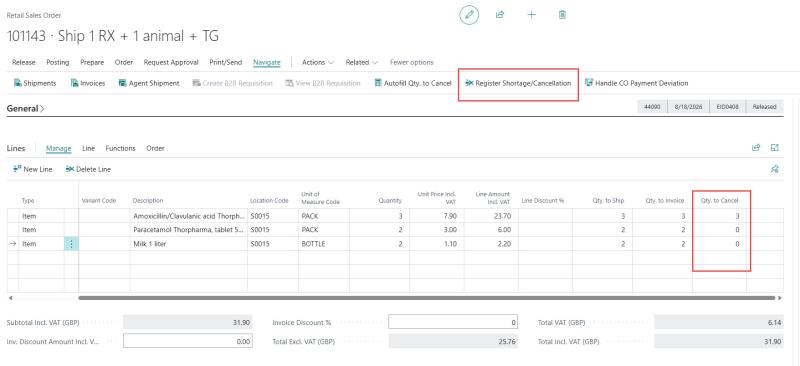
These rules apply:
- You cannot cancel or short a line that is linked to an active prescription order from the sales order. First clear the prescription link.
- You can only cancel or short an RX line as a whole.
- For a B2C order, you cannot edit, insert, or delete sales lines that are linked to a customer order directly. Qty. to Cancel and Register Shortage/Cancellation are the only way to change the fulfilled quantity. This does not apply to B2B orders, which use B2B Order Change.
Handling a payment amount deviation
If the total amount of a customer order and its pre-approved payment amount differ, for example after a price or insurance recalculation, use the Handle CO Payment Deviation action on the sales order. It calculates the difference and offers to resolve it:
- For a B2B order, the difference is added to the existing customer tender payment line on the customer order, and the line is flagged as a manual adjustment.
- For a B2C order, you are asked to select a tender type, limited to the tender types marked for use in payment deviations for the store. A new payment line is created for the difference.
If there is no difference, nothing happens.
See also
Customer Order Pharmacy Process
Customer Order Pharmacy Insurance Handling