In this article
Creating the prescription order from a customer order
Cancellation from the prescription side
Keeping a B2C customer order line in sync with its prescription
This topic describes what the pharmacy extension adds to the standard customer order process. For the standard line statuses To Pick, To Collect, and To Put Back, see The Customer Order Process.
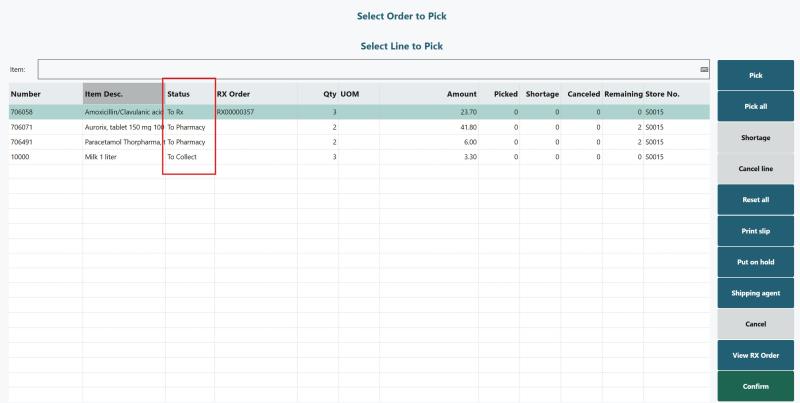
Pharmacy workflow status
Each customer order line has an additional field, Workflow Status, which runs alongside the standard line status. A non-RX line starts at To Pick and follows the standard picking process. An RX line starts at To Pharmacy and follows the pharmacy steps described in the table.
| Status | Description |
|---|---|
| To Pharmacy | The starting status of an RX line. The line is waiting to be sent to the pharmacy for prescription processing. |
| To Rx | The RX line has been picked and is waiting for the pharmacist to process the linked prescription order. |
| To Pick | The starting status of a non-RX line. The line is ready to be picked in the same way as a standard customer order line. |
| To Collect | All the quantity on the line is accounted for, and the line is ready for the customer to collect. Both RX and non-RX lines reach this status when they are complete. |
A line only gets the status To Collect when nothing is outstanding on it, that is, when the quantities in Qty. To Pharmacy and Qty. to Rx are both zero and there is no remaining quantity to pick.
Quantity fields
Two fields on the customer order line track how much of the line quantity is still in the pharmacy workflow. They are independent of the standard quantity fields, such as Qty. Picked, Qty. Collected, and Qty. Shortage.
- Qty. To Pharmacy specifies the quantity of an RX line that is waiting to be sent to the pharmacy. It is set to the full line quantity when the line is created, and is reduced when the quantity moves to the prescription workflow or is shorted or cancelled.
- Qty. to Rx specifies the quantity of an RX line that has been handed over to a prescription order and is waiting for the pharmacist.
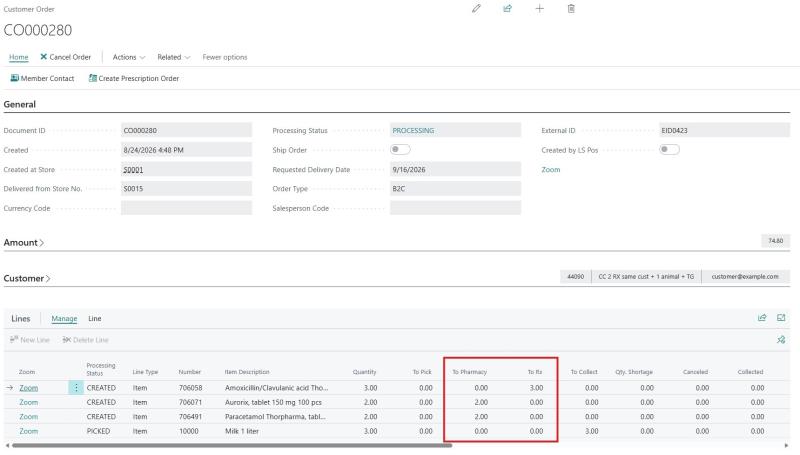
The quantity of an RX line is always handled in full on these fields. For a B2C order, you cannot split an RX line across partial pharmacy hand-offs. For a B2B order, you can only handle part of an order by first splitting the quantity onto a separate customer order line.
Creating the prescription order from a customer order
An RX line does not create its prescription order when you enter the order. You create it explicitly, and how depends on the order type:
- For a B2C order, you normally create the prescription order in the POS, from the customer order panel, when you confirm the picking of the RX lines.
- For a B2B order, you can create it in the POS for selected lines. If the order is a ship order, you can also create it from the corresponding sales order with the Create B2B Requisition action. See Creating or viewing the prescription requisition from a B2B sales order. Only lines with a Qty. to Ship greater than zero are included, and only that quantity is sent to the prescription order.
For both order types, you can also use the Create Prescription Order action on the Customer Order card. It collects all the RX lines on the order that are not yet linked to a prescription order and creates one prescription order for them.
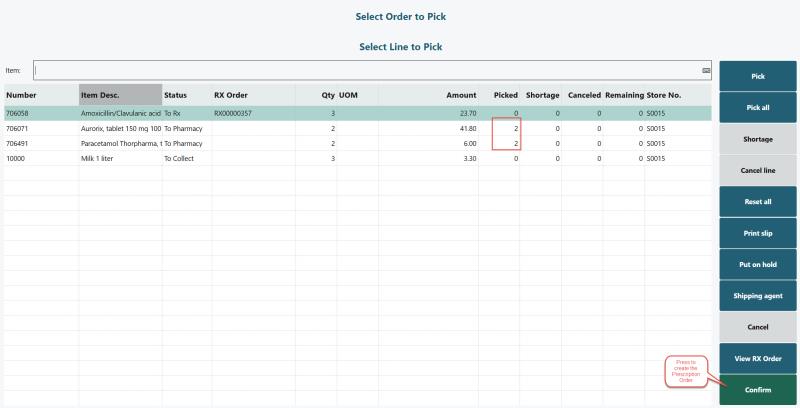
When a prescription order is linked, the customer order line stores a reference to it in the Prescription Order and Prescription Order Line fields. The View Rx Order action on the customer order line opens the prescription order. The CO RX(s) field in the document FactBox shows the number of RX lines on the order, and you can drill down to the list of lines.
Cancellation from the prescription side
When a prescription line, or the whole prescription order, is cancelled, the Action on CO Line (B2C) and Action on CO Line (B2B) fields on the Customer Order Setup page decide what happens to the linked customer order line. See Customer Order Pharmacy Setup.
| Action | Result when the linked prescription line or order is cancelled |
|---|---|
| Do Nothing | The link to the prescription is cleared and the workflow status is reset to To Pharmacy, so the line can be linked to a new prescription. The line stays on the order. |
| Ask for Confirmation | You are asked whether to also cancel the customer order line. If you confirm, the line is cancelled in the same way as with Cancel CO Line. If you do not confirm, the result is the same as with Do Nothing. |
| Cancel CO Line | The link to the prescription is cleared and the customer order line is cancelled with the standard customer order cancellation logic. |
If none of the lines on the order have any collected or remaining quantity after the cancellation, the whole customer order is cancelled automatically.
Note: This rule only applies to cancellations that start on the prescription side. For cancelling or shorting quantity from the customer order or the sales order, see Cancelling or shorting quantity on a fulfilling sales order.
Exception: If you mark a prescription line as No Delivery, the linked customer order line is always cancelled, regardless of the Action on CO Line settings.
Keeping a B2C customer order line in sync with its prescription
For a B2C order, the pharmacist can change the item, quantity, price, or amount on a prescription line when confirming it, for example by substituting the dispensed item. If the values then differ from the linked customer order line, the customer order line is updated to match the final values of the prescription line when the prescription line is confirmed. If the order already has a fulfilling sales order, the corresponding sales line is updated in the same way. This keeps the customer order and its sales order accurate after a substitution or a price or quantity correction during dispensing.
This only applies to B2C orders. The customer order lines of B2B orders are not adjusted automatically.
See also
Customer Order Pharmacy POS and BackOffice Functionality
Customer Order Pharmacy Insurance Handling