In this article
Create Your App and Get Your Credentials
These are the steps that must be completed in Shopify before LS Central can connect to the store and start exchanging data, such as items, customers, and orders. Complete the steps below in order.
Important: Some plans for Shopify do not include PII (Personal Identifiable Information) for Customer, that is required to create Customer orders in LS Central. If you get Name missing error when Pulling orders, check your Shopify plan and make sure it include PII information.
Create Your Shopify Store
LS Central connects to an existing, already-created Shopify store - it does not create the store for you. Before continuing, make sure the store itself has been set up in Shopify, including its theme, domain, and name.
Theme Customization
The theme controls how the storefront looks and behaves for shoppers. It has no effect on the connection to LS Central, so any theme can be used.
Path: Sales Channels - Online Store - Themes
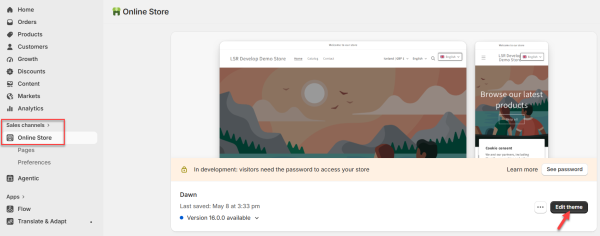
- Every store starts with the default Dawn theme.
- Additional themes, both free and paid, are available in the Theme Store.
- Themes can be customized further; theme customization itself is outside the scope of this guide.
Domain Setup
The domain is the web address customers use to reach the store. A domain must be in place before the store can go live, but it is not required for testing the LS Central connection itself. Shopify provides a free .myshopify.com subdomain by default, so a custom domain is not strictly required - at minimum, the default .myshopify.com domain can be used to go live.
Path: Settings - Domains
Shopify provides two options: you can either buy a new domain or connect a domain you already own.
Store Naming
Naming your store is the final step of store creation. The store name is used in customer-facing communications such as email notifications, order confirmations, and can appear in your storefront depending on your theme. It can be changed at any time in path below.
Path: Settings - General - Store contact details
Create Your App and Get Your Credentials
LS Central does not connect to Shopify using your regular Shopify Admin login. Instead, it authenticates through a custom app created in Shopify’s Dev Dashboard, which generate a Client ID and Client Secret for that connection. These two values work like a username and password for the connection - without them, LS Central has no way to read or write data in the store. Generate them from the Dev Dashboard before continuing.
- In your Shopify Admin, go to Settings - Apps.
- Click Develop apps.
- Click Build apps in Dev Dashboard to create your app in the Dev Dashboard.
- Once the app is created, copy the Client ID and Client Secret. You'll need both when you configure the connection in the LS Central Shopify Administration page.
For more detail, see Set Up Dev Dashboard .
Note - Deprecated Developer App method: As of January 1, 2026, Shopify no longer allows new custom apps to be created through the legacy Develop apps flow in the Shopify Admin. If you already have an existing Developer App and API key created before that date, you can keep using it as-is. New setups must use the Dev Dashboard method described above.
Legacy: Developer App Method (Pre-2026)
This section applies only if your store is already connected using the older Developer App method. Simply update the Admin API URL to reference the current API version, then continue using this method as-is.
Sample URL: https://lsomnidev.myshopify.com/admin/api/2025-10
Path: Settings - Apps - Develop apps - Configuration - Webhook subscriptions
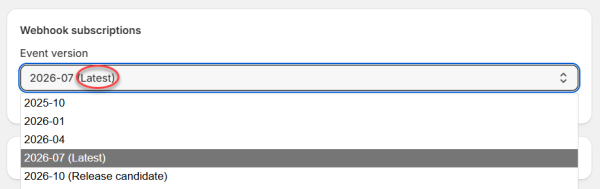
Update the version number (2025-10) —pick the latest available Shopify API version.
Set Up Payment
Shopify needs a configured payment provider before an order can be placed, and orders are only created in LS Central once they exist in Shopify. Without a payment method, checkout cannot be completed and there will be no orders for LS Central to pull.
- In your Shopify Admin, go to Settings > Payments.
- For testing, use the Bogus Gateway as your payment provider. It simulates payments without processing real transactions, and should not be used for a live store.
- Choose how payment is captured - automatically, using one of three available capture methods, or manually.
Set Up Locations & Shipping
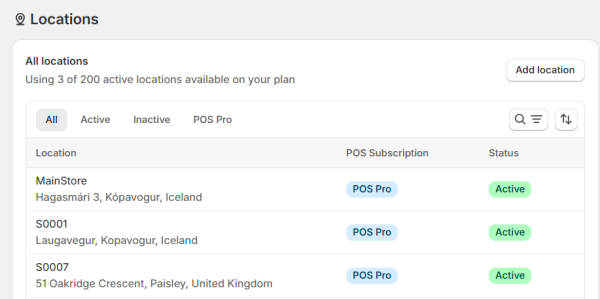
Locations represent the physical places, such as stores, warehouses, or pickup points, that stock and fulfill orders. LS Central uses these locations to keep inventory and order fulfillment in sync between the two systems, so every location that will hold stock or fulfill orders must be set up in Shopify first, before configuring the connection.
Path: Settings - Locations, then Settings - Shipping and delivery
- Add your main store location.
- Add a click-and-collect store location, if you offer that fulfillment option.
- Add any additional store locations as needed.
-
For each location, go to Settings - Shipping and delivery and assign the appropriate shipping rates or delivery methods.
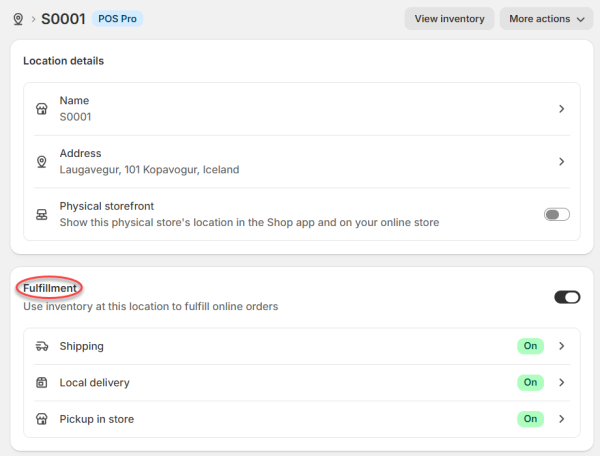
- Shipping: Use this option for standard shipping to the customer's address.
- Local Delivery: Use this option for local delivery and smart order routing.
- Pickup in store: Use this option to enable click & collect.
Set Up Tax and Duties
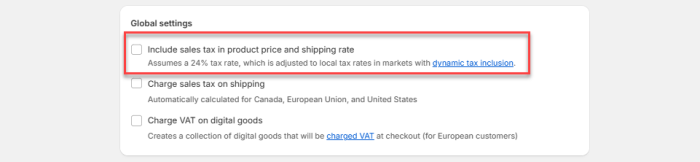
Before sending or updating an item from LS Central to Shopify, ensure that the global tax settings are aligned between both systems to prevent pricing discrepancies on the storefront.
Note: If the Include Tax with Price option in Shopify Administration page is disabled, then the Include sales tax in product price and shipping rate check box in the Shopify Admin - Settings - Taxes and duties must also be unchecked (left blank). This ensures that item prices sent from LS Central are treated as tax-exclusive in Shopify, maintaining pricing accuracy.
Video Tutorial
Watch the video on YouTube to learn more about how to create a Shopify Store & Shopify and LS Central configuration:
See also
Shopify - Optional Configuration