In this article
The Shopify Business Central Connector routes local delivery and pickup orders placed in Shopify to the correct store location in Business Central, based on the order routing rules and locations configured in Shopify, together with the Locations mapping configured on the Shopify Shop Card. This lets each order be created, processed, and fulfilled from the store that is actually assigned to handle it, and keeps that assignment aligned between the two systems.
This feature lets you:
- Set up two or more active locations in Shopify and configure order routing rules so that local delivery and pickup orders are routed to the nearest, or otherwise most appropriate, store.
- Have Business Central automatically create the Customer Order and Sales Order against the store assigned by the Shopify routing rules, using the Locations mapping on the Shopify Shop Card.
- Automatically sync a reassigned store back to Shopify, so the fulfillment location shown on the Shopify order matches the store that will actually fulfill it in Business Central.
Set Up Order Routing
Before local delivery or pickup orders can be routed to a store in Business Central, configure the following in Shopify Admin:
- Set up two or more active Locations in Shopify.
- Navigate to Settings - Shipping and delivery - Local delivery to enable local delivery for the relevant locations.
- Navigate to Settings - Shipping and delivery - Order routing to set up the routing rules that Shopify uses to decide which location fulfills an order.
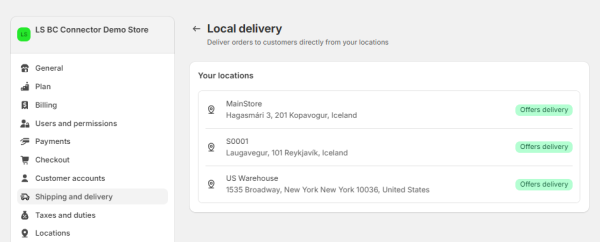
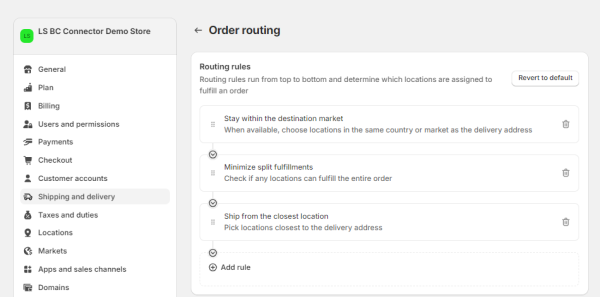
Then, in Business Central, open the Shopify Shop Card, click Actions - LS Central Extension, and configure the Locations mapping so that every Shopify location used for routing is linked to the corresponding Business Central store. See Required Mapping for the full mapping setup.
Note: Customer Order synchronization and posting fails if the Locations mapping is not configured correctly on the Shopify Shop Card.
Route a Local Delivery Order
To route a local delivery from Shopify to Business Central:
-
In the Shopify online store, place a local delivery order using a delivery address, that resolves to one of the routed locations according to the order routing rules configured in Shopify.
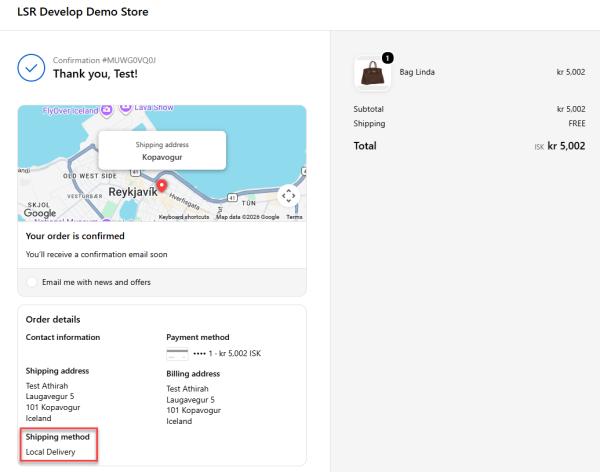
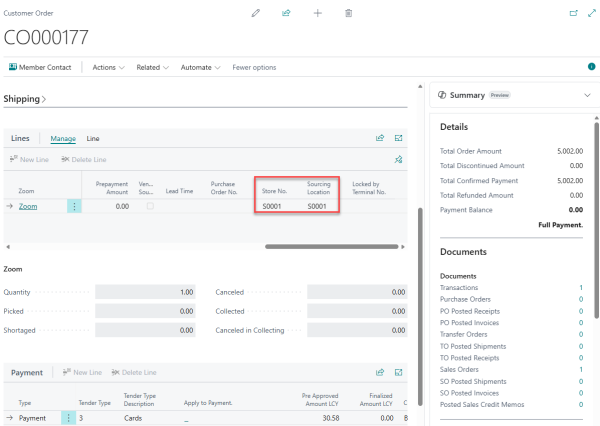
Note: In the example, the delivery address is for shipping to Kopavogur, so in LS Central, the store number is S0001 as specified in the order routing rule, following the closest location shipping rule.
-
Open the Shopify Shop Card in Business Central, navigate to Related - Orders, then Home - Sync Order from Shopify to pull the order in.
-
Select the newly synchronized order and choose Home - Create Customer Orders to generate the Sales Order No. and Customer Order No.. The order - and, when a single order is split across locations, each affected line - is created against the Business Central store that is mapped, through the Locations setup, to the Shopify location assigned by Shopify's order routing rules.
-
Open Orders - Customer Order and process the order as normal for its delivery method, then post it. Posting marks the Processed checkbox and updates the corresponding order in Shopify to Fulfilled.

-
Open the order in Shopify. It should appear as Fulfilled, with the location set to the store that was assigned by the routing rules which is S0001.
