In this article
Migration from Shopify LS Connector
After completing the setup in Shopify and connecting your store to Microsoft Dynamics 365 Business Central, you can configure the integration by creating a Shop record on the Shopify Shop Card page. Each Shopify store must be added as an individual shop in Business Central, and each shop maintains its own connection details, synchronization preferences, and data‑mapping settings.
The connector supports multiple Shopify stores, allowing you to create additional shop cards as needed. Each shop can be configured independently with its own product mappings, customer handling rules, order import behavior, inventory synchronization logic, and pricing setup.
The Shopify Shop Card serves as the central configuration page, where you define how Business Central communicates with Shopify. LS Shopify Extension code has its seperate section of field that needs to be set.
The table below lists available LS fields on the page:
| LS Central - System | |
|---|---|
| Store Code | Specifies the LS Store code, usually has same location as set for main location for Shopify web store. |
| API Url | Specifies the API Url for connecting to Shopify, same as URL above, except include version path too. Reason for have to set this again, is because the fields from Microsoft are blocked. Same goes with the Authentication process and API Key. |
| Shopify Client ID | Specifies the Shopify Client ID used for OAuth authentication to generate API Key. Temporarily used during authentication, the values will be removed after. |
| Shopify Client Secret | Specifies the Shopify Client Secret used for OAuth authentication.Temporarily used during authentication, the values will be removed after. |
| API Key | Specifies the API Key used to connect to Shopify. Key is either generated by providing Client Id/Secret and request access, or can be entered in this field. Key is stored securely but will not displayed in the API Key field after being entered. These fields are input-only fields, and the values cannot be viewed after input. |
| Missing Contact Name | Specifies the default text used for missing customer first or last name. If empty, missing name will give an error. |
| Shopify Can Update Contacts | Specifies whether Shopify can update Member contacts when synchronizing from Shopify. Note: Enabling this field automatically disables Shopify Can Update Customer and Auto Create Unknown Customers (standard Shopify connector fields). |
| LS Central - Customer Order | |
| Line Discount Code | Specifies the line discount to use to register Shopify discounts. |
| Gift Card Code | Specifies the POS Data Entry to use for BC Gift Cards that will be sent to Shopify. |
| Auto Create Customer Orders | Specifies whether to automatically create customer orders after Shopify orders are received. |
| Order Create Member Contacts | Specifies whether to create Member contacts from new incoming orders. |
| Use POS for Local Delivery | Use POS to handle local delivery orders. Orders are created as Click and Collect orders and show up on POS. If not selected, Sales Orders are created. |
| Ship CAC Orders | Specifies whether if always mark Click and Collect orders to be shipped, not picked up. |
| Post Sales Order | Specifies whether to post Sales order when order has been fulfilled in Shopify. |
| Post Fulfillments | Specifies whether to post fulfillments for Sales orders made from LS Customer orders. |
| Send Payment WebHook | Specifies whether to send Pre Auth payment web hook to shopify to finalize payment. |
| Full Capture Payment | Specifies whether to when Send Payment is checked, Web Hook should request full capture payment. This option depends on payment providers. |
| Send POS Returns | Specifies whether to send returns, for Shopify order, made on LS Pos and create Shopify return order. |
| LS Central - Item | |
| Use LS Variant Framwork | Specifies whether to use LS Variant framework to set up Variants for products, instead of using the BC variants. |
| Use Variant Description | Specifies whether to display the variant description instead of the variant code for Shopify options. |
| Use MetaData Mapping | Specifies whether to enable MetaData mapping functionality for this Shopify Shop. |
| Include Attributes in MetaData | Specifies whether to include Product attributes as LS MetaData when synchronizing products to Shopify. |
| Send Discounts | Specifies whether to send LS Central percentage discount offers to Shopify as automatic discounts. |
| Force Tax Validation | Specifies whether to force tax validation for Shopify orders lines. |
| Collections | |
| Special Groups | Create Shopify Collections based on LS Central Special Groups. |
| Item Categories | Create Shopify Collections based on LS Central Item Categories. |
| Product Groups | Create Shopify Collections based on LS Central Product Groups. |
| Item HTML | |
| Use Item HTML | Specifies whether to send curated Item HTML content as the Shopify product description on export. This is mutually exclusive with Sync Item Marketing Text - turning this on turns that native sync off. |
| Include Extended Text in Item HTML | Specifies whether to include the item's Extended Text in the Item HTML product description sent to Shopify. |
| Include Attribute in Item HTML | Specifies whether to include the item's attributes in the Item HTML product description sent to Shopify. |
| Include Vendor in Item HTML | Specifies whether to include vendor information in the Item HTML product description sent to Shopify. |
| Use Attribute Descriptions in Item HTML | Specifies whether to use attribute descriptions (instead of codes) when including attributes in the Item HTML product description sent to Shopify. |
Required Mapping
This section focuses on LS Central–specific settings. For Microsoft standard fields, refer to Microsoft Business Central Shopify help or to our demo Business Central Configuration. The following settings affect the LS Central code and must be configured:
Location
Maps Shopify Locations to LS Central Stores. This is used for Click and Collect orders to route orders to the correct Store in Business Central or to route Smart order routing orders to the appropriate store.
Click Get Shopify Locations under Related - Location to fetch all Shopify Location IDs directly from Shopify. The mapping table will be automatically populated with the Shopify Location Id, and you can then select the matching Store Code from the drop-down list. Delete any locations that are not needed or will not be used.
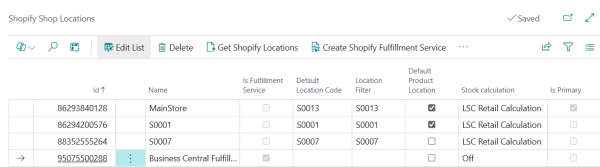
Note: Enable Default Product Location to specifies the default product locations that will be added to new products in Shopify.
Shipment Method Mapping
Maps Shipping agent information from Shopify to Shipping agent in LS Central in the Customer Order.
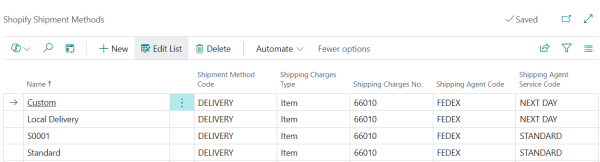
Note: In demo mode, the Shopify Shipment Methods page can be set up as above.
Note: Customer Order synchronization and posting will fail if the Locations and Shipment Method Mapping are not configured correctly on the Shopify Shop Card.
LS Central Extension
Click Actions in the menu toolbar of Shopify Shop Card and open the LS Central Extension menu.
Request Access
After creating and configuring the app in the Shopify Developer Dashboard and linking it to the Shopify development store, the Request Access action may be used. Prior to this, the Shopify Shop Card page must be configured to establish a successful OAuth connection between LS Central and Shopify.
Note: The steps below are a continuation from the Shopify setup process. Refer to Set Up Dev Dashboard .
Note: If you already have an existing Shopify store and a valid API Key is known, there is no need to create an app or complete the setup process in the Shopify Dev Dashboard. Simply enter the API Key directly into the API Key field and skip the Request Access step.
To configure OAuth connection:
-
In Business Central, open Shopify Shop Card page and configure the LS Central Extension section. Retrieve the Client ID and Client Secret from the Apps - Settings in the Dev Dashboard.
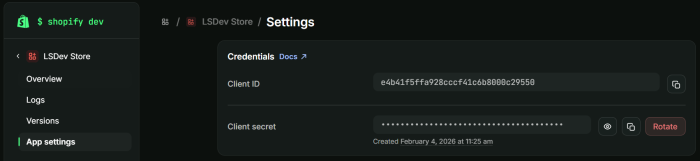
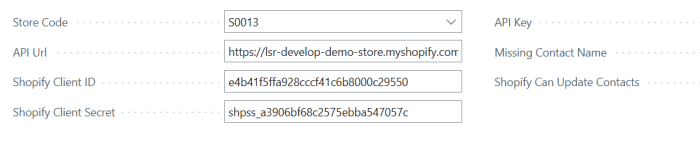
Note: Entering the Shopify API Key is not required at this step.
-
Continue the configuration by navigating to Actions - LS Central Extension - Request Access. This will request access to the Shopify store.
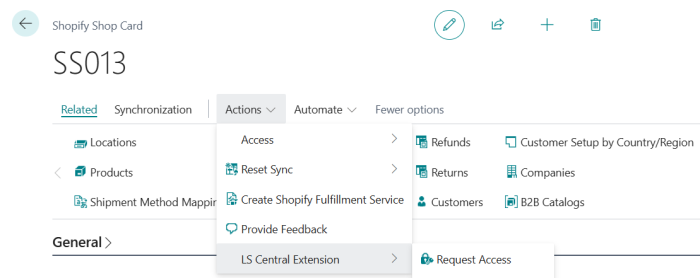
Note: Before clicking Request Access, make sure the Store Code and Shopify API Url fields are filled in, or the connection will fail.
-
Once redirected to Shopify, select Installto complete the app installation. The API Key field will be populated automatically.

Note: If this is older Shopify where Dev dashboard is not used, just type in the available API Key here without filling out Client Id / Secret.
Sync Discounts
Sends LS Central percentage discount offers to Shopify as automatic discounts. Running this action synchronizes all eligible Periodic Discount offers for the shop immediately.
Note: This action is only enabled when Send Discounts is selected on the Shopify Shop Card. If Send Discounts is not selected, Sync Discounts is unavailable (greyed out).
Sync Collections
Creates Shopify Collections based on the Collections settings enabled on the Shopify Shop Card - Special Groups, Item Categories, and Product Groups - and updates them immediately to Shopify.
LS Central Extension
Tender Type
This mapping is the same as Payment Method Mapping in standard BC Shopify, but due to access restriction, this needs to be set again. Use the same mapping values and map each payment method to the correct LS Central Tender Type.
-
Open the Web Service Setup page, then navigate to Related → Web Service → Web Request Log.
-
Find the entry with request ID SHGQL-OrderPull, then click View Response XML.
-
In the debug message, look for the
gatewayfield — this is the code you need. -
On the Tender Type page, map the fields:
- Shopify Gateway field → the Gateway code found in step 3
- Tender Type field → the matching LS Central Tender Type Code
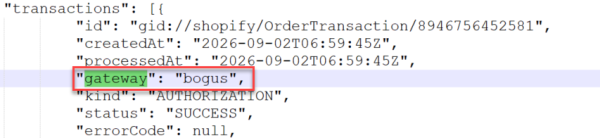

Note: In demo mode, Gateway is BOGUS.
Meta Data
Sets up Mapping of a field in Business Central tables to Shopify Meta Data entry. Fields from Product and Customer tables can be used and all fields in related tables to those (with relationship mapping to Product or Customer). This is addition to the Meta Data mapping in BC Shopify which is not linked to Table and fields.
Attribute names can be mapped to different Meta Data entries names, if no mapping is done the default Attribute name is used. If Include Attributes in MetaData is NOT selected, only those attributes that have been mapped, with default name or renamed, are sent to Shopify as Meta Data entry. For more information, refer to Metafields.
Note: All Meta Data is created under the lsretail namespace in Shopify.
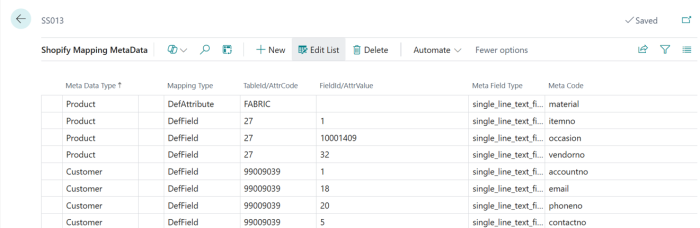
- Meta Data Type: Type of Shopify Meta Data
- Meta Field Type: Shopify Meta Type
- Mapping Type: Rename Attribute name (DefAttribute) or use data from Field in a Table (DefField)
- DefAttribute:
- AttrCode: Attribute name to rename.
- Meta Code: Shopify meta data name to use for attribute.
- DefField:
- TableId: Table ID.
- FieldId: Field ID to get data from.
- Meta Code: Shopify meta data name to use for field data.
Attribute and Item Category / Retail Product Group / Special Group Description fields are not sent to Shopify through this Meta Data mapping. For Attributes, what is mapped as Meta Data (via DefAttribute / Attribute) is the Attribute Value assigned to the item, keyed by Attribute Code or its mapped Meta Code — not the Attribute’s own Description. The Description of Item Category, Retail Product Group, and Special Group is sent to Shopify separately, as the title of the corresponding Shopify Collection, when Item Category Collection, Product Group Collection, or Special Group Collection is enabled on the Shopify Shop Card.
Images
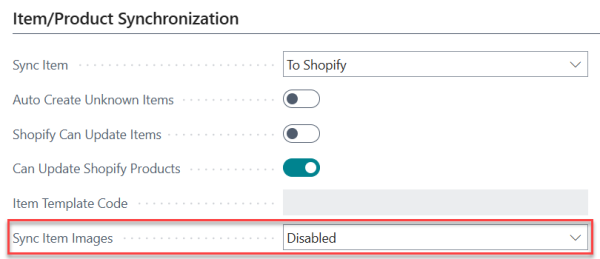
Mapping LS Retail Images to Shopify Images. Use this to send images for Item Variant Framework and additional item images, and Business Central Shopify support only one image per variant. When using LS Images, make sure to Disable Sync Item Images on Shopify Shop Card to prevent MS code from sending the default item image.
Note: This view is only for maintenance purposes or to fix broken links as it gets filled out when LS Images are sent to Shopify. The whole mapping can be cleared for resetting the mapping between the two systems. Can be useful during testing or implementation.
- External Url: Specifies whether the image was last synced to Shopify using an external Image Location URL, instead of an uploaded file.
Discounts
Mapping of Shopify discounts to LS Central Periodic Discount offers.
Note: Enable Send Discounts on the Shopify Shop Card before syncing discounts. Otherwise, the Sync Discounts action will be unavailable (grayed out).
Collections
Mapping of Shopify Collections IDs to LS Central Product Group / Special Group / Item Category codes.
Other LS Central Setups
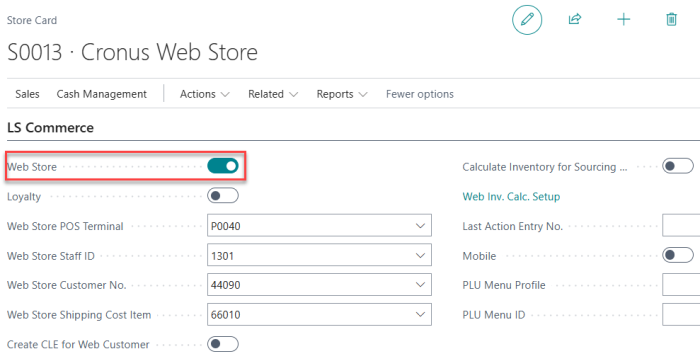
Store Setup
- Select the Web Store check box in the LS Commerce FastTab and assign all values needed in the Web Store fields.
Shipping Cost Setup
- All orders with a shipping cost will use Web Store Shipping Cost Item that has been set in the Store Card for the web store to assign shipping cost to the order.
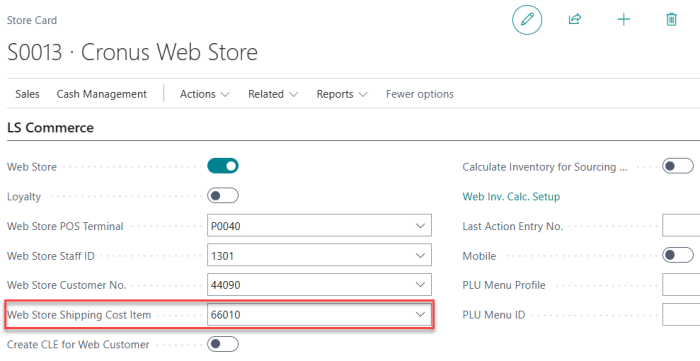
Note: Make sure the Price Includes VAT check box is selected in the item used for shipping cost, to handle VAT calculation correctly.
Customer Order Setup
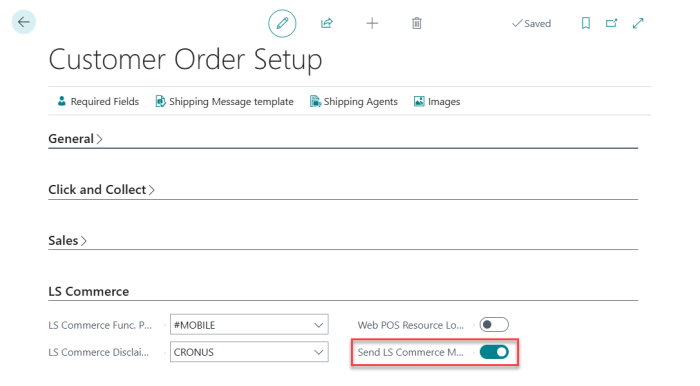
When a Customer Order changes status, is shipped, or posted, a web-hook message is sent back to Shopify to update the status of the Order.
- Select the Send LS Commerce Message check box to activate messages. To locate this setting, see the visual guide in the screenshot below.
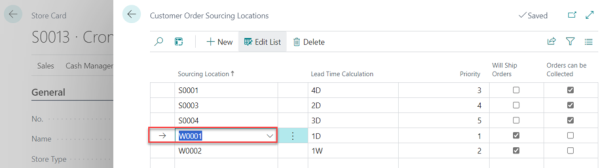
Sourcing Locations
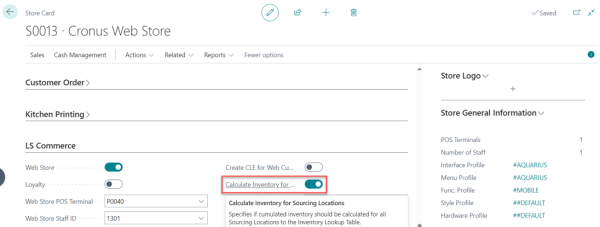
- In the LS Commerce FastTab in the Store Card, enable the Calculate Inventory for Sourcing Locations check box. First, confirm that the Warehouse (W0001) location for the Web Store exists; if it does not, create a new entry in the Customer Order Sourcing Locations table.
Web Service Setup
-
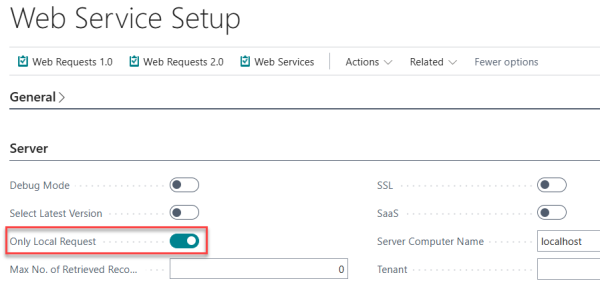
To avoid having to publish and subscribe to web services, select Only Local Request under Server.
Debugging
It is possible to debug the communication that goes between Shopify and Business Central.
-
Open Web Service Setup.In the Logs FastTab, set Server Log Level to All.
-
Once LS Central sends a request to Shopify, it will be logged in the Web Request Log. You can find this by going to Related - Web Service - Web Request Log on the same page.
Note: Shopify communications will have the Request ID SHGQL-xxxx.
Migration from Shopify LS Connector
If you are moving from the standalone eCommerce - Shopify to the Shopify BC Connector for LS Central, products, images, meta data, tender types, and unprocessed orders can be migrated from the old store setup into the new Shopify Shop.
For the full migration procedure, see Migration from Shopify LS Connector to Shopify BC Connector.
Video Tutorial
Watch the video on YouTube to learn more about Shopify BC Connector for LS Central Configuration:
See also
Business Central Configuration