In this article
Assign Bookings per Device Units
Assign Bookings per Location Units
Assign Staff Management per Employee Units
Assign Hotel per Property Units
Assign Hotel per Room Units
Assign Aggregated Inventory per Location Units
Assign Base Units
With an active license you need to assign BC users to LS Base Units.
- In the License Manager Setup page, click the Units Setup action, and then the Base Units action.
This triggers a call to the License Manager API. If an API call is not possible, a message is displayed. You will not be able to update the units.
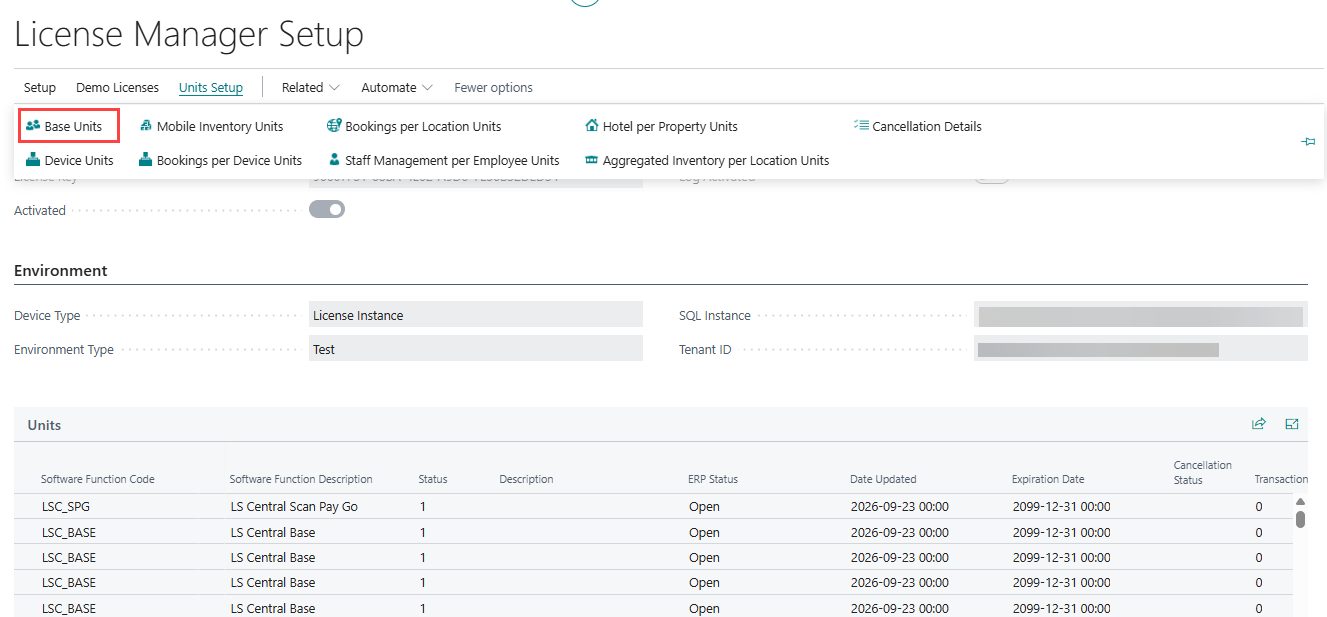
- A page is displayed where you can see how many LS Base Units you have, how many are assigned, and how many are free to be assigned.
A list of users already assigned to LS Base Units is also displayed.
Note: These units are for the entire License Key, they are not company or tenant specific.

- To assign more users, click the Assign Units action.
A page pops up with a list of all your Full Users. On this page you can identify the ones already assigned. Select one or more users to be assigned, and click OK.
If you select a user that was already assigned, an error message is displayed. If you select more users than the units that are free, an error message is displayed.
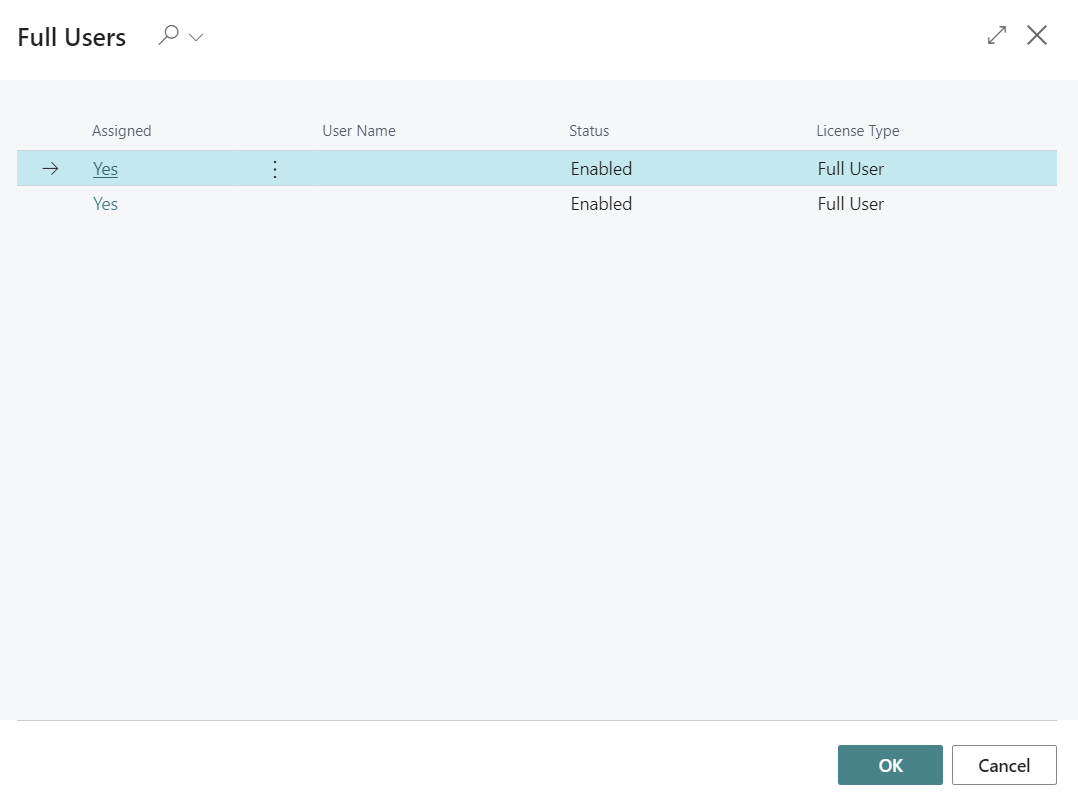
- To unassign users, select one or more, and click the UnAssign Units action.

Assign Device Units
Note: This functionality was refactored in LS Central version 26.0 .
These units are no longer manually assigned to POS terminals. The assignment is done automatically by the extension. Users can add or remove units to or from each instance.
-
When Activate License, if the license has LS Device Units available, the user is asked to choose how many LS Device Units should be activated on the current instance. This number can be updated later on.

Note: The number of LS Device Units available to be activated depends on the total number of LS Device Units purchased minus the total number of LS Device Units already activated by other instances.
-
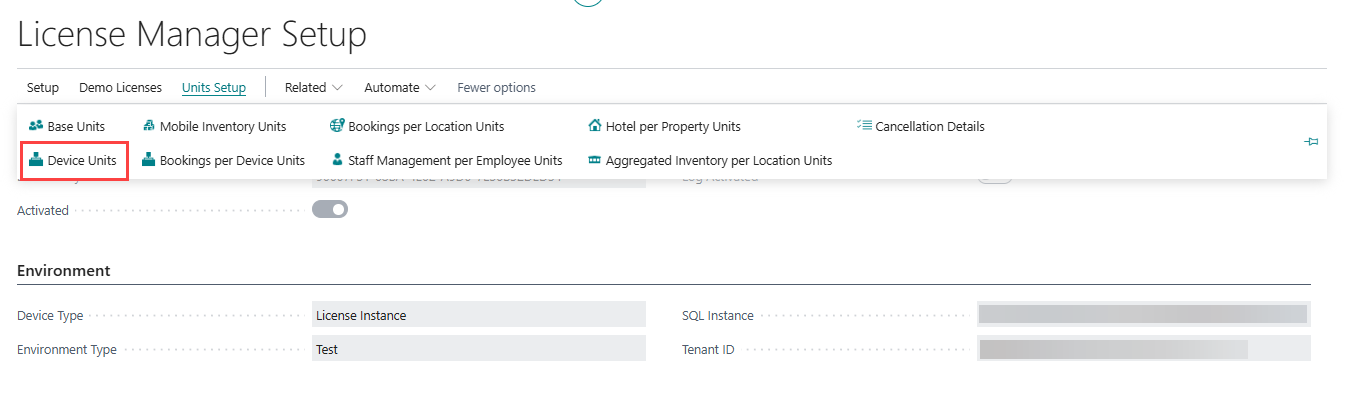
In the License Manager Setup page, click the Units Setup menu, and then the Device Units action. This triggers a call to the License Manager API. If an API call is not possible, a message is displayed. You cannot update the units.
-
A page is displayed where you can see how many LS Device Units exist, how many are assigned, and how many are available. The Instance group represents the totals for the current Instance. The License group shows the totals for the entire License. Below these there is a list of Unit Sessions. The list displays who is using or used an LS Device Unit on the current Instance.

Note: The Session Active column indicates if the Session is still active. If the Session is no longer active, that LS Device Unit is available to be picked up by a new User Session, if needed.
-
To have more LS Device Units available in the current Instance, click the Add Units action. You are asked to choose how many should be added, and as before this number depends on how many LS Device Units are available on the License.
This action is disabled, if the number of available LS Device Units on the License is zero.

-
To remove units from the current Instance, click the Remove Units action. Units removed from the current Instance become available to be added to other Instances.
This process first removes unit(s) not being used. If not sufficient, the process also removes units being used. This will affect the respective User sessions.

Additional Notes:
An LS Device Unit is required when a Microsoft Device User triggers an LS Central functionality.
An LS Device Unit is considered available, if it is not assigned to any User session or if the User session using it is no longer active on the Active Sessions table.
The Active Sessions table belongs to Microsoft and its content is managed by Microsoft. LS Central only uses the records in this table to determinate if a User Session is active or not.
Assign Bookings per Device Units
Before you set up Bookings per Device Units, you must first configure the standard LS Central Device Units in your instance.
Each Bookings per Device Unit consumed also consumes a corresponding Device Unit. Therefore, the number of Bookings per Device Units in use, should not exceed the number of activated Device Units in your instance.
Bookings per Device Units behave similarly to standard Device Units:
- Their assignment is handled automatically by the extension.
- Users can manually add or remove units for each instance as needed.
Step by step guide:
-
When Activate License, if the license has Bookings per Device Units available, the user is asked to choose how many Bookings per Device Units should be activated on the current instance. This number can be updated later on.

Note: The number of Bookings per Device Units that are available to be activated depends on the total number of Bookings per Device Units purchased, minus the total number of Bookings per Device Units that are already activated by other instances.
-
In the License Manager Setup page, click the Units Setup menu, and then the Bookings per Device Units action. This triggers a call to the License Manager API. If an API call is not possible, a message is displayed. You cannot update the units.

-
A page is displayed where you can see how many Bookings per Device Units exist, how many are assigned, and how many are available. The Instance group represents the totals for the current Instance. The License group shows the totals for the entire License. Below these there is a list of Unit Sessions. The list displays who is using or used a Bookings per Device Unit on the current Instance.

Note: The Session Active column indicates if the Session is still active. If the Session is no longer active, that Bookings per Device Unit is available to be picked up by a new User Session, if needed.
-
To have more Bookings per Device Units available in the current Instance, click the Add Units action. You are asked to choose how many should be added, and as before this number depends on how many Bookings per Device Units are available on the License.
This action is disabled, if the number of available Bookings per Device Units on the License is zero.

-
To remove units from the current Instance, click the Remove Units action. Units removed from the current Instance become available to be added to other Instances.
This process first removes unit(s) not being used. If not sufficient, the process also removes units being used. This affects the respective User sessions.

Additional Notes:
A Bookings per Device Unit is required when a Microsoft Device User, which is also an active Activity User, triggers an LS Central functionality.
A Bookings per Device Unit is considered available, if it is not assigned to any User session or if the User session using it is no longer active on the Active Sessions table.
The Active Sessions table belongs to Microsoft and its content is also managed by Microsoft. LS Central only uses the records in this table to determinate if a User Session is active or not.
Assign Bookings per Location Units
With an active license, if you wish to use the Bookings module, you need to assign Activity Locations to Bookings per Location Units.
- In the License Manager Setup page, click the Units Setup menu, and then the Bookings per Location Units action.
This triggers a call to the License Manager API. If an API call is not possible, a message is displayed. You will not be able to update the units.
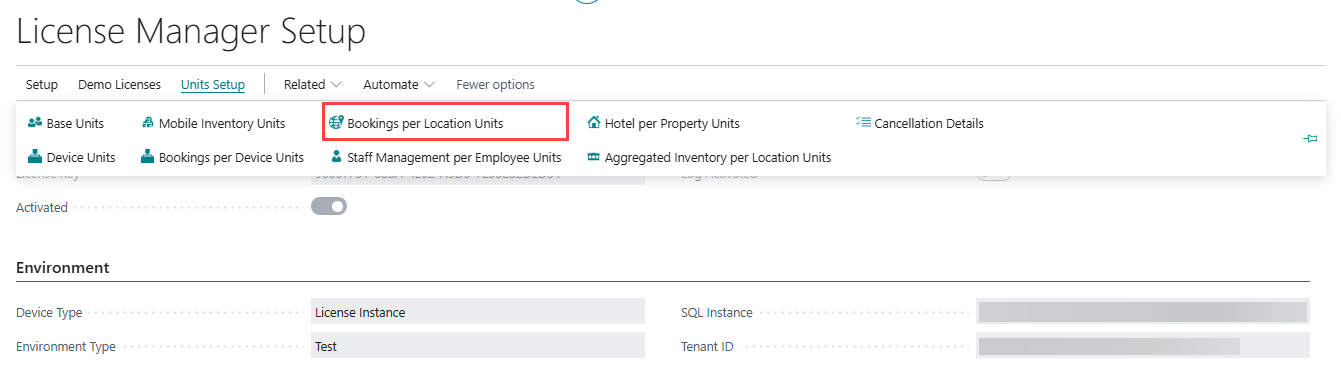
- A page is displayed where you can see how many Bookings per Location Units you have, how many are assigned, and how many are available to be assigned.
A list of Activity Locations already assigned to Bookings per Location Units is also displayed.
Note: These units are for the entire License Key, they are not company or tenant specific.

- To assign more Activity Locations, click the Assign Units action.
A page is displayed with a list of all your Activity Locations. On this page you can identify the ones already assigned. Select one or more to be assigned, and click OK.
If you select an Activity Location that was already assigned, an error message is displayed.
If you select more Activity Locations than units available, an error message is displayed.

- To unassign, select one or more, and click the Unassign Units action.

Assign Staff Management per Employee Units
How Staff Management Licensing Works
Staff Management uses a count-based licensing model. The system counts the number of active (non-blocked) records in the Staff Employee table per instance and compares that count against the number of units assigned to that instance. There is no 1:1 mapping between a unit and a specific staff record — a unit simply represents one allowed active employee.
This is different from other unit types such as Bookings per Location or Hotel per Property, which bind a unique identifier to each specific record. With Staff Management, any active staff record consumes one unit from the pool, regardless of which record it is.
- Active vs. blocked staff records: Only non-blocked staff records count against your unit allocation. Blocked staff records do not consume units.
- Shared pool across all environments: Production and all sandbox and test environments share the same unit pool. There is no separate pool for test or sandbox environments.
Note: Units assigned in any environment — production, UAT, development, or sandbox — all consume from the same total allocation. For example, if you have 2,500 total units and assign 2,000 to a production company, only 500 units remain available for all other companies and all other environments combined, including sandboxes.
Warning and Enforcement
From v25/v26, a non-blocking notification banner is displayed when the number of active staff records on an instance exceeds the units assigned to it. From v27 onwards, exceeding the assigned unit count produces a blocking error that prevents staff operations until the allocation is corrected. If you see a warning notification, resolve the allocation before upgrading to v27 or later.
Planning Your Allocation
Before assigning units, calculate how many you need across your full environment:
- Count the active (non-blocked) staff records per company per instance.
- Sum this count across all companies and all environments, including sandboxes and test environments.
- This total must not exceed your purchased license units.
- Keep a buffer of unassigned units in the pool so that companies can add new staff without requiring an immediate license purchase.
In multi-company or franchise setups, all companies share the same unit pool. If one company or instance assigns more units than it needs, fewer units remain available for all others. Nothing in the system prevents a single instance from assigning up to the full available pool — distribution must be planned and coordinated deliberately.
Two common approaches to managing allocation:
- Lean approach (recommended): Assign only the units needed for current active staff per instance. Each franchise or company manages their own allocation, adding units when hiring and releasing units when staff leave or become blocked. This is the most efficient use of the license.
- Headroom approach: Assign more units than currently needed per instance to reduce the frequency of adjustments. This is simpler operationally, but consumes more units from the shared pool and may require earlier additional license purchases.
Assigning and Unassigning Units
With an active license, to use the Staff Management module you need to assign the number of employees you want to manage to Staff Management per Employee Units.
- In the License Manager Setup page, click the Units Setup menu, and then the Staff Management per Employee Units action.
This triggers a call to the License Manager API. If an API call is not possible, a message is displayed. You will not be able to update the units.
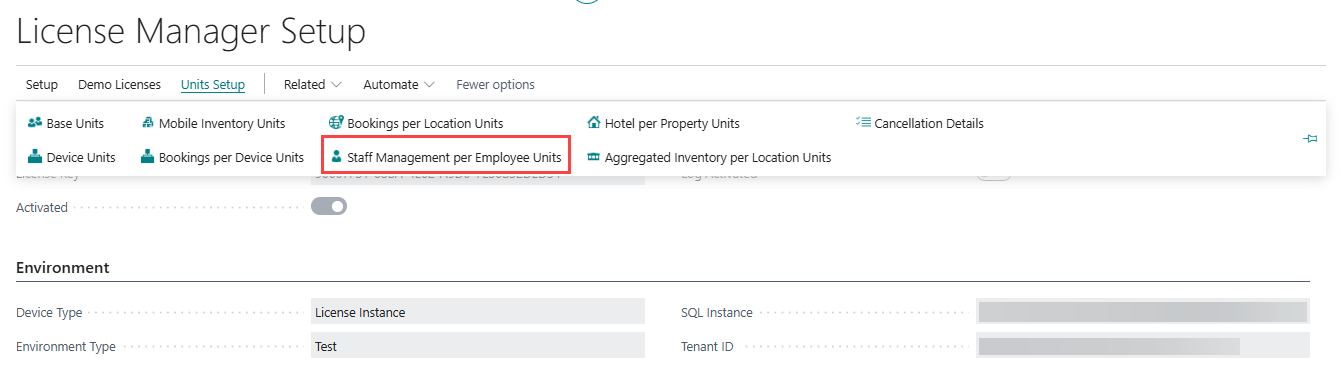
- A page organized in three sections is displayed:
In the first section, named LS Central Units, you can see how many Staff Management per Employee Units you have, how many are assigned, and how many are available to be assigned.

In the second section, named Staff Management per Employee Units Throughout Instances, you see the number of employees assigned to Staff Management per Employee Units on this instance, and how many, if any, are assigned on other instances.
Note: The On this instance field shows the actual number of employees you are able to manage on this specific instance.

In the third section, named Employee Units Identifiers, you see a list of all Staff Management per Employee Units already assigned, and whether each unit belongs to this instance or another instance.

Note: These units are for the entire License Key, they are not company or tenant specific.
- To increase the number of employees you can manage on your instance, click the Assign Units action. A dialogue window is displayed. Insert the number of employees you wish to add, and click OK.

- To decrease the number of employees you can manage on your instance, click the Unassign Units action. A dialogue window is displayed. Insert the number of employees you wish to remove, and click OK.
Note: It is possible to unassign units from other instances by inserting an amount greater than the number currently assigned to this instance. The instances from which the units are unassigned are chosen randomly.
Warning: Unassigning units from other instances can immediately disrupt active production or franchise environments. If another instance is actively using its assigned units and those units are removed, staff operations in that instance will be blocked until units are reassigned. Only unassign from other instances as part of a coordinated reset, not during normal operations.

Troubleshooting Unit Assignments
Hard Reset — Resetting All Unit Assignments
If unit assignments are in an unknown or misconfigured state — for example, after extensive sandbox use, environment deletions, or independent instance setup — the recommended recovery approach is to unassign all units across all instances and reassign from scratch.
It is possible to unassign the full total of assigned units from a single instance in one operation. This effectively clears all unit assignments across all environments at once. To do this successfully, the system requires that no units are in use — meaning there can be no active (non-blocked) staff records on that instance. If there are active employees, the system will block the operation because the number of units being removed would exceed the number of available units.
To perform a full reset from a single instance:
- Block all active staff records on the instance, or perform the reset from an instance that has no active employees.
- Navigate to Staff Management per Employee Units and use Unassign Units, entering the full total of assigned units across all instances.
- Once all units are unassigned, recalculate your required allocation (see Planning Your Allocation above) and reassign the correct amounts per instance.
Note: This is safe to perform. Staff Management units are count-based and are not linked to specific staff records. Unassigning and reassigning does not affect staff data or transactions.
Orphaned Units from Deleted Environments
If a sandbox or other environment is deleted while Staff Management units are still assigned to it, those units become orphaned. They remain marked as in use and are not automatically released. To recover orphaned units, they must be manually released through the License Manager back office.
Assign Hotel per Property Units
With an active license, if you wish to use the Hotels module, you must assign Hotel Properties to Hotel per Property Units.
- In the License Manager Setup page, click the Units Setup menu, and then the Hotel per Property Units action.
This triggers a call to the License Manager API. If an API call is not possible, a message is displayed. You will not be able to update the units.
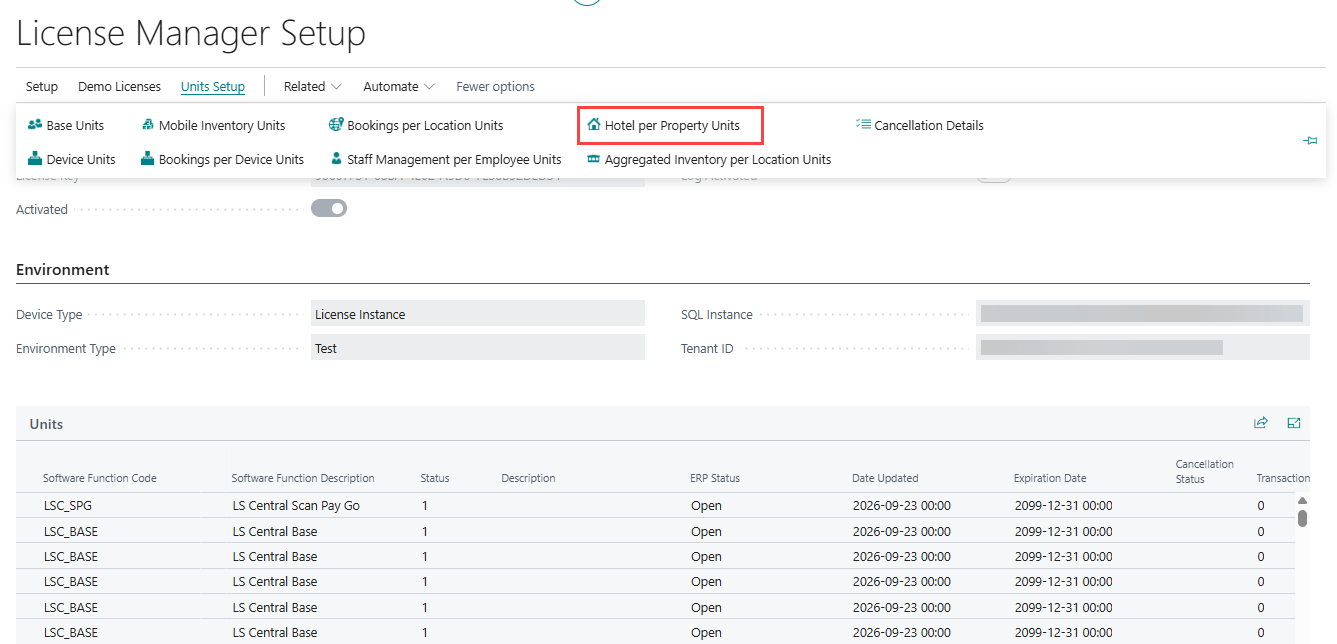
- A page is displayed where you see how many Hotel per Property Units you have, how many are assigned, and how many are available to be assigned.
A list of Hotel Properties already assigned to Hotel per Property Units is also displayed.
Note: These units are for the entire License Key, they are not company or tenant specific.

- To assign more Hotel Properties, click the Assign Units action.
A page is displayed with a list of all your Hotel Properties. Here you can identify the ones already assigned. Select one or more to be assigned, and click OK.
If you select a Hotel Property that was already assigned, an error message is displayed.
If you select more Hotel Properties than units available, an error message is displayed.

- To unassign, select one or more units, and click the Unassign Units action.

Assign Hotel per Room Units
With an active license, if you wish to use the module, you must also assign Hotel per Room Units.
Hotel per Room Units use a count-based licensing model. Unlike Hotel per Property Units, which bind one unit to one specific Hotel Property, a Hotel per Room Unit is not linked to a specific room. Each hotel room that exists consumes one unit from the pool, regardless of which room it is or which property it belongs to. The number of Hotel per Room Units assigned to an instance must therefore be equal to or greater than the number of rooms on that instance.
Note: Hotel per Room Units are never activated automatically when you activate a license. You must always assign them manually on this page.
Note: The Hotel per Room Units action is displayed on SaaS environments only, after a license has been activated.
- In the License Manager Setup page, click the Units Setup menu, and then the Hotel per Room Units action. This triggers a call to the License Manager API. If an API call is not possible, a message is displayed. You will not be able to update the units.
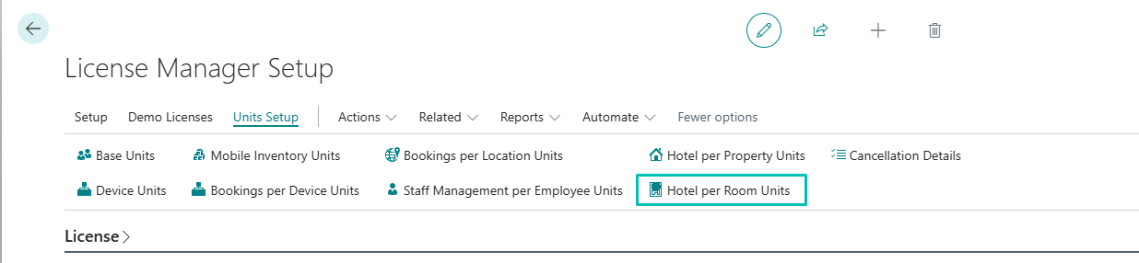
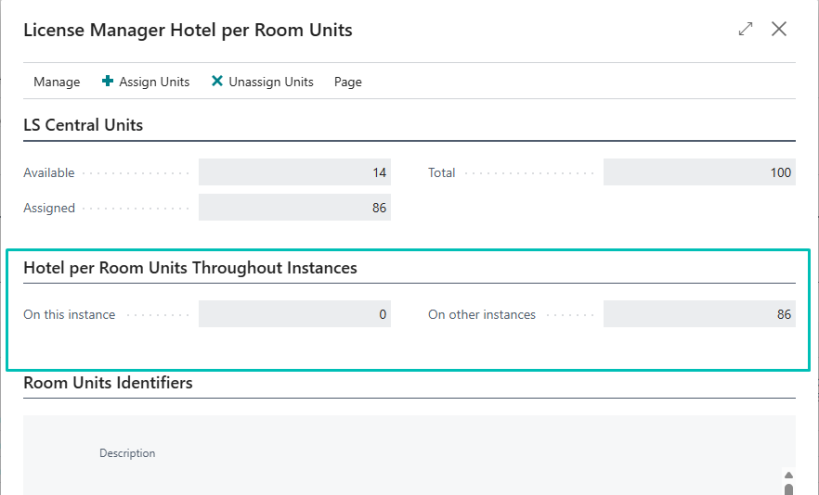
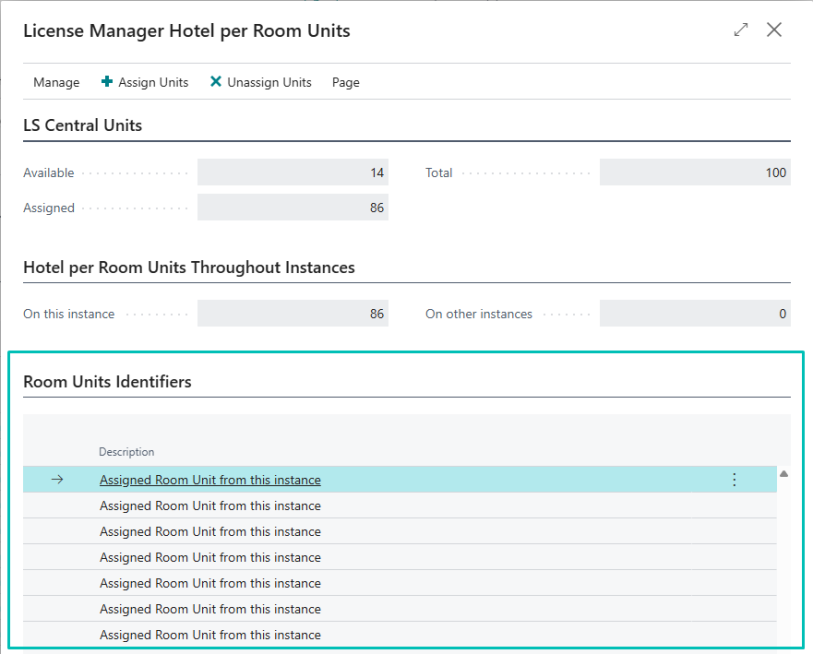
- A page organized in three sections is displayed:
- In the first section, named Units, you see how many Hotel per Room Units you have in total, how many are assigned, and how many are available to be assigned.
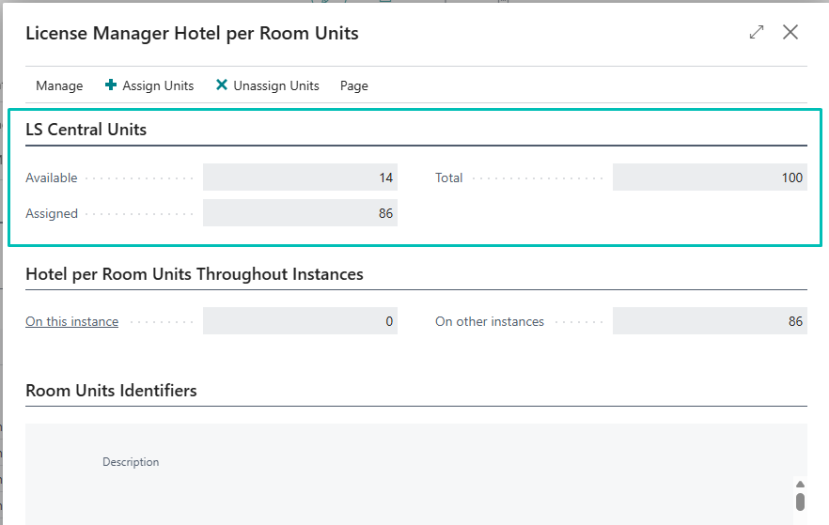
- In the second section, named Hotel per Room Units Throughout Instances, you see how many units are assigned on this instance, and how many, if any, are assigned on other instances. Note: The On this instance field shows the actual number of rooms you are able to manage on this specific instance.
- In the third section, named Room Units Identifiers, you see a list of all Hotel per Room Units already assigned, and whether each unit belongs to this instance or another instance.
Note: These units are for the entire License Key, they are not company or tenant specific.
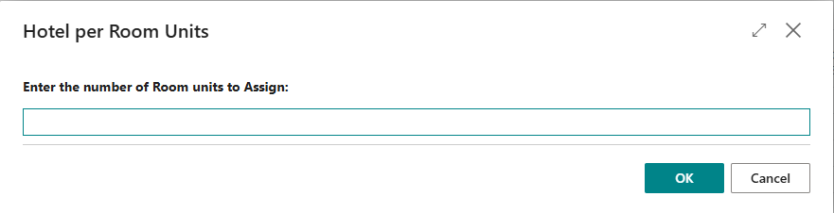
- To increase the number of rooms you can manage on this instance, click the Assign Units action. A dialogue window is displayed. Enter the number of Room units you wish to add, and click OK.
If all the units on the license are already assigned, an error message is displayed, and you are advised to unassign some units first.
If you enter a number greater than the units available on the license, an error message is displayed.
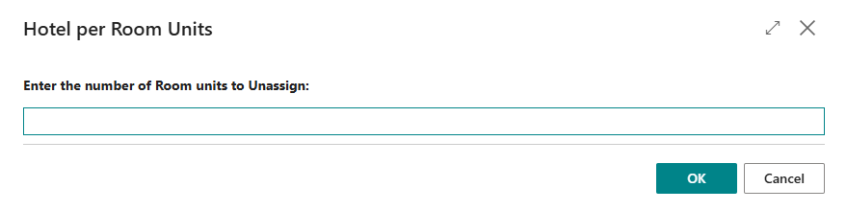
- To decrease the number of rooms you can manage on this instance, click the Unassign Units action. A dialogue window is displayed. Enter the number of Room units you wish to remove, and click OK.
- You cannot leave this instance with fewer units than the number of rooms that already exist. If you try, an error message is displayed, asking you to remove some room records first.
Note: It is possible to unassign units from other instances by entering an amount greater than the number currently assigned to this instance. The instances from which the units are unassigned are chosen randomly. A confirmation is displayed before this happens.
Warning: Unassigning units from other instances can immediately disrupt active production environments. Only unassign from other instances as part of a coordinated reset, not during normal operations.
Warning and enforcement
When the number of rooms on an instance is greater than the number of Hotel per Room Units assigned to it, a notification is displayed. The notification tells you that you have more rooms than assigned units, and explains how to assign more units from the License Manager Setup page.
Note: In this release the notification is a warning only, and it does not stop you from working with rooms. In a future major release, exceeding the assigned unit count will produce a blocking error instead. If you see this notification, correct the allocation before you upgrade.
Note: The room count is checked on SaaS environments only, and only in the Head Office company. On prem environments are not affected.
Assign Aggregated Inventory per Location Units
To activate Aggregated Inventory for locations, you first need to have enough license units assigned.
- In the License Manager Setup page, click the Units Setup menu, and then the Aggregated Inventory per Location Units action.

- A page organized in three sections is displayed:

-
In the first section, named Aggregated Inventory Units, you can see how many units you have in total, how many are already assigned, and how many are available to be assigned. These units are for the entire License Key, they are not company or tenant specific.
-
In the second section, named Location Units Throughout Instances, you see the number of units on this instance, and how many are assigned on other instances. You can also see how many locations are currently activated for Aggregated Inventory in the current company.
-
In the third section, named Location Units Identifiers, you see a list of all Aggregated Inventory per Location Units already assigned, and whether each unit is assigned on this or another instance.
- To increase the number of units on the current instance, click the Assign Units action. A dialogue window is displayed. Insert the number of units you want to add, and click OK.

- To decrease the number of units on the current instance, click the Unassign Units action. A dialogue window is displayed. Insert the number of units you want to remove, and click OK.
It is possible to unassign units from other instances. For this you just need to insert an amount greater than the one you have on this instance. Keep in mind, in this scenario, that the instances, from which the units will be unassigned, will be chosen randomly.

Once you have assigned enough license units, you can activate Aggregated Inventory on the Retail Setup. The program will automatically activate all store locations.

Once you have unassigned units, you can deactivate Aggregated Inventory on the Retail Setup. The program will automatically deactivate all store locations.
