In this article
Activate License
- Click the
 icon, enter License Manager Setup, and select the relevant link.
- Click the Setup action, and then Activate.

- Insert the license key provided by LS Retail in the License Key field, and select the relevant Environment Type that you are setting up.

- After a few moments you should see a similar result as in the below image. The list of units displayed depends on what is covered by your license.
Note: An outside of BC connection is triggered to our License API.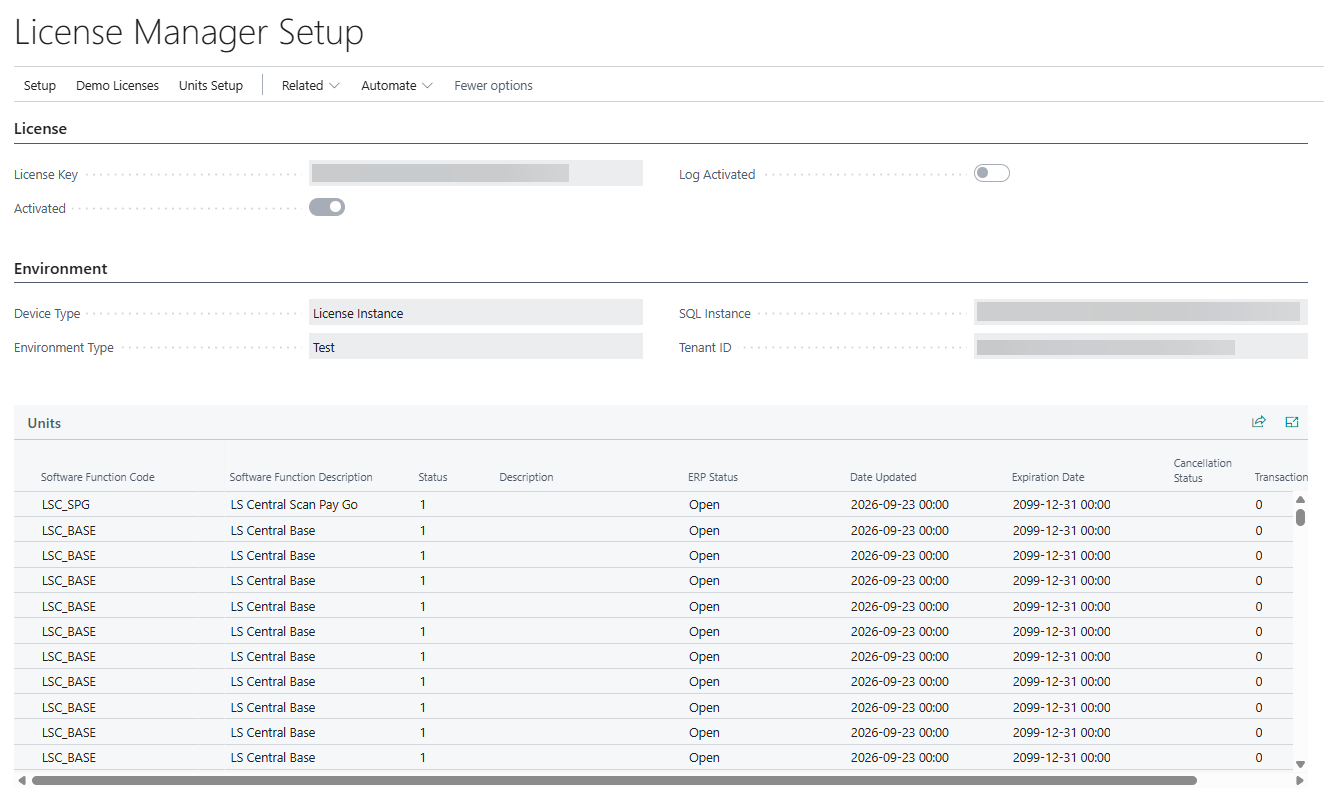
Demo
You can activate a demo license key. This key will expire 30 days after being activated, but it can renew for an additional 30 days.
- In the License Manager Setup page, click the Demo Licenses action, and then the License Demo action.

- Terms and conditions will need to be accepted. A link to consult the full Terms and Conditions is available.

- A message is displayed with the expiration date of the demo license.

You can create demo units. The demo units will expire 30 days after being activated.
- In the License Manager Setup page, click the Demo Licenses action, and then the SPG Demo or ECOM Demo action.
- A DEMO unit will be available.

At any time you can activate a license key that will replace the existing Demo.