The MY ClearTax e-Invoicing integration uses two HO-level scheduler jobs to automate the creation and submission of e-Invoices. Both jobs must be configured and scheduled to run on the Head Office (HO) server — they are not run at the store level.
Both jobs require that Enable E-Invoice is active and that Effective From is set in the E-Invoice Setup page. The Company Information page must also have a valid Tax Identification No. (TIN). See E-Invoice Setup and Company Information.
Job 1: Create staging entries
Codeunit: 10045233 — LSCMY Create Trans. Staging
This job scans all posted sales transactions in LS Central with a date on or after the Effective From date configured in E-Invoice Setup, and creates a Trans. Header Staging entry for any transaction that does not yet have one. The staging entry is the integration's internal record of the e-Invoice lifecycle for that transaction.
Each new staging entry is assigned a UniqueId composed from the company TIN, the receipt number, the document type, and the transaction date. The initial status is Pending.
The job ignores transactions that:
- Are before the Effective From date.
- Already have a staging entry.
- Are not of type Sales.
- Have no item lines and no income/expense amount (zero-value transactions).
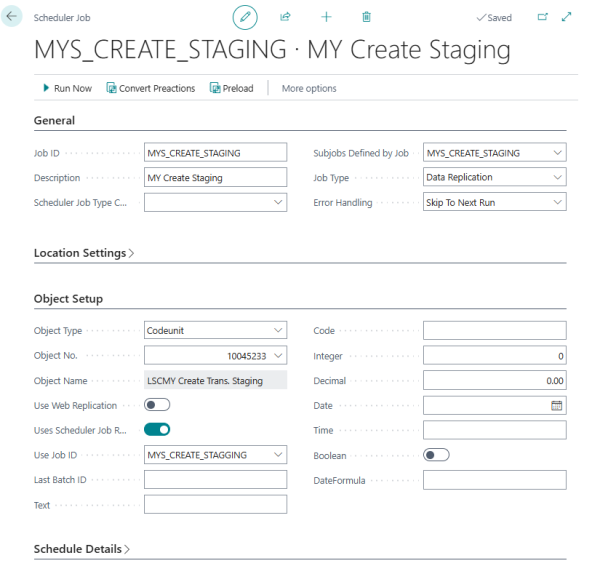
To set up this scheduler job:
- Click the
 icon, enter Scheduler Job Headers, and select the relevant link.
 - Create a new scheduler job header.
- Set the Codeunit No. to 10045233.
- Set the schedule frequency appropriate for your business (for example, every 15 minutes or hourly).
- Ensure the job is set to run at the HO level.
Job 2: Process staging entries
Codeunit: 10045234 — LSCMY Process Trans. Staging
This job processes staging entries that are not yet marked as successful and have not exceeded the WS Maximum No. of Tries limit. For each qualifying entry it builds the e-Invoice JSON payload, calls the ClearTax API, and updates the staging status.
The scheduler header's Text field determines which API operation is called. You must set this value when configuring the job:
| Text value | Operation performed |
|---|---|
| GENERATE | Calls the ClearTax Generate API to validate and pre-generate the e-Invoice. The e-Invoice is not submitted to the IRBM in this step. Use this value only if your ClearTax workflow requires a separate generate step before upload. |
| UPLOAD | Calls the ClearTax Upload API to validate and submit the e-Invoice to the IRBM in a single step. This is the standard value used in production deployments. |
The value in the Text field is not case-sensitive. The job accepts both uppercase and lowercase input.
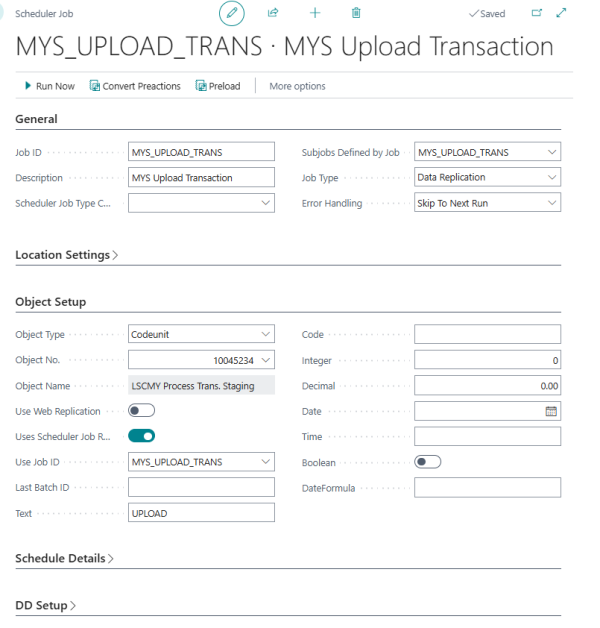
To set up this scheduler job:
- Click the icon, enter Scheduler Job Headers, and select the relevant link.
- Create a new scheduler job header.
- Set the Codeunit No. to 10045234.
- In the Text field, enter UPLOAD (or GENERATE if your workflow requires a separate generate step).
- Set the schedule frequency. This job should run after the Create Staging job has had a chance to run, so schedule it with a slight delay or lower frequency.
- Ensure the job is set to run at the HO level.
Staging status values
| Status | Meaning |
|---|---|
| Pending | The staging entry has been created but has not yet been processed by the Process Staging job. |
| In Progress | The Process Staging job is currently processing this entry. |
| Valid | The e-Invoice was accepted by ClearTax and the IRBM. The UUID returned by the IRBM is stored in the staging entry. |
| Error | The submission failed. The job will retry on the next run until the WS Maximum No. of Tries limit is reached. Check the E-Invoice Logs for the error details. See E-Invoice Log. |
See also