The Upload e-Invoice POS command lets cashiers manually trigger the submission of an e-Invoice for the currently selected transaction directly from the POS. This is useful when a customer requests an e-Invoice immediately at the point of sale, before the scheduled background jobs have processed the transaction.
Before this command can be used, you must:
- Complete the E-Invoice Setup, including the API credentials and endpoint URLs. See E-Invoice Setup.
- Register the POS command in POS External Commands. See Register POS Command.
Add Upload e-Invoice to the POS transaction layout
Perform the following steps to add the command button to the POS interface:
- Click the
 icon, enter POS Menus, and select the relevant link.
 - Open the relevant POS Menu (for example, the menu used for the transaction view).
- Navigate to the Transaction List section, typically located under the #Trans menu group.
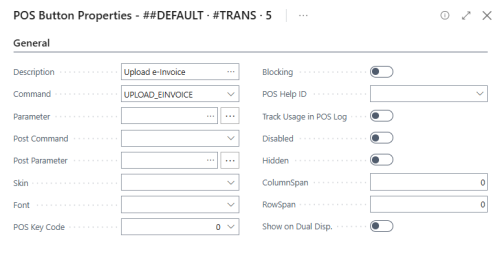
- Add a new menu line and set the Command field to UPLOAD_EINVOICE.
- Set a descriptive Caption such as Upload e-Invoice so cashiers can identify the button.
- Save and distribute the POS menu to the relevant POS terminals.
Using Upload e-Invoice at the POS
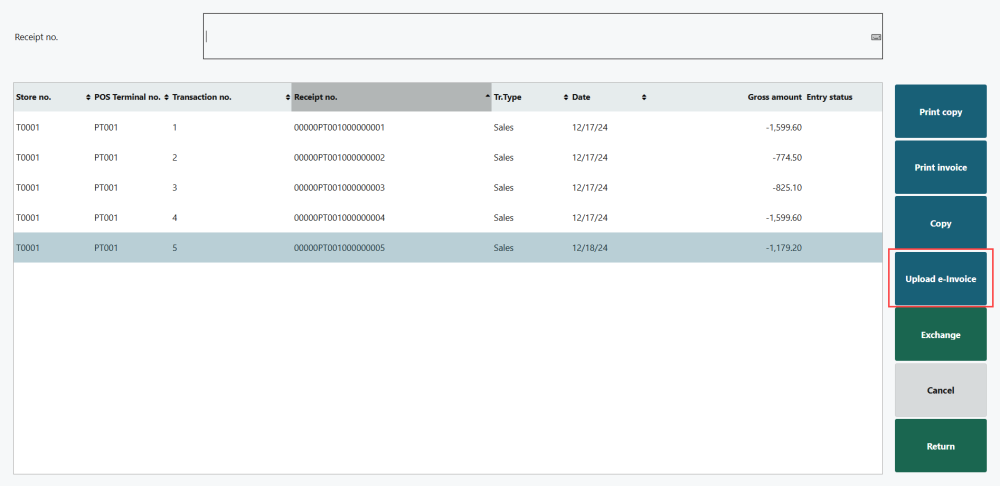
When the cashier presses the Upload e-Invoice button on the transaction list:
- LS Central verifies that the currently selected transaction is valid for e-Invoice submission (for example, that it is a posted sales transaction).
- The integration builds the e-Invoice JSON payload and submits it to the ClearTax Upload API.
- If the submission is successful, the staging entry is updated and the UUID returned by ClearTax is stored.
- If an error occurs, a message is displayed at the POS with the error details.
Notes
- The POS terminal must have internet connectivity to reach the ClearTax API. Ensure firewall rules allow outbound HTTPS access to the ClearTax endpoint URLs.
- For debugging purposes, enable Show JSON in E-Invoice Setup. When this option is on, the full JSON request body and the ClearTax response are displayed in a pop-up message each time an upload is triggered from the POS.
- The scheduler jobs process all eligible transactions automatically in the background. The POS Upload e-Invoice command is intended for on-demand or exception scenarios, not as the primary submission mechanism for high-volume environments.
See also