In this article
To set up a scale item for two-decimal quantity precision
How scale item quantity precision works in POS
The North America (NA) localization for LS Central always displays the Quantity of a scale item, sold in a weight-based unit of measure, with two decimal places on the POS (for example, 1.25 lb), to match local weight and measurement conventions. This is different from other LS Central localizations, where weight-based quantities can show up to three decimal places, and where the extra precision is not limited to items that are specifically flagged as scale items.
To set up a scale item for two-decimal quantity precision
- Search for and select Units of Measure. On the unit of measure that represents the weight your scale reports in, such as LB or KG, select the Weight Unit of Measure check box.
- Open the Retail Item Card for the item, and go to the POS FastTab.
- Select the Scale Item check box.
- If the Sales Unit of Measure field is blank, the system automatically fills it in with the weight unit of measure you flagged in step 1.
- If the Sales Unit of Measure field already contains a different unit of measure, the system shows an error. The Sales Unit of Measure for a scale item must be the weight unit of measure.
- Optional: To subtract the weight of the container (such as a tray or bag) from the weight the scale reads, click Show more on the POS FastTab, and set the Tare Weight field. Enter the tare weight in kilograms or pounds, depending on the unit of measure you use — for example, enter 0.005 to represent 5 grams.
- Optional: If a physical scale is connected to the POS through OPOS, add and configure the Scale device on the POS terminal's Hardware Profile. See Scale for details. If no scale device is configured, POS users enter the weight manually, and the same two-decimal display rule still applies.
Note: The Sales Unit of Measure validation described in step 3 only runs when the Scale Item check box is selected. Set up the weight unit of measure (step 1) before marking the item as a scale item.
How scale item quantity precision works in POS
When a POS transaction line is for an item that is marked as a Scale Item, and the unit of measure used on the line is flagged as a Weight Unit of Measure, the NA localization overrides the standard POS quantity format so that the Quantity is always shown with exactly two decimal places, for example 1.25 lb. This applies regardless of any other quantity rounding or precision setup on the item or unit of measure. For any other line, such as a scale item sold by a non-weight unit of measure, or a regular non-scale item, the quantity is displayed using the standard format, for example as a whole number for items sold by piece.
Click image to expand and collapse
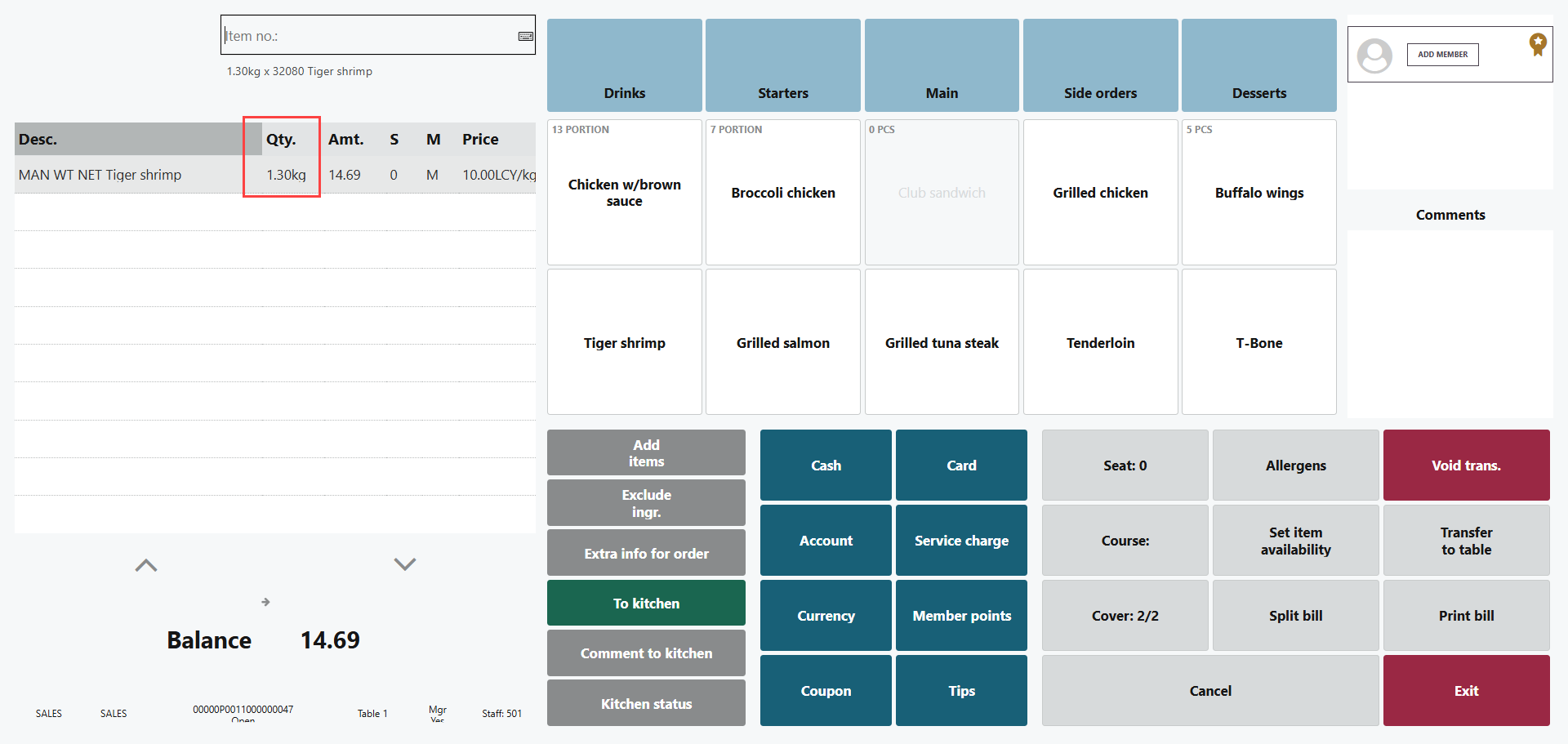
A scale item line on the POS journal, showing the quantity with two decimal places
If a Scale device is configured on the Hardware Profile, the POS reads the weight from the scale automatically when the item is added to the transaction. Before the item can proceed, the POS checks that the scale is stable, not still at zero, and not overweight. If any of these checks fail, the POS beeps and shows an error message, for example if the scale is not ready, the item is overweight for the scale, or a previous item was not removed from the scale before another item was added.
If no scale device is connected, or as a fallback when one is, POS users can enter the weight manually. On the receipt, a line with a manually entered weight is printed with the label MAN WT NET instead of Net, so that manually entered weights can be distinguished from weights read from the scale.
On a refund, the scale must be in a clear, ready state before the return line for a scale item can proceed.
If a Tare Weight is set up for the item, the POS subtracts it from the weight before calculating the quantity, and prints it as a separate Tare line on the receipt.
See also
- Units of Measure
- How to: Configure Price and Quantity for Scale Items
- How to: Set Up Tare Handling for Scales
- Scale
- Point of Sale