In this article
Step 2: Set the tax group for tax-exempt lines
Complete these steps once for the EBT card. For EBT Cash, create a second limitation as described in Set Up EBT Cash Payments.
Step 1: Enable limitations
Turn on Enable Limitation on the Retail Setup page, as described in How to: Enable Limitation. When it is off, the EBT amount tags are not calculated at the POS, no EBT balance is printed on receipts, and the balance check on payment is skipped.
Step 2: Set the tax group for tax-exempt lines
- Search for Stores, open the store, and open its Store Card, and go to the Statement/Closing FastTab.
- Set Tax Group Code (Limitation). This is the tax group for tax-exempted limitation lines. The POS checks this field when an EBT payment is made.
- Optionally, set VAT Prod. Posting Group (Limitation). If you leave it blank, the line keeps its own VAT Prod. Posting Group. Stores that use sales tax typically leave it blank.
See Set the Store Tax Group for EBT for more details.
Step 3: Create the limitation
The limitation is created once for the company, not on the Store Card. You assign it to each store later, when you Add EBT Tender Types to a Store.
- Click the
 icon, enter Limitation List, and select the relevant link.
- Choose New. The Limitation Card opens.
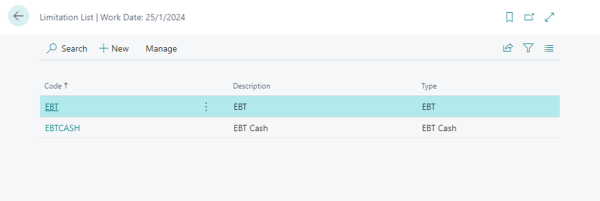
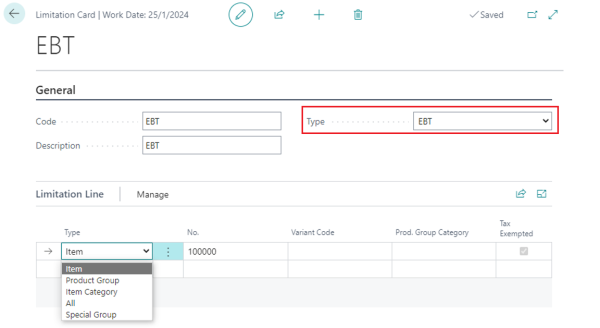
- On the General FastTab, fill in these fields:
- Code: a unique code, for example EBT.
- Description: a short description (up to 30 characters).
- Type: select EBT (the default). This value tells the POS which kind of EBT payment to send to the PSP, so it must match the tender the limitation is assigned to.
- In the Limitation Line FastTab, add one line for each group of items that the tender may pay for. For each line, fill in:
- Type: Item, Product Group, Item Category, Special Group, or All.
- No.: the item, product group, item category, or special group the line applies to. Leave it blank for type All.
- Variant Code: optional. Only valid when the line type is Item; other types show an error.
- Prod. Group Category: read-only. It is filled in from the product group's item category when the line type is Product Group.
- Tax Exempted: read-only, set by the system. Lines created on a limitation whose Type is EBT are automatically marked Tax Exempted.
The line Description is filled in automatically from the selected item, product group, item category, or special group.
Next, Add EBT Tender Types to a Store and assign the limitation to them.