In LS Central for India, fields on the POS Functionality Profile control whether, and at what level of detail, GST or VAT information prints on the POS receipt.
GST print settings
The following fields on the POS Functionality Profile control whether, and at what level of detail, GST information prints on the POS receipt.
- Click the
 icon, enter POS Functionality Profile, and select the relevant link.
 - Locate the profile you want to configure, and open it.
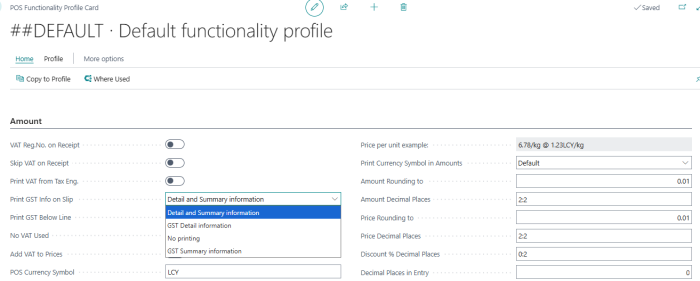
- Set the Print GST Info on Slip field. Specifies whether, and at what level of detail, GST information prints on the posted receipt:
- Detail and Summary information: Prints both the GST summary, grouped by tax rate, and the GST detail, broken down by tax component.
- GST Detail information: Prints only the GST detail, broken down by tax component. The summary grouped by tax rate is not printed.
- GST Summary information: Prints only the GST summary, grouped by tax rate. The detail broken down by tax component is not printed.
- No printing: No GST information is printed on the receipt.
- Turn on the Print GST Below Line toggle. Specifies whether the GST breakdown for a sales line prints directly below that line on the receipt, in addition to the consolidated GST section controlled by the Print GST Info on Slip field.
Note: The Print GST Info on Slip and Print GST Below Line fields apply to GST only. To print VAT details instead, use the Print VAT from Tax Eng. toggle described under VAT print settings.
VAT print settings
To print the VAT details on the receipt:
- Click the icon, enter POS Functionality Profile, and select the relevant link.
- Locate the profile you want to configure, and open it.
- Turn on the Print VAT from Tax Engine toggle.
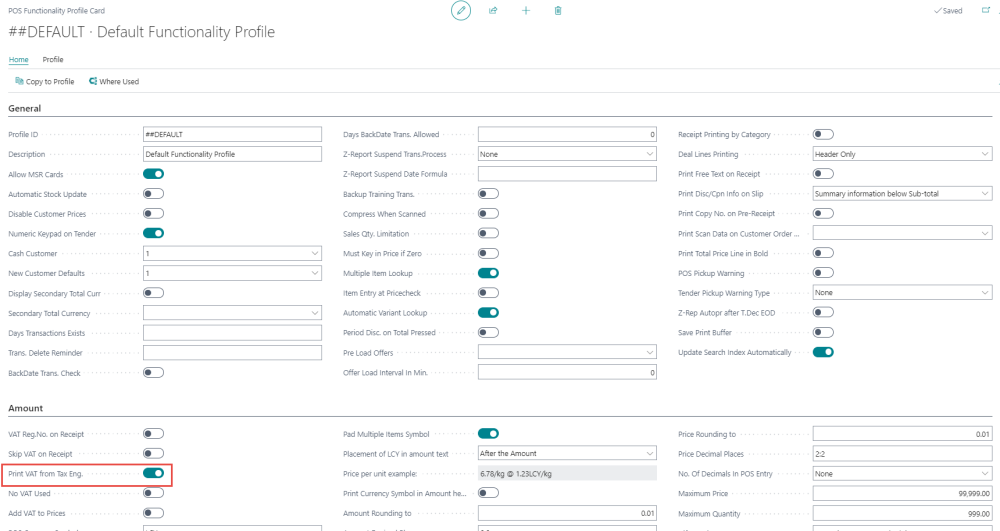
- By enabling this option, the VAT details will be printed on the receipt at the end of each sale transaction.