This topic explains how gift cards and vouchers — known in LS Central as POS Data Entry — are set up, sold, redeemed, and balance-checked in Adobe Commerce with LS Central.
In this article
Setting up POS Data Entry in LS Central
About POS Data Entry
In LS Central, the functionality that handles gift cards and vouchers is called POS Data Entry. From a technical point of view there is no difference between a gift card and a voucher — both are POS Data Entry types, and both are set up and processed the same way. Throughout this topic, data entry type means any POS Data Entry type, whether you call it a gift card, a voucher, or something else.
You can create as many POS Data Entry types as you need in LS Central, each with its own configuration. A retailer might, for example, keep one type for gift cards sold at full value, another for staff vouchers, and another for a refillable customer card.
Redemption models
Each data entry type behaves according to how it is configured in LS Central:
|
Model |
Behaviour |
Example |
|
Single use |
The whole amount is used in one transaction. Any remaining value is forfeited and the entry is marked as used. |
A staff member is issued a 20.00 voucher for food at an event. They spend 18.99; the voucher pays 18.99 and the remaining 1.01 is not available. The liability posted when the voucher was issued (20.00) is removed in full when it is used. |
|
Burn-down |
The entry can be used more than once, for whatever balance remains, until the balance reaches zero. The entry is then deactivated. |
A customer presents a 20.00 voucher and spends 11.00. At the POS, the cashier scans the voucher for 11.00 and the POS prints a new voucher carrying the same POS Data Entry ID and barcode for the remaining 9.00. |
|
Burn-down with top-up |
As burn-down, but value can also be paid back into the entry. |
Works like an e-wallet, and is usually issued as a plastic card with a barcode or a magnetic stripe. |
Note The behaviour of a data entry type comes from the fields on its POS Data Entry Type card in LS Central — in particular One Time Redemption (single use), Use Full Remaining Balance, and Refill (top-up). Adobe Commerce follows whatever LS Central reports for the entry; it does not decide the model itself.
Which Adobe Commerce edition you need
Selling and redeeming a POS Data Entry have different edition requirements, because selling depends on the Gift Card product type, which exists only in Adobe Commerce:
|
Function |
Adobe Commerce |
Magento Open Source |
|
Redeeming a POS Data Entry in the cart or at checkout |
Supported |
Supported |
|
Selling a POS Data Entry on the storefront |
Supported |
Not available |
Note Redemption works on both editions, provided the data entry type is set up correctly in LS Central and in Adobe Commerce. Selling requires Adobe Commerce, because the products that represent the data entry types are created as Gift Card products, and that product type is not part of Magento Open Source.
How a data entry type is issued
A POS Data Entry can be issued in two ways, and the method you choose determines how you set it up in both LS Central and Adobe Commerce:
- Through an income account — the recommended method.
- Through a non-stock item — possible, but not preferred, because the amount is treated as revenue and therefore appears in POS transaction sales reports.
Note Standard LS Central does not support issuing a POS Data Entry with a random ID or barcode. Numbering is controlled by the Numbering, No. Series, and Barcode Mask fields on the POS Data Entry Type card.
Setting up POS Data Entry in LS Central
Before a data entry type can be sold or redeemed on your web store, it has to be set up in LS Central. Complete the tasks in this section for each data entry type you want to expose to eCommerce.
Understanding the two infocodes
Every data entry type needs two infocodes in LS Central: one used when the entry is sold, and one used when the entry is redeemed. The infocode is what captures the entry number during the transaction.
Where you attach each infocode depends on the purpose:
|
Purpose |
Where the infocode is assigned |
|
Redeeming |
On the Tender Type Card, under InfoCodes. This is the same regardless of how the entry is sold. |
|
Selling, when the item type is Item |
On the Item Card, under Related > Retail/POS > POS > InfoCodes. |
|
Selling, when the item type is Income/Expense |
On the Income/Expense Account Card, under InfoCodes. |
Item type here refers to the Item Type you select for the data entry type in the Adobe Commerce configuration, described in Configuring Adobe Commerce below. Decide which of the two you are using before you set up LS Central, because it determines whether the selling infocode goes on an item or on an income/expense account.
Note Give the two infocodes names that make their purpose obvious. In the LS Central demo data, for example, the selling infocode is VOUCHER and the redeeming infocode is VOUCHERIN.
Creating the POS Data Entry Type
- In LS Central, search for and open POS Data Entry Types.
- Choose New, and enter a Code and a Description. The code is the value you will later enter in the Adobe Commerce configuration.
- Set the fields that define how the entry behaves — for example One Time Redemption, Use Full Remaining Balance, Refill, Check Amount, and Data Entry Only Allowed.
- Set Numbering, and if required a No. Series, Create Barcode, and a Barcode Mask.
- If the entry uses a PIN, switch on Use PIN and set the PIN Length.
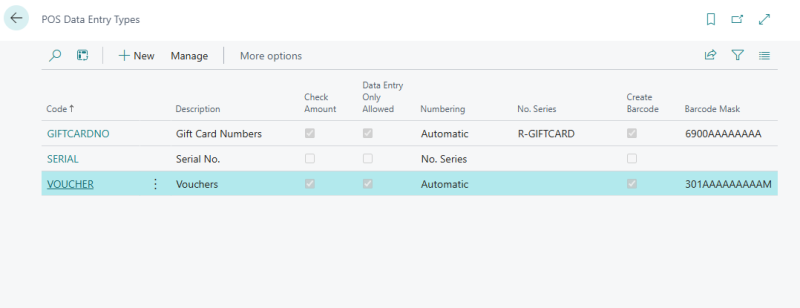
The POS Data Entry Types list. Each type has its own numbering and barcode mask.
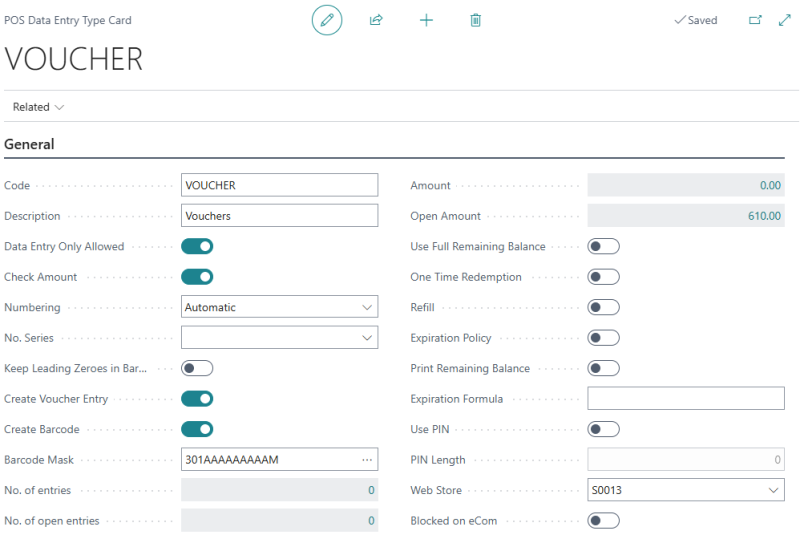
The POS Data Entry Type card. The fields on the right control the redemption model, the PIN, and whether the type is available to eCommerce.
Setting up redemption
To redeem a data entry type on the web store, LS Central needs a tender type for it, with the redeeming infocode attached.
- Search for and open Tender Types, and create a tender type for the data entry type — for example a Gift Card tender type.
- Open the Tender Type Card.
- Under InfoCodes, select the infocode you created for redeeming.
- Make sure the tender type is available to the store: open Store List, select the store, and under Cash Management > Tender Type, confirm that May Be Used is selected.

The redeeming infocode assigned on the tender type. The prompt is what the operator is asked for when the tender type is used.
Note If May Be Used is not selected for the tender type, the POS returns the error "This Tender Type may not be used." when you try to take payment with it.
Setting up selling for item type Item
Use this task when the data entry type is configured in Adobe Commerce with Item Type = Item.
- Search for and open Items, and open the item that represents the data entry type.
- Choose Related > Retail/POS > POS > InfoCodes.
- Select the infocode you created for selling.
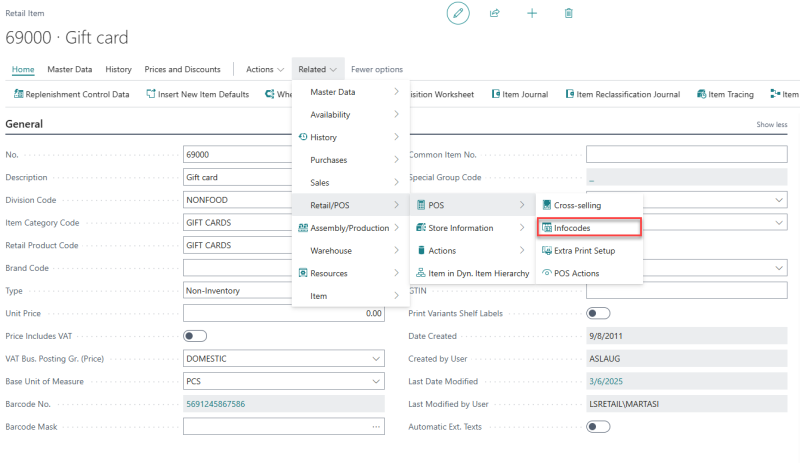
This is where we can select a selling infocode as highlighted.
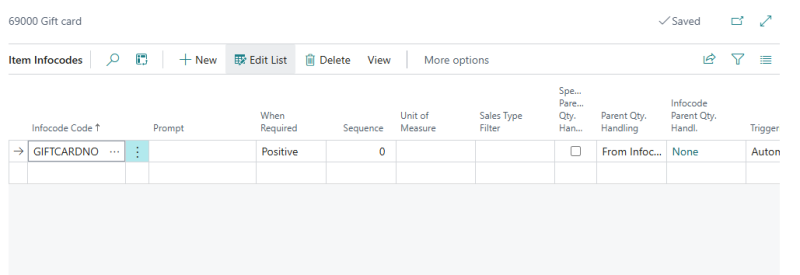
The selling infocode assigned on the item.
Note: The item number. You enter it as the Item/Account No in the Adobe Commerce configuration, and you also add it to the Gift Card Item No(s) replication setting.
Setting up selling for item type Income/Expense
Use this task when the data entry type is configured in Adobe Commerce with Item Type = Income/Account. Instead of an item, the amount is posted to an income account.
- Search for and open Income/Expense Accounts for the store, and choose New.
- Enter a No. and a Description, and set Account Type to Income.
- Under Posting, select the G/L Account the amount should post to.
- Choose Infocodes, and select the infocode you created for selling.
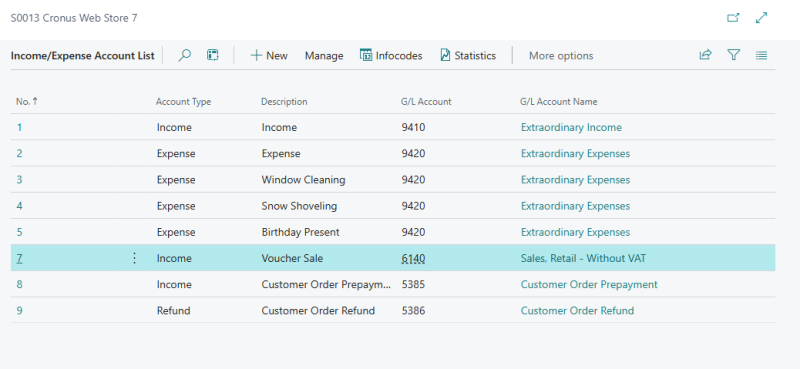
The Income/Expense Account list. Account 7, of type Income, is used for the voucher.
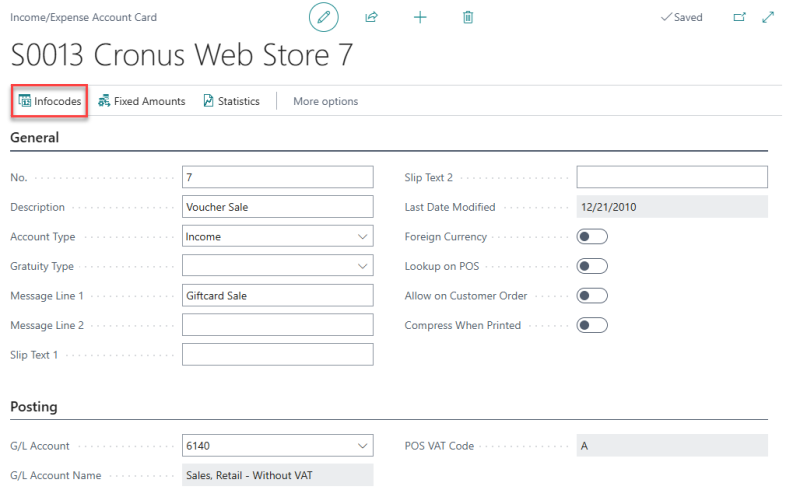
The Income/Expense Account card, with the Infocodes action highlighted.
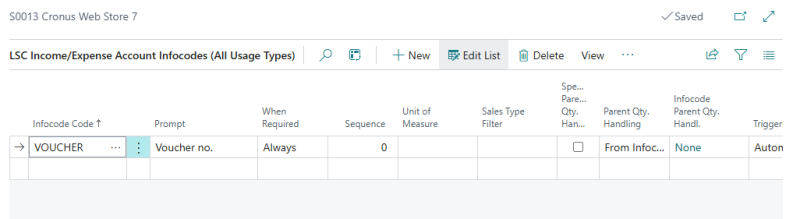
The selling infocode assigned on the income/expense account.
Note, the account number. You enter it as the Item/Account No in the Adobe Commerce configuration.
Configuring Adobe Commerce
The POS Data Entry settings are in the Admin under Stores > Configuration > LS Retail > POS Data Entry.
|
Field |
Description |
Scope |
|
Enabled |
Switches POS Data Entry functionality on for the store. |
Store view |
|
Show on Cart Page |
Displays the gift card and voucher form on the shopping cart page. |
Store view |
|
Show on Checkout Page |
Displays the gift card and voucher form during checkout. |
Store view |
|
Show Pin Code Field |
Displays a PIN field, for data entry types that require a PIN. |
Store view |
|
POS Data Entry Configuration |
Maps each LS Central data entry type to the way it is sold and redeemed. See below. |
Website |
Note POS Data Entry Configuration can only be set at website scope, while the other fields in the group can also be set per store view. Switch the scope selector to the website before you edit the table.
Mapping the data entry types
Add one row to POS Data Entry Configuration for every data entry type you want to use. Choose Add Voucher/Gift Card to add a row.
|
Column |
Description |
|
Code |
The POS Data Entry Type code from LS Central — for example GIFTCARDNO or VOUCHER. Required. |
|
Item Type |
Either Item or Income/Account, matching the way you set the type up in LS Central. |
|
Item/Account No |
The LS Central item number when Item Type is Item, or the income/expense account number when Item Type is Income/Account. Required. |
|
Tender Type |
The tender type used to redeem the entry, from the tender types replicated from LS Central. |
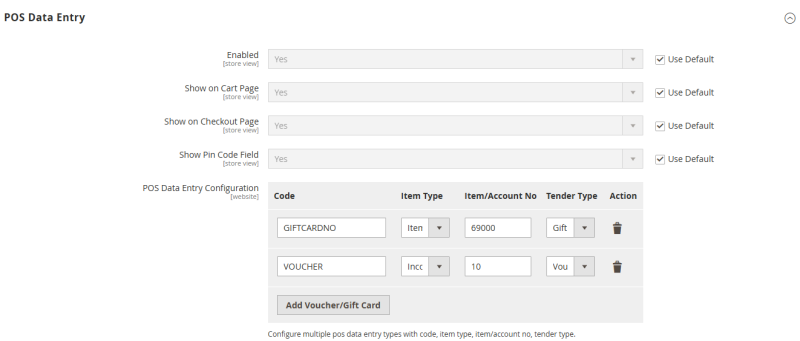
Two data entry types configured: a gift card sold as an item, and a voucher sold through an income account.
Gift card items for replication
If you sell gift cards, list the LS Central gift card item numbers in Stores > Configuration > LS Retail > Replication > Gift Card Item No(s) as a comma-separated list. Replication uses this list to identify which items are gift cards.
Products for selling data entry types
Products for the configured data entry types are created in Adobe Commerce by the LS Retail replication cron jobs. After the jobs have run, you can find them under Catalog > Products, filtered by Type: Gift Card.
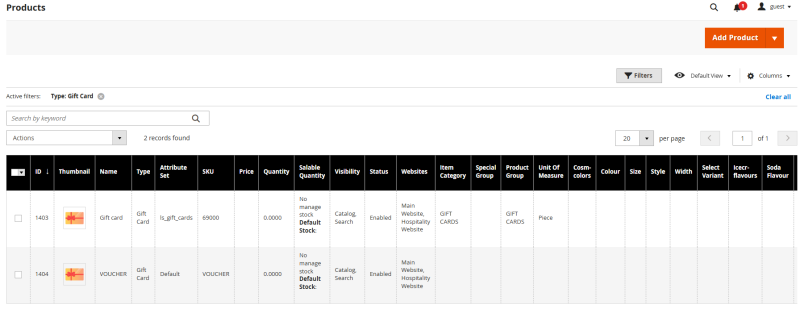
Gift card products in the Admin. Each configured data entry type has its own product.
The products are created for the website the configuration belongs to, and are assigned to that website’s source, so they are salable on web stores that use a custom source.
Selling a POS Data Entry
Note Selling a POS Data Entry requires Adobe Commerce. The products that represent the data entry types are Gift Card products, and the Gift Card product type is not available in Magento Open Source. Redemption, described in the next section, works on both editions.
Once the setup is complete, a customer can buy a gift card or voucher on the web store like any other product. Adobe Commerce sends the order line to LS Central using the method configured for that data entry type, and LS Central issues the entry.
The flow is:
- The customer selects the gift card or voucher product on the storefront, enters the amount and the recipient details, and places the order.
- Adobe Commerce builds the order line for LS Central according to the Item Type configured for the data entry type — either an income/account line or an item line.
- The order line is sent to LS Central as part of the customer order.
- LS Central issues the POS Data Entry, assigns its number and balance, and returns the details to Adobe Commerce.
- The recipient receives the entry number and pin code by email when the order is invoiced: and can redeem it on the web store or in the store.
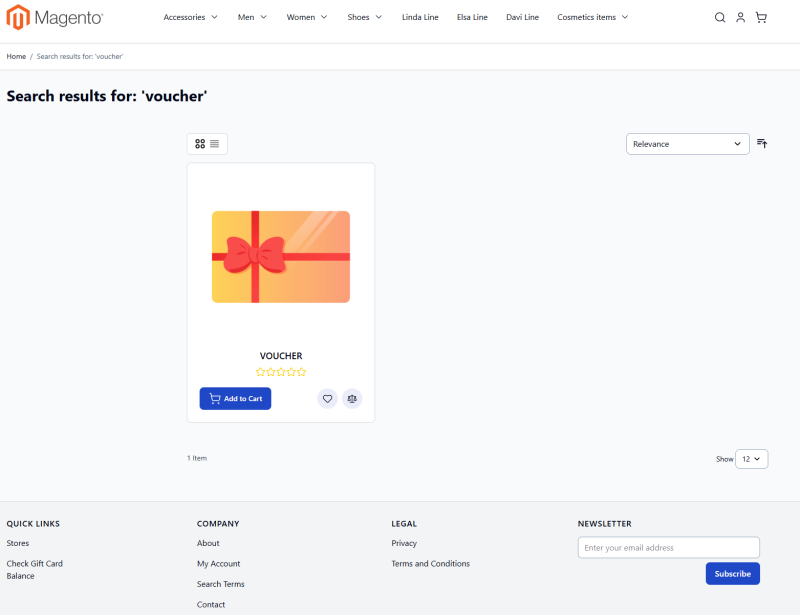
Gift card and voucher products on the storefront, with the balance-check link in the footer.
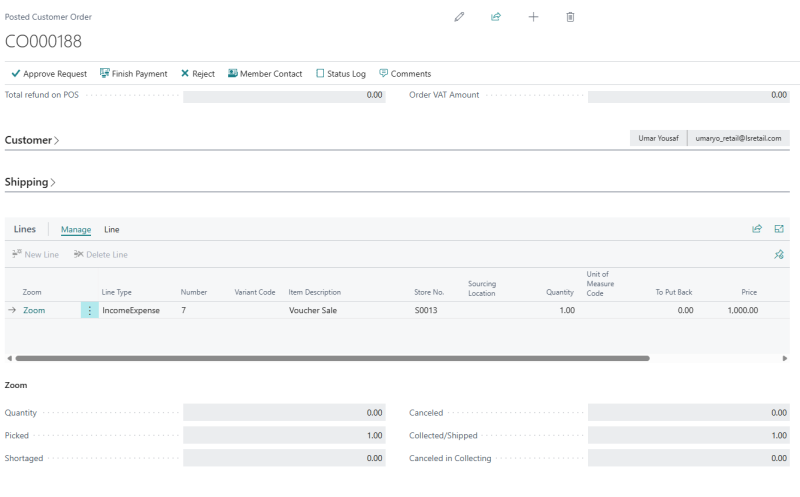
The resulting customer order in LS Central. The line is an income/expense line pointing at the account set up for the voucher.
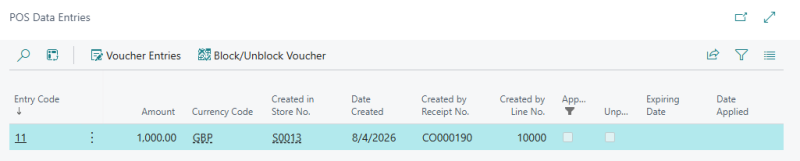
The POS Data Entry issued by the order, listed against its data entry type.
Redeeming a POS Data Entry
Customers redeem a gift card or voucher in the shopping cart or during checkout, depending on which of the two you have enabled. They enter the code, and the PIN if the data entry type requires one, and the amount to use.
Adobe Commerce validates the entry against LS Central before applying it, checking the balance, the currency, the web store, and whether the type is blocked on eCommerce. The cart totals update immediately.
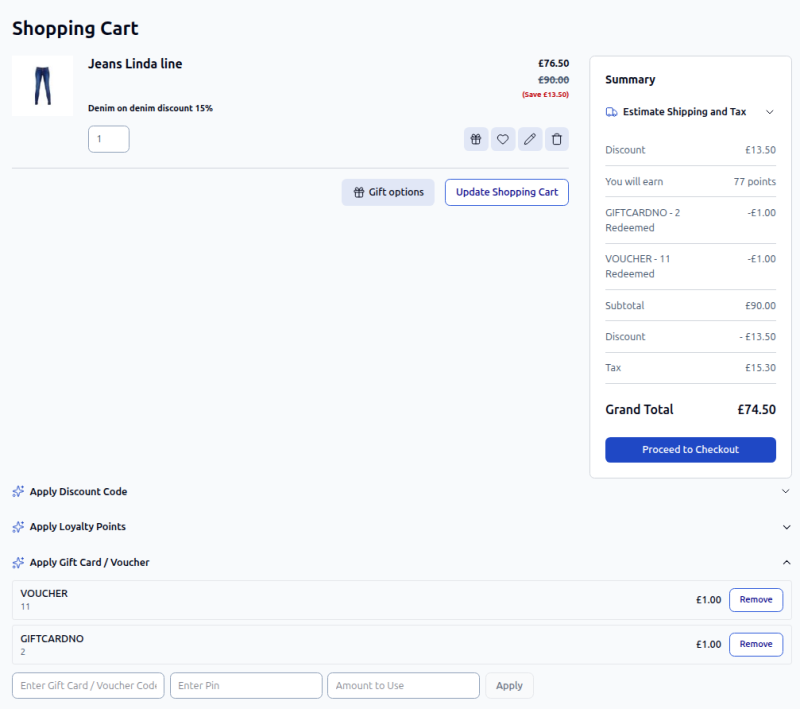
A voucher applied in the shopping cart. The confirmation message names the data entry type that was used.
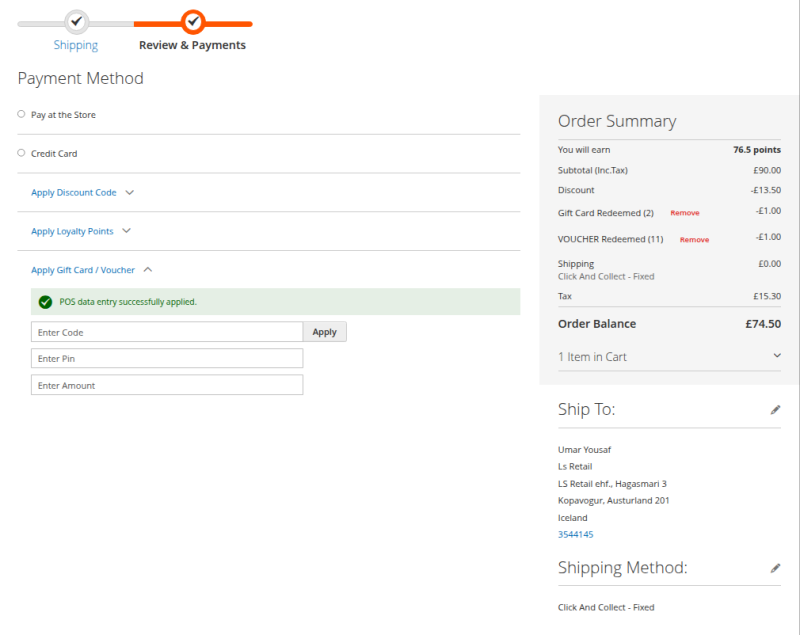
Applied entries during checkout. Each one can be removed individually.
Note LS Central is always the source of truth for the balance of a POS Data Entry. Adobe Commerce does not store a permanent balance of its own; it reads the balance from LS Central when the entry is applied, and the redemption is posted back to LS Central with the order.
How the redemption reaches LS Central
The redemption is sent as a payment line on the customer order, using the tender type configured for the data entry type. Where a customer pays part of the order with a card and part with a voucher, LS Central receives one payment line for each.
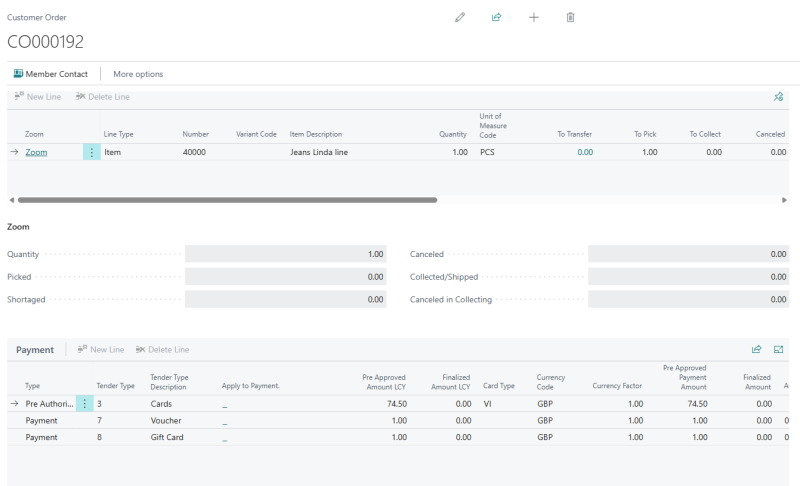
A customer order in LS Central paid partly by card and partly by voucher, with one payment line per tender type.
In LS Central, each issue and each redemption is recorded as a voucher entry against the POS Data Entry. Burn-down entries therefore show one Issued entry followed by one Redemption entry for every use.
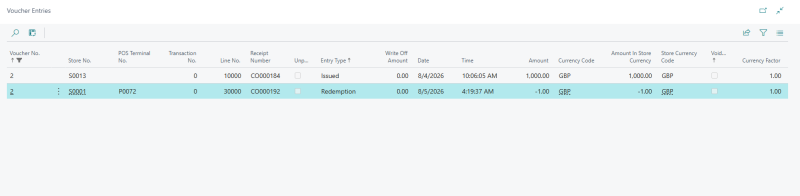
A burn-down voucher issued once and redeemed once.
Checking a balance
Customers can check the remaining balance of a gift card or voucher from the Check Gift Card/Voucher Balance link in the storefront footer, by entering the code and, where required, the PIN. The balance is read from LS Central at the time of the request.
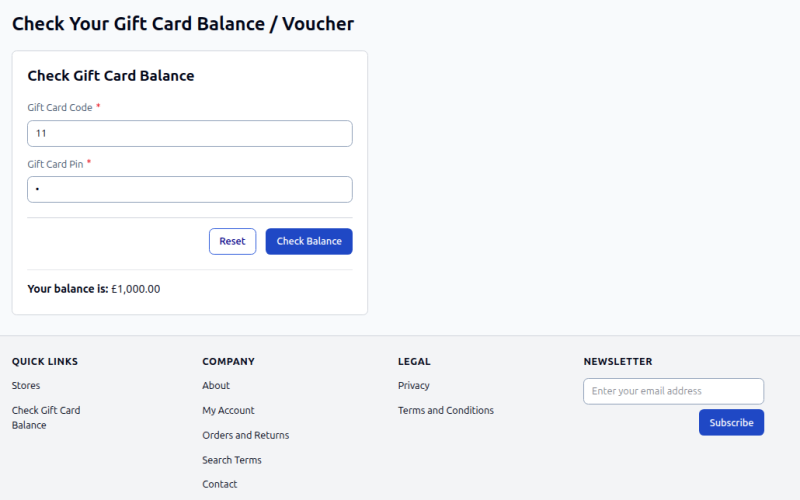
The storefront Check Gift Card / Voucher Balance page. The balance is read live from LS Central.
Making the data entry type available to eCommerce
Two fields on the POS Data Entry Type card control whether a type can be used on the web store:
|
Field |
Description |
|
Blocked on eCom |
When selected, the data entry type cannot be sold or redeemed on the web store. Leave it cleared for types you want to expose. |
|
Web Store |
The web store the data entry type belongs to. |
Both fields are returned by the GetDataEntryBalanceV2 web service, together with the balance, the currency, the PIN, and the unposted status, so Adobe Commerce can check them before it applies an entry to a cart.
Request
<?xml version="1.0" encoding="UTF-8"?>
<SOAP-ENV:Envelope xmlns:SOAP-ENV="http://schemas.xmlsoap.org/soap/envelope/" xmlns:ns1="urn:microsoft-dynamics-schemas/codeunit/OmniWrapper">
  <SOAP-ENV:Header/>
  <SOAP-ENV:Body>
    <ns1:GetDataEntryBalanceV2>
      <ns1:responseCode/>
      <ns1:errorText/>
      <ns1:entryType>VOUCHER</ns1:entryType>
      <ns1:entryCode>11</ns1:entryCode>
      <ns1:pin>0</ns1:pin>
      <ns1:getDataEntryBalanceXML/>
    </ns1:GetDataEntryBalanceV2>
  </SOAP-ENV:Body>
</SOAP-ENV:Envelope>
Response
<?xml version="1.0"?>
<Soap:Envelope xmlns:Soap="http://schemas.xmlsoap.org/soap/envelope/">
  <Soap:Body>
    <GetDataEntryBalanceV2_Result xmlns="urn:microsoft-dynamics-schemas/codeunit/OmniWrapper">
      <responseCode>0000</responseCode>
      <errorText/>
      <getDataEntryBalanceXML>
        <POSDataEntry xmlns="urn:microsoft-dynamics-nav/xmlports/x10000700">
          <Balance>1000.00</Balance>
          <ExpiryDate/>
          <CurrencyCode>GBP</CurrencyCode>
          <PIN>0</PIN>
          <Unposted>false</Unposted>
          <BlockedOnECom>No</BlockedOnECom>
          <WebStore>S0013</WebStore>
        </POSDataEntry>
      </getDataEntryBalanceXML>
    </GetDataEntryBalanceV2_Result>
  </Soap:Body>
</Soap:Envelope>