In this article
Order Pull Filter: Sales Channel
Order Pull Filter: Fulfilment Status
Order Pull Filter: Payment Status
eCommerce - Shopify lets you restrict which Shopify orders are pulled into LS Central by Fulfillment Status, Payment Status, and Sales Channel. These filters are set up in the Order Pull Filter section, part of the Order Handling group on the Shopify Administration page.
This feature lets you:
- Only pull Shopify orders that match a chosen Fulfillment Status, Payment Status, or Sales Channel, instead of pulling every order.
- Combine several values in the same filter field, separated by semicolons; an order matches that filter if it satisfies any one of the values.
- Combine different filter fields together; an order is only pulled if it satisfies every filter field that has a value.
- Leave a filter field blank to skip filtering on that criterion, so orders are not restricted by that field.
Path: Shopify Administration - Order Handling - Order Pull Filter
- Fulfillment Status: One or more Shopify fulfillment status values, separated by semicolons. Valid values are unshipped, shipped, fulfilled, partial, scheduled, on_hold, unfulfilled, and request_declined.
- Payment Status: One or more Shopify payment status values, separated by semicolons. Valid values are paid, pending, authorized, partially_paid, partially_refunded, refunded, voided, and expired.
- Sales Channels: One or more Sales Channel Codes, separated by semicolons, exactly as configured on the Sales Channel mapping page (Related - Mapping - Sales Channel, Sales Channel Code column). Leave blank to import orders from every sales channel.
Note: None of the three filter fields are case-sensitive. For example, entering online_sto or ONLINE_STO in the Sales Channels field has the same effect.
Note: The Order Pull Filter only applies to the regular Pull - Orders action, which is also the action that pulls orders updated since the last pull. It does not apply to Pull - Selected Order, which always retrieves the specific order you pick, regardless of the Order Pull Filter setup.
Order Pull Filter: Sales Channel
- In Shopify Admin, place two orders through the Online Store sales channel and proceed to checkout.
- On the Shopify Administration page, in Order Handling - Order Pull Filter, enter the Sales Channel Code for the Online Store channel (for example, ONLINE_STO) in the Sales Channels field. To find the code, go to Related - Mapping - Sales Channel and check the Sales Channel Code column.
- Click Pull - Orders to pull the matching orders to LS Central.
- Open Customer Order and confirm that both orders were pulled, and that the External ID matches the corresponding order in Shopify.
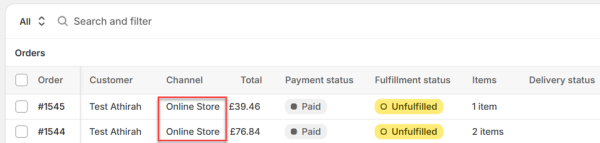
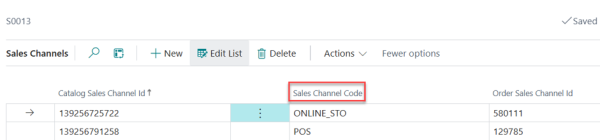
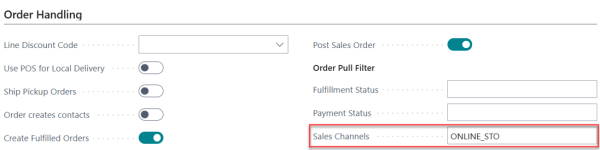
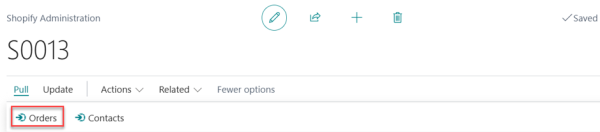
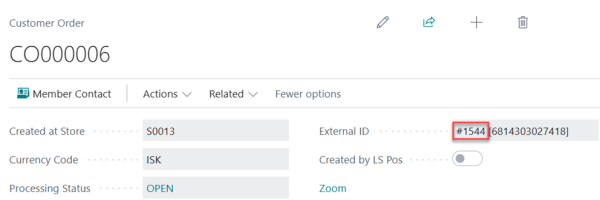
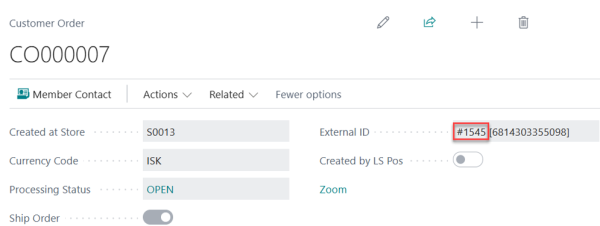
Confirmed Behaviour: The Shopify order is successfully synchronized to Central, and the Shopify Order ID in Shopify matches the corresponding Shopify Order ID in Central.
Note: The Shopify Order Pull Filter field is not case sensitive. Entering online_sto in lowercase is not an issue, and Shopify orders will still synchronize successfully to Central.
Order Pull Filter: Fulfilment Status
- In Shopify Admin, create two orders and proceed to checkout, then set one order to Fulfillment status Fulfilled and leave the other Unfulfilled.
- On the Shopify Administration page, in Order Handling - Order Pull Filter, enter fulfilled in the Fulfillment Status field.
- Click Pull - Orders to pull the selected order to Central.
- Open Posted Customer Order and verify that the order has been successfully synced to Central.
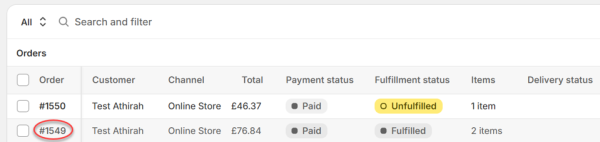
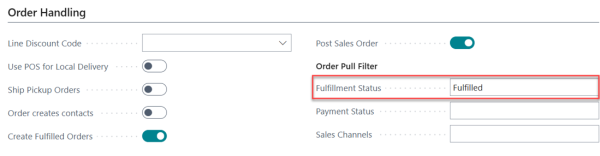
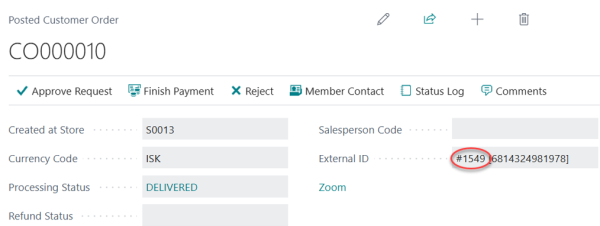
Confirmed Behaviour: The order with Fulfillment Status set to Fulfilled was successfully pulled from Shopify and synchronized to Central. The Unfulfilled order was not pulled, confirming that the Fulfillment Status filter is functioning as expected.
Order Pull Filter: Payment Status
- In Shopify Admin, create two orders with different payment statuses and proceed to checkout - for example, one Authorized and one Paid.
- On the Shopify Administration page, in Order Handling - Order Pull Filter, enter authorized in the Payment Status field.
- Click Pull - Orders to pull the selected order to Central.
- Open Posted Customer Order and confirm that only the order with Payment status Authorized was pulled; the Paid order is skipped.
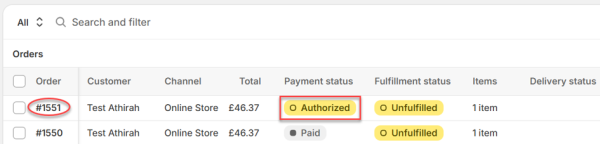
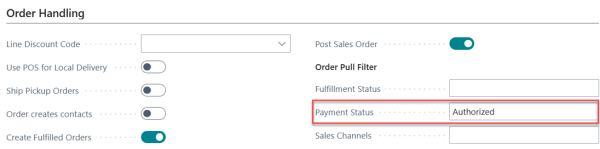
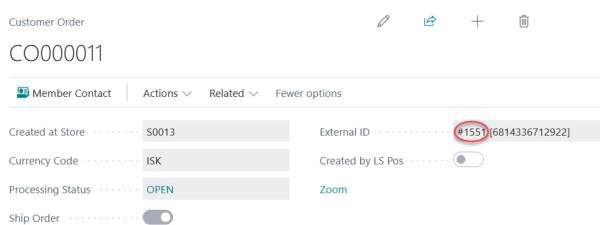
Confirmed Behaviour: The Shopify order with Payment Status set to Authorized was successfully pulled and synchronized to Central. The order with Payment Status set to Paid was not pulled into Central, which is the expected behaviour based on the configured Payment Status filter.