In this article
Translate Attributes Labels and Values
eCommerce - Shopify Business Central Connector for LS Central supports sending item, attribute, and variant translations to Shopify for each configured language, using the standard LS Central data translation records. This feature lets you ensure consistency in product details by synchronizing translated names, descriptions, and other relevant data across Shopify and LS Central.
Initial configuration
- Before you can send translations to Shopify, configure Data Translation Setup with the tables and fields that should be translated:
- In Data Translation Setup, click Languages, select each language code you want to translate into, and fill in the Language Name.
- Go to the Shopify Shop Card page, click Related - Languages, and click Refresh to populate the Shopify Languages table from Shopify.
-
Next, to customize the language switcher in the Shopify online store, navigate to Online Store - Edit theme.
- Navigate to the App embeds section, located at the bottom of the left sidebar. If not installed, download the T Lab – AI Language Translate app from the Shopify App Store and enable the Language Switcher.

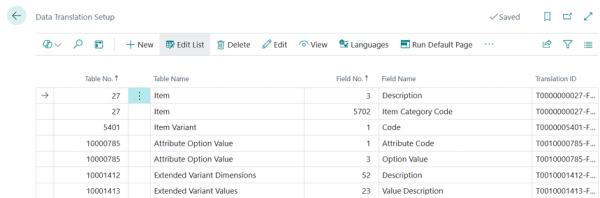
Note: For Variant values, add table fields 5401 and 10001412/13 as shown in the image. For Options (Attribute Meta Data) add table 10000785.
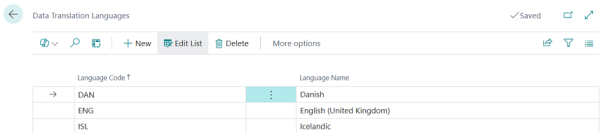

Note: Make sure the Sync Translation column is checked.
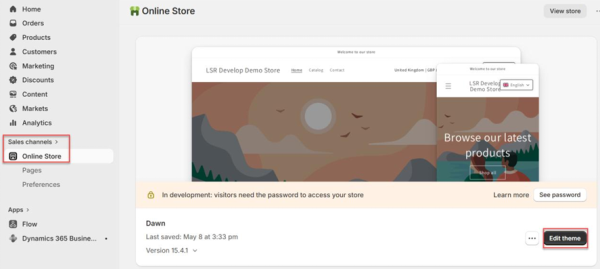
Note: Once enabled, the language switcher appears on your online store, allowing customers to select their preferred language.
Translate Item Name and Description
- Go to the Data Translation Setup page, click the three dots in the Actions menu, and then click Run Table Viewer. In the Dyn. Table Viewer page, choose item, (40170 - Bag Linda) and click the Data Translation action.


-
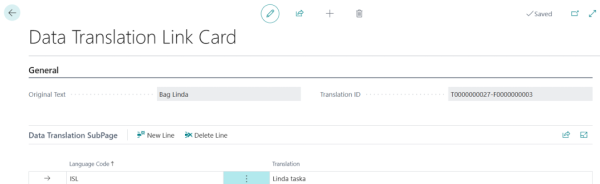
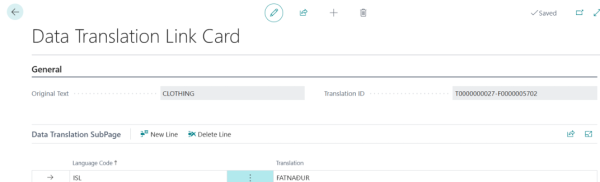
In the Data Translation Link page, click Description and Item Category Code. In the Language Code field, select ISL, and type the translation of the text.

-
Go to the Shopify Shop Card page, click Related - Languages. In the Shopify Languages page, click Action - Send Translation. This action sends the translation to Shopify.

Note: Make sure to select the correct locale before clicking the Send Translation option.
-
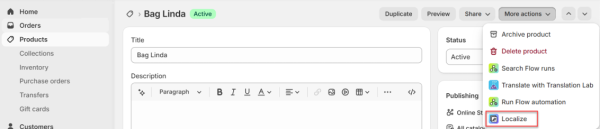
Go to Shopify Admin and navigate to Product. Select (40170 - Bag Linda) from the list and click More Actions – Localize.
-
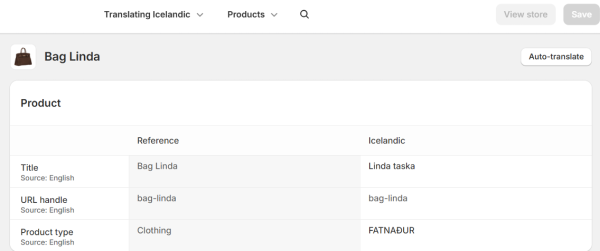
The translated texts are displayed in Shopify as shown below, before they are published to the online store.
-
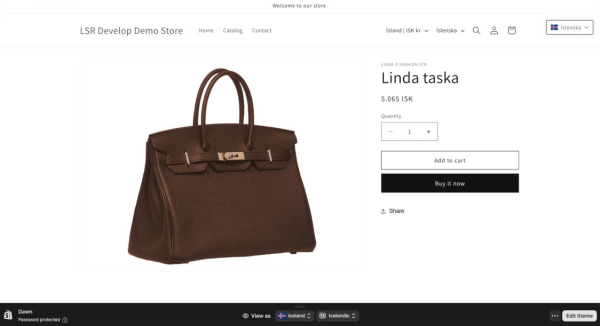
After publishing to the online store, Bag Linda is displayed in its translated form when the customer switches the language from English to Icelandic, as shown below.
Translate Attributes Labels and Values
- Go to the Data Translation Setup page.Select the Attribute option value, click three dots and then select Run Table Viewer. In the Dyn. Table Viewer page, choose the Attribute Label and Attribute Value for item (40170 - Bag Linda). Then, click the Data Translation action.
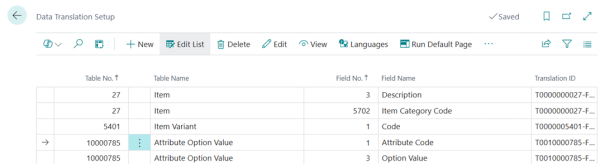
Note: For (Attribute Meta Data) add table 10000785.

-
In the Data Translation Link page, click Attribute Code and Option Value. In the Language Code field, select ISL, and type the translation of the text.

-
Repeat the same steps for other attribute option values of item (40170 - Bag Linda).



-
Go to the Shopify Shop Card page, click Related - Languages. In the Shopify Languages page, click Action - Send Translation. This action sends the translation to Shopify.
Note: Make sure to select the correct locale before clicking the Send Translation option.
-
Go to Shopify Admin and navigate to Product. Select (40170 - Bag Linda) from the list and click More Actions – Localize.
-
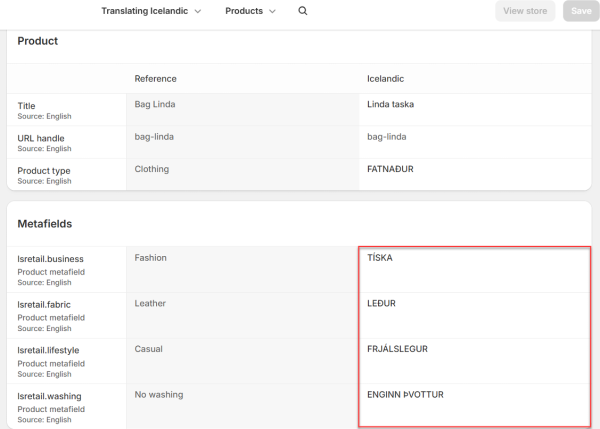
The translated texts are displayed in Shopify as shown below, before they are published to the online store.
Translate Item Variants
- Start with Variant Dimension, go to the Data Translation Setup page, click the three dots in the Actions menu, and select Run Table Viewer.
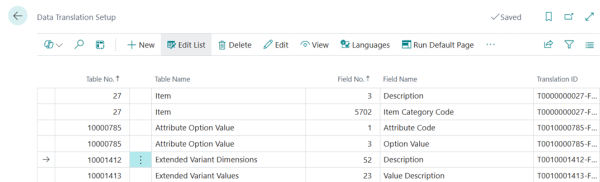
Note: For variant values, add tables 10001412/13.
- In the Dyn. Table Viewer page, select WOMEN;;COLOUR and WOMEN;;SIZE, and click the Data Translation action. Select the color line first, then the size line.
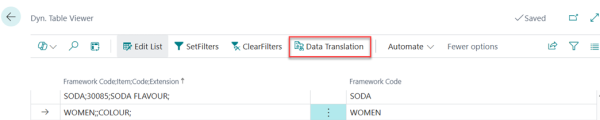
-
In the Data Translation Link page, click Description. In the Language Code field, select ISL, and type the translation of the text.


-
Continue with Variant Value and follow the steps above. Here you select WOMEN;;COLOUR;;BLUE & CREAM.
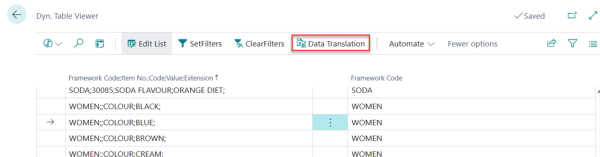
-
In the Data Translation Link page, click Value Description. Select ISL, and type the translation.
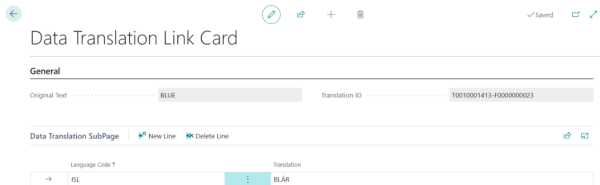

-
Go to the Shopify Shop Card page, click Related - Languages. In the Shopify Languages page, click Action - Send Translation. This action sends the translation to Shopify.
Note: Make sure to select the correct locale before clicking the Send Translation option.
-
Go to Shopify Admin and navigate to Product. Select (40015 - Jeans shirt Linda line) from the list and click More Actions – Localize.
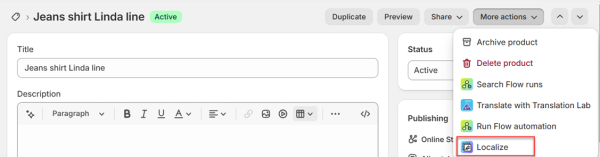
-
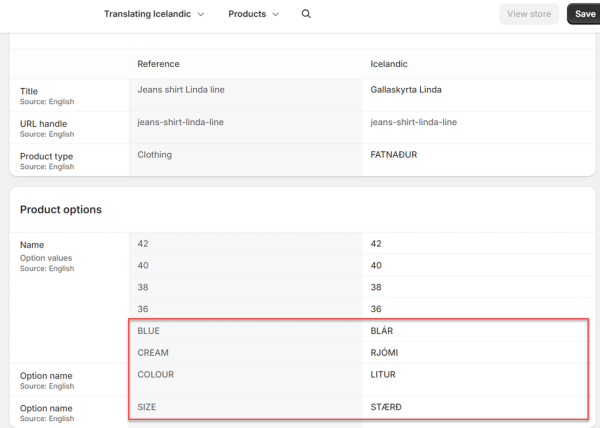
The translated texts are displayed in Shopify as shown below, before they are published to the online store.
-
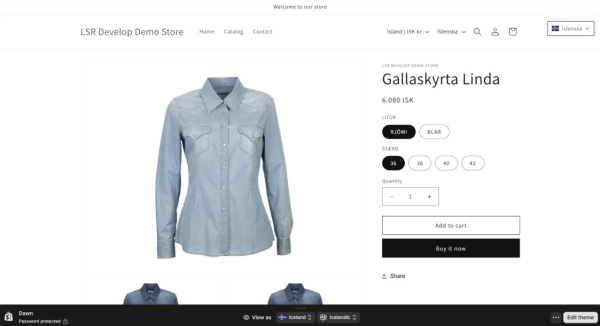
After publishing to the online store, Jeans shirt Linda line is displayed in its translated form when the customer switches the language from English to Icelandic, as shown below.