In this article
Licensing
The Shopify BC Connector for LS Central is licensed through the eCommerce licenses listed below. Make sure both licenses are in place for your Business Central environment before you request or start the installation.
| License | License Code |
|---|---|
| eCommerce Base - Please select a Framework | BC-D365-SAAS-E3RD |
| eCommerce per Device | BC-D365-SAAS-EPOS |
Permission
Installing an extension in Business Central requires administrative permissions. Check that the user who performs the installation has the right permission set assigned before you continue.
To install the extension in Business Central, the user must:
- Have EXTEND. MGT. - ADMIN permission set assigned (least-privileged role)
- Make sure to skip the Company assignment.
- Having SUPER permission set assigned will also work
Note: For more information about the permissions required to install and manage extensions, refer to here .
Verify the Permission
- After the required permissions have been assigned, in Business Central. Click the
 icon, enter Extension Management.
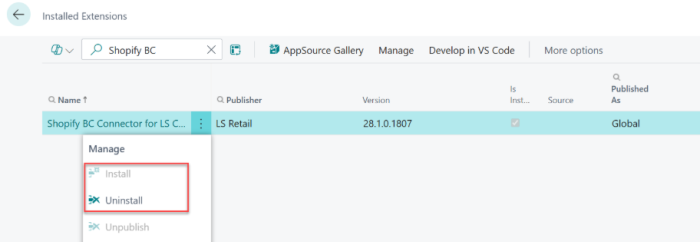
 - Open the Extension Management page and verify that the user can access the actions required to install and manage extensions.
Installation
Requesting the AppSource Installation Link
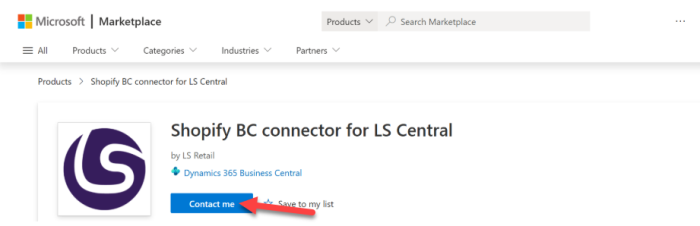
- In Microsoft Marketplace, search for Shopify BC Connector for LS Central, then select Contact Me and complete the contact form. Click here to access the Shopify BC Connector for LS Central Microsoft Marketplace listing.
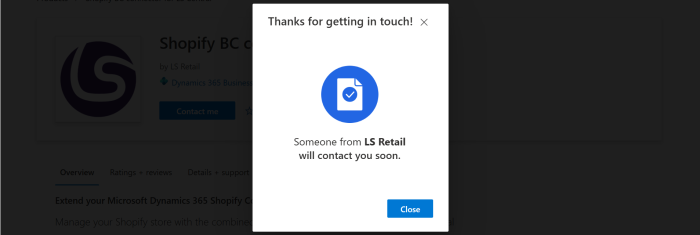
- After submitting the form, the following confirmation message is displayed.
-
After your request has been processed, the Licensing team or Marketing team will contact you and provide you with an AppSource installation link for the Shopify BC Connector for LS Central extension. Once you receive the installation link, continue with the installation steps below.
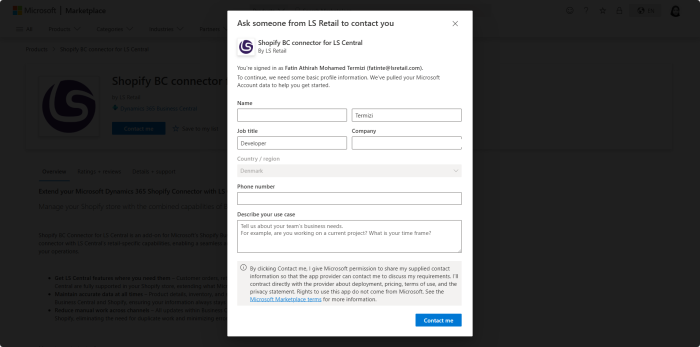
Installation Using an AppSource Installation Link
Once you receive the installation link from LS Retail, use it to install the Shopify BC Connector for LS Central extension in your Business Central environment by following the instructions in “Installation Without an AppSource Installation Link”. The installation procedure is identical.
Installation Without an AppSource Installation Link
If an AppSource installation link is not available or cannot be obtained from LS Retail, you can install the Shopify BC Connector for LS Central extension using the pre-generated installation URL provided below.
The installation URL is:
https://businesscentral.dynamics.com/<tenantID>/<environment>/?noSignUpCheck=1&filter=%27ID%27%20IS%20%2775618fa1-415d-4a07-9de1-8f9fbd29e2ee%27&page=2503Before opening the URL, replace the following placeholders with the values for your Business Central environment:
- <tenantID> – Your Business Central tenant ID.
- <environment> – The name of the target Business Central environment
Suppose your tenant ID is 72f988bf-86f1-41af-91ab-2d7cd011db47 and your environment is named Production. The link would become:
https://businesscentral.dynamics.com/72f988bf-86f1-41af-91ab-2d7cd011db47/Production/....-
Paste the updated URL in a web browser. Business Central will redirect you to the installation page, where you can proceed with the installation.
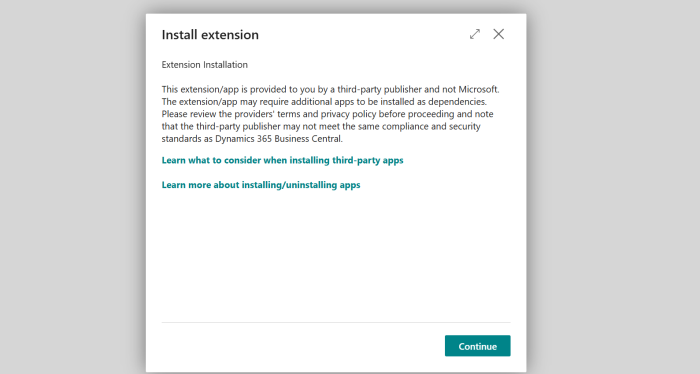
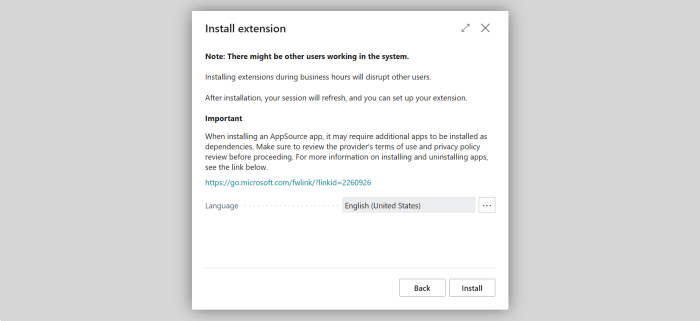
-
After selecting Install, wait for Business Central to install the Shopify BC Connector forLS Central extension. When the installation is complete and the confirmation message Your app is installed and ready to use. is displayed, select OK.
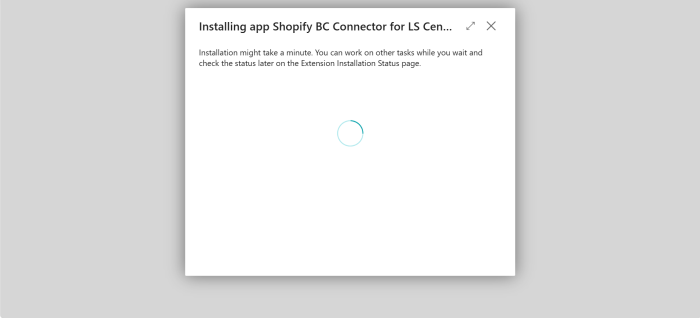
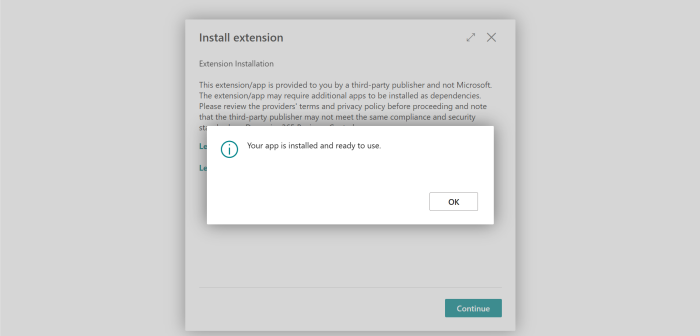
Note: You can monitor the status on the Extension Installation Status page.
Verify the Install
-
Once the installation is complete. Verify that the Shopify BC Connector forLS Central extension is available on the Extension Management page, and the status on Extension Installation Status page is Completed.
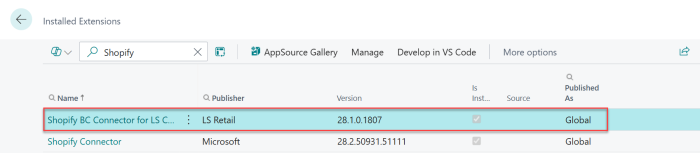
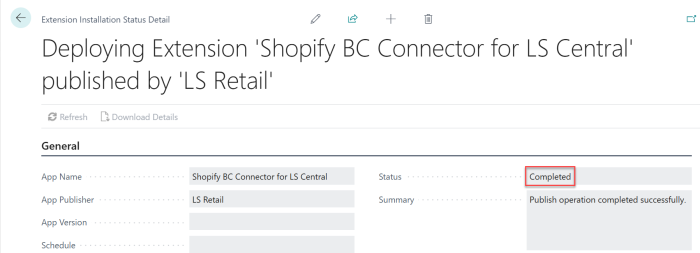
-
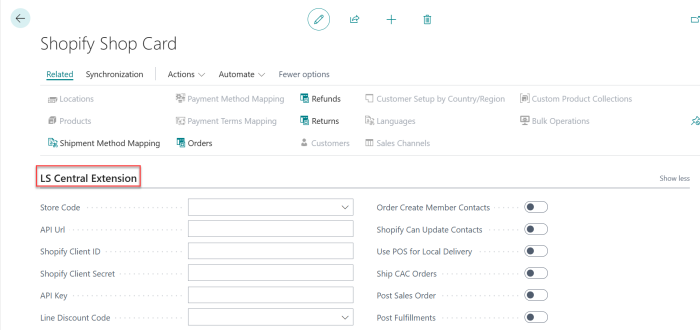
To verify that the extension has been integrated successfully, open the Shopify Shops - Shopify Shop Card page and confirm that the LS Central Extension section is available, and you can continue with the configuration.