In this article
To Use Image Location for an Item Without Variants
To Use Image Location for an Item Without Variants and Keep the Logical Order
To Use Image Location for an Item With Variants
To Use Image Location for an Item With Variants When a Variant Has No Image Location
To Remove Image Location for an Item With Variants
The Shopify Business Central Connector supports the Image Location field on the Retail Image Card when synchronizing images from LS Central to Shopify. When an image has a URL in the Image Location field, the image referenced by that URL is sent to Shopify instead of the image stored in the Retail Image List. This works for items without variants and for items with variants.
The Image Location support lets you:
- Send an externally hosted image to Shopify by entering its URL in the Image Location field.
- Use external image URLs for items without variants and for items with variants, including items where only some of the variants have an image location.
- See which items and products use an external image URL on the Shopify Mapping LS Images page.
- Revert to the original image stored in the Retail Image List by removing the URL from the Image Location field.
Note: In the examples on this page, the Image Location field contains the URL of an image in JPEG (.jpg/.jpeg) format. For general information about image synchronization, see To Update Images to Shopify.
To Use Image Location for an Item Without Variants
- In Business Central, click the Search icon, enter Retail Image List, and choose the item 40180 - Leather backpack.
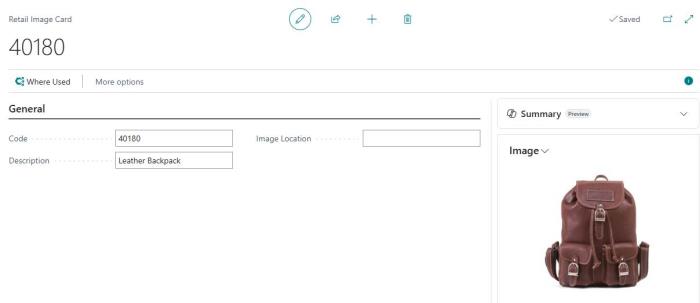
- In the Image Location field, enter the URL of the leather backpack image in JPEG (.jpg/.jpeg) format.
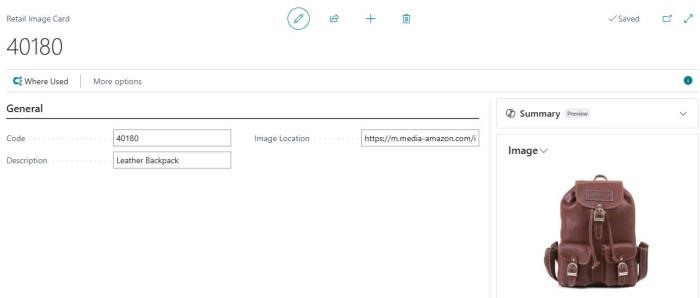
- Open the Shopify Shop Card, navigate to Related - Products - Synchronization - LS Images to send the updated image to Shopify.
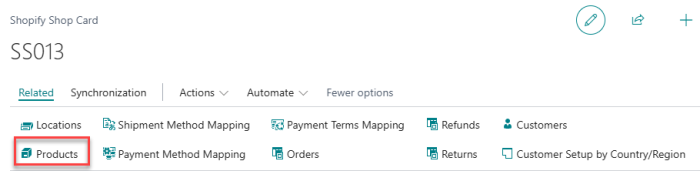
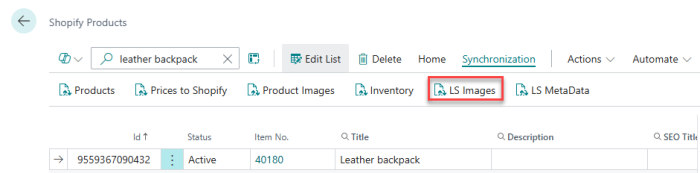
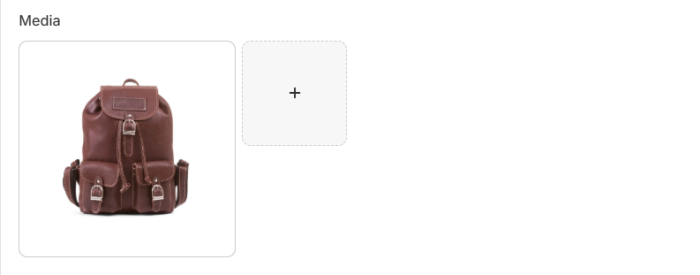
- Open Shopify Admin, navigate to Products, and search for the item Leather backpack. Confirm that the product image matches the image referenced by the URL entered in the Image Location field.
Before
After
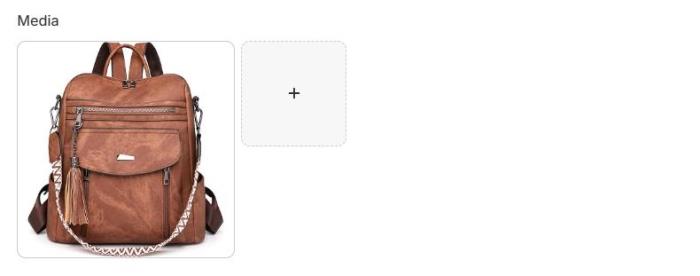
Note: The existing product image in Shopify is replaced with the image referenced by the URL specified in the Image Location field.
To Use Image Location for an Item Without Variants and Keep the Logical Order
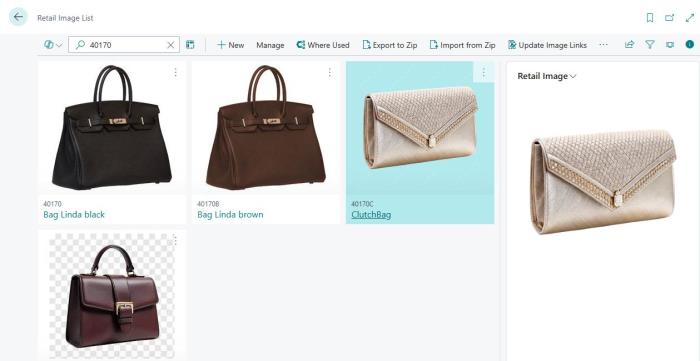
- In Business Central, click the Search icon, enter Retail Image List, and choose the item 40170 - Bag Linda.
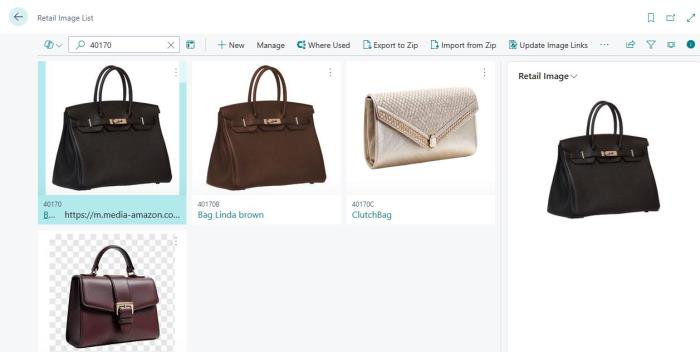
- In the Image Location field, enter the URL of the Bag Linda; Black image in JPEG (.jpg/.jpeg) format.
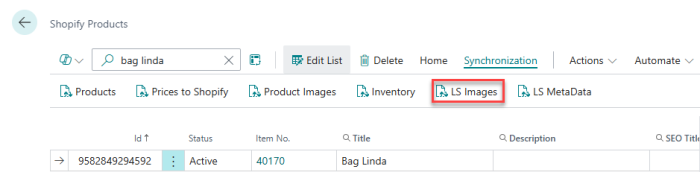
- Open the Shopify Shop Card, navigate to Related - Products - Synchronization - LS Images to send the updated image to Shopify.
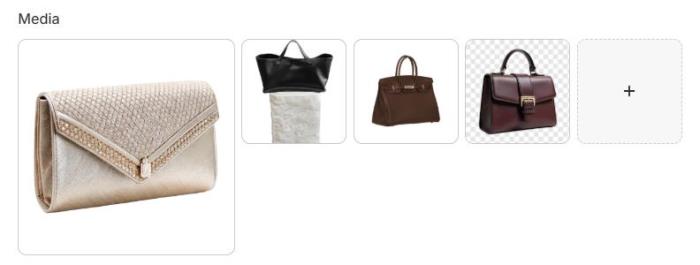
- Open Shopify Admin, navigate to Products, and search for the item Bag Linda. Confirm that the product image matches the image referenced by the URL entered in the Image Location field and that the images remain in the same order as configured in LS Central.
Before
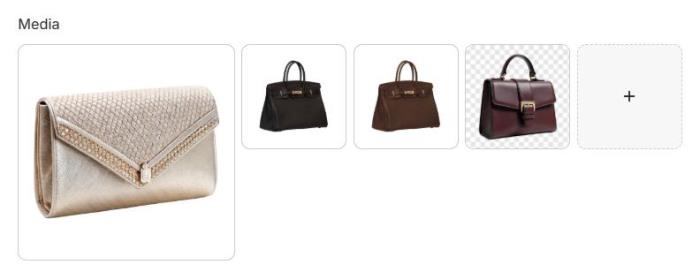
After
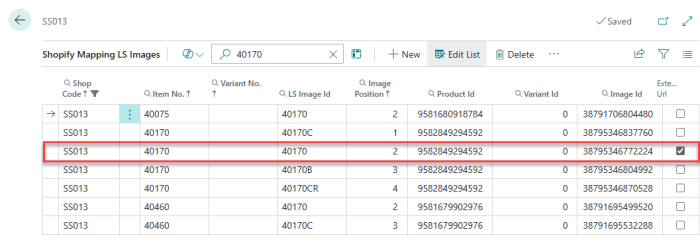
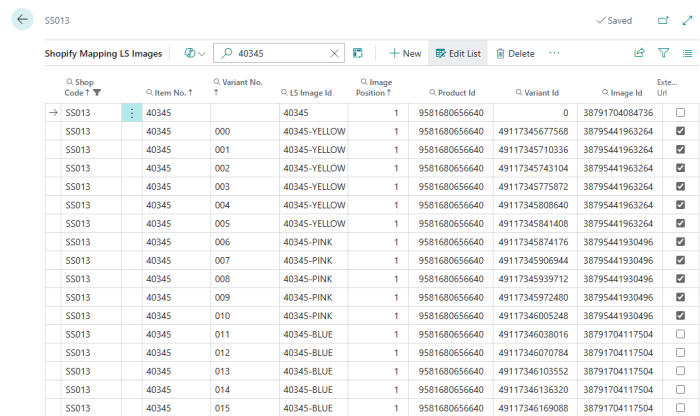
Note: A new field has been added to the Shopify Mapping LS Images page. Navigate to Actions - LS Central Extension - Mapping - Images to display the external image URL associated with each mapped item/product. This allows users to easily identify which item or product is using a specific external image URL.
To Use Image Location for an Item With Variants
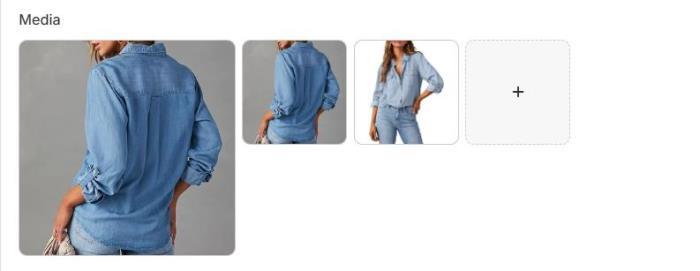
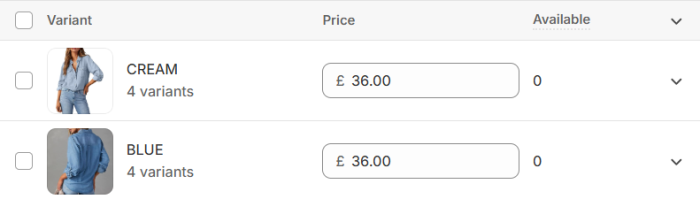
- In Business Central, click the Search icon, enter Retail Image List, and choose the item 40015 - Jeans shirt Linda line.
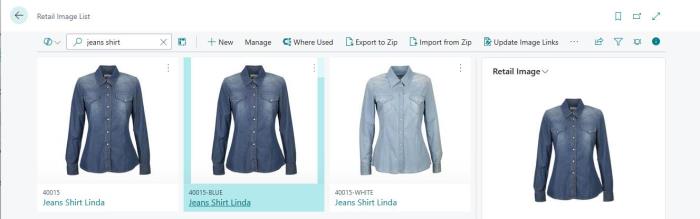
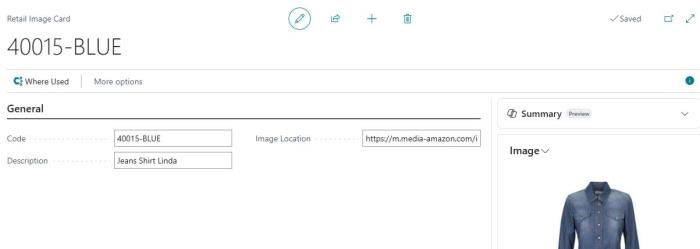
- In the Image Location field, enter the URL of each variant of Jeans shirt Linda line in JPEG (.jpg/.jpeg) format.
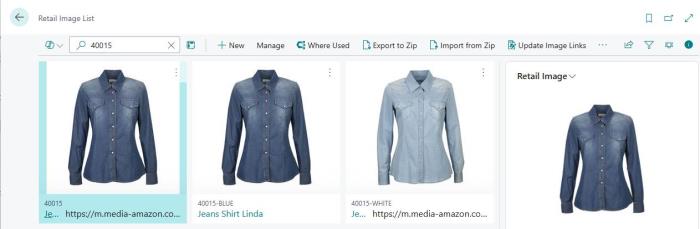
- Open the Shopify Shop Card, navigate to Related - Products - Synchronization - LS Images to send the updated images to Shopify.
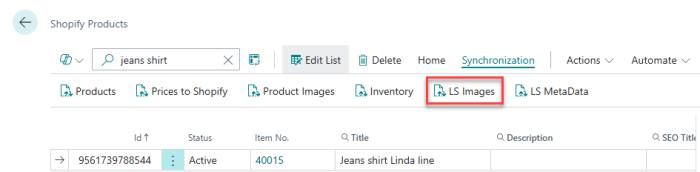
- Open Shopify Admin, navigate to Products, and search for the item Jeans Shirt Linda Line. Confirm that the product image of each variant matches the image referenced by the URL entered in the Image Location field.
Before
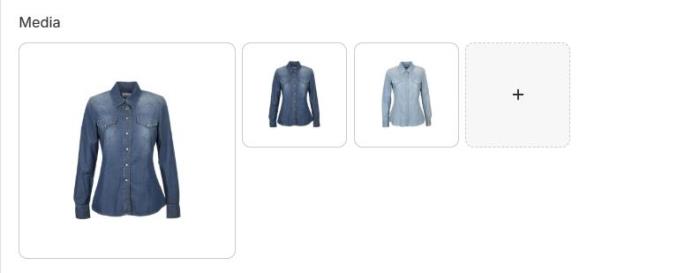
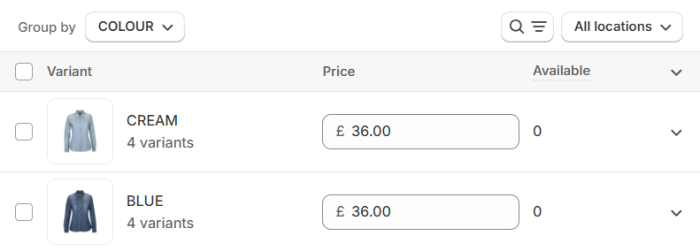
After
To Use Image Location for an Item With Variants When a Variant Has No Image Location
Use this scenario when only some of the variants of an item have an image location. The variants without an image location keep their original image.
- In Business Central, click the Search icon, enter Retail Image List, and choose the item 40345 - Elsa Oslo dress.
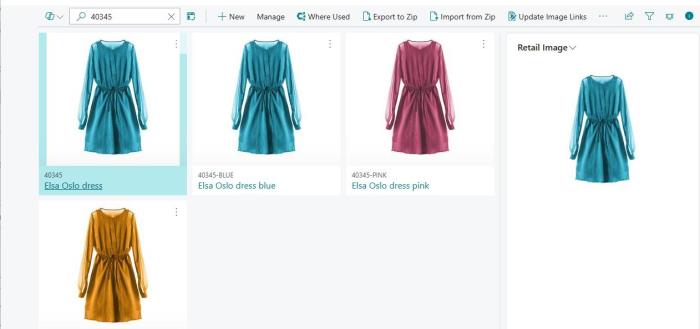
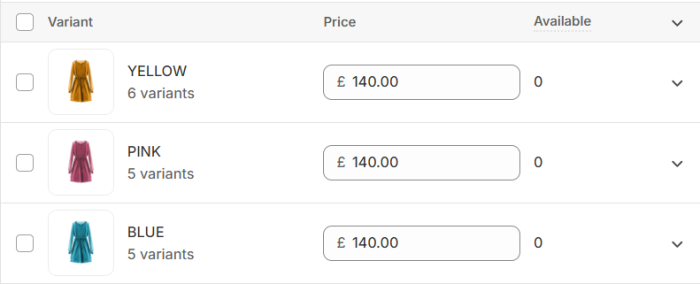
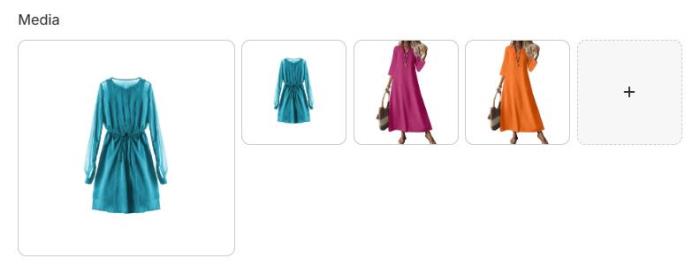
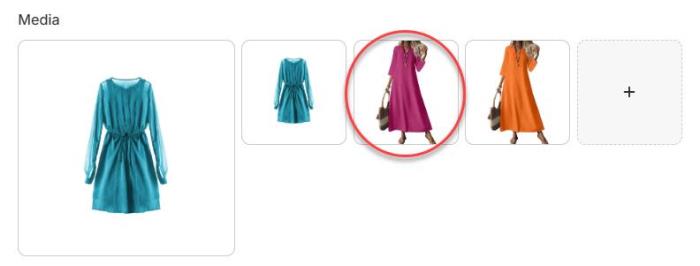
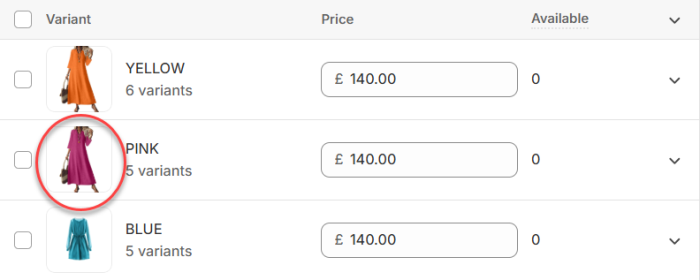
- In the Image Location field, enter the URL for a few of the variants of Elsa Oslo dress in JPEG (.jpg/.jpeg) format. In this example, the 40345-PINK and 40345-YELLOW variants have an image location, and 40345-BLUE does not.
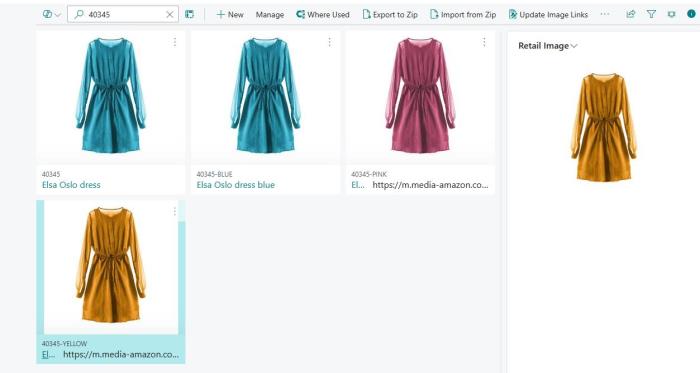
- Open the Shopify Shop Card, navigate to Related - Products - Synchronization - LS Images to send the updated images to Shopify.
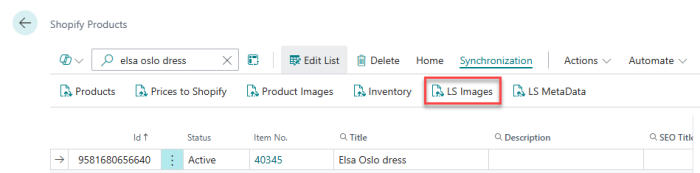
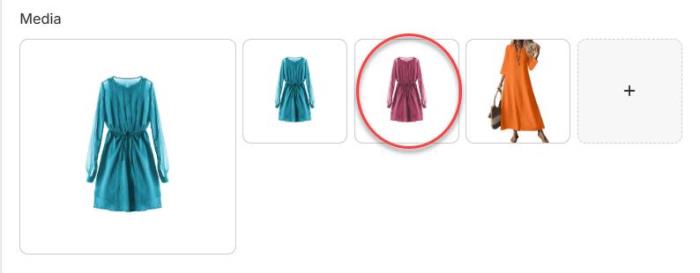
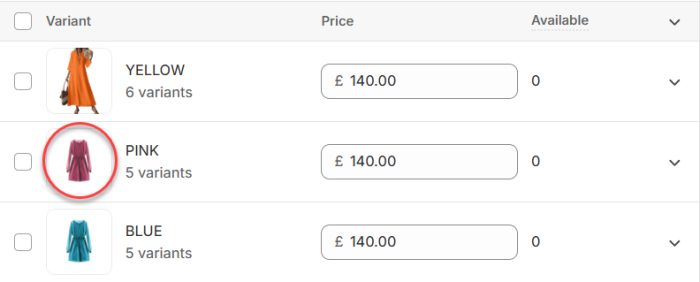
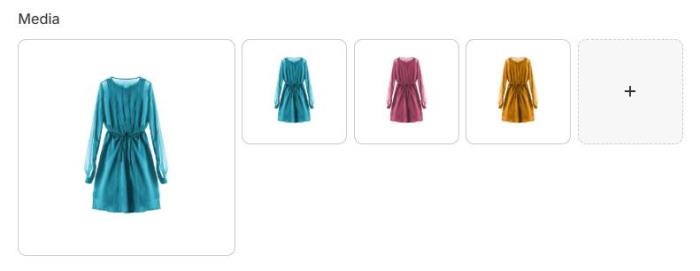
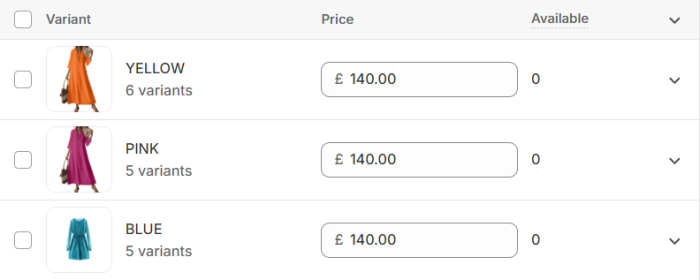
- Open Shopify Admin, navigate to Products, and search for the item Elsa Oslo dress. Confirm that the product image of each variant with an image location matches the image referenced by the URL entered in the Image Location field.
Before
After
Note: A new field has been added to the Shopify Mapping LS Images page. Navigate to Actions - LS Central Extension - Mapping - Images to display the external image URL associated with each mapped item/product. This allows users to easily identify which item or product is using a specific external image URL.
To Remove Image Location for an Item With Variants
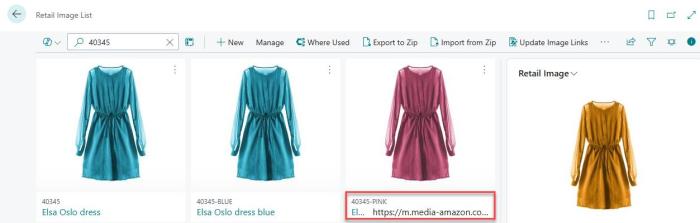
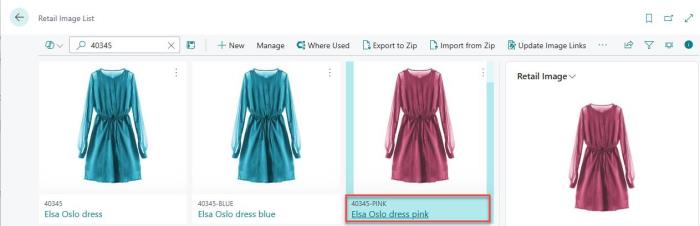
- In Business Central, click the Search icon, enter Retail Image List, choose the image 40345-PINK, and remove the URL from the Image Location field.
Before
After
- Open the Shopify Shop Card, navigate to Related - Products - Synchronization - LS Images to send the updated images to Shopify.
- Open Shopify Admin, navigate to Products, and search for the item Elsa Oslo dress. Confirm that the product image of the variant has reverted to the original image stored in the Retail Image List, rather than the image specified by the external URL.
Before
After