In this article
Gift Cards Issued in LS Central
eCommerce - Shopify Business Central Connector for LS Central keeps Gift Cards in sync between LS Central and Shopify. Gift cards issued or redeemed on an LS Central POS are reflected on the matching Shopify gift card, and gift cards purchased or redeemed in the Shopify webstore are brought into LS Central as part of the order.
Basic setup
See How to: Set Up Gift Cards for basic setup in LS Central.
-
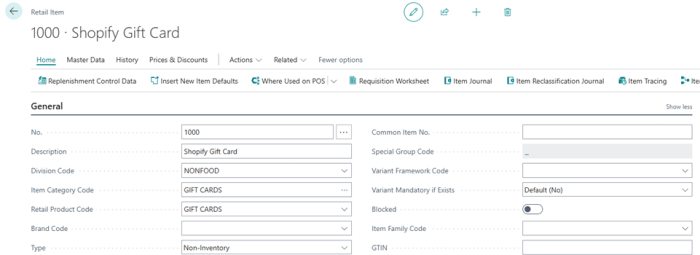
Create a new item named Shopify Gift Card in the Retail Item List, assign it to the Gift Card category, and configure the G-Shopify data entry under Related – Retail/ POS – POS – Infocodes.

-
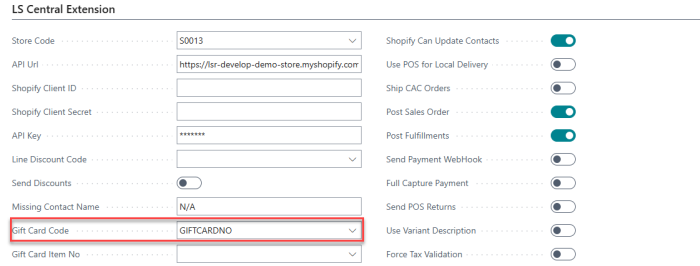
On the Shopify Shop Card page, under LS Central Extension, set Gift Card Code to the POS Data Entry Type used for gift cards — in this example, GIFTCARDNO.
-
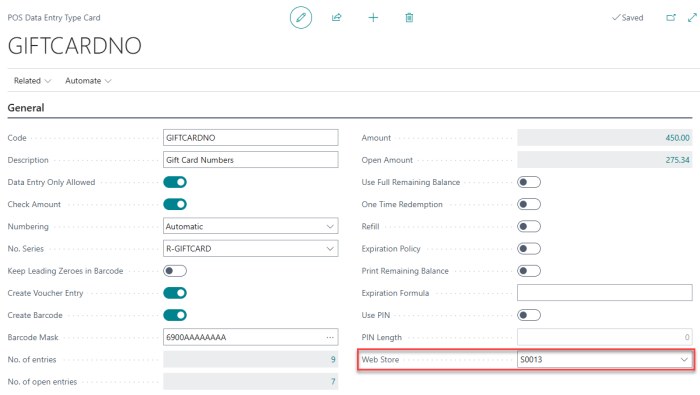
On the POS Data Entry Type Card for GIFTCARDNO, confirm the Web Store field is set to the store linked to the Shopify shop — in this example, S0013.
Gift Cards Issued in LS Central
When a Gift Card of the POS Data Entry type set in Gift Card Code is issued at the POS (for example, through an infocode or the voucher entry flow) for a store that is linked to a Shopify shop, the connector automatically creates a matching Gift Card in Shopify, using Shopify's native Gift Card feature.
The connector:
- Uses the LS Central voucher number as the Shopify Gift Card code, padded with leading zeros to at least eight characters.
- Sets the initial value of the Shopify Gift Card to the issued amount.
- Sets an expiration date on the Shopify Gift Card if the POS Data Entry has an expiring date.
- Links the Shopify Gift Card to the corresponding Shopify customer if the contact on the POS Data Entry already has an External ID from a previous synchronization.
The Shopify Gift Card ID returned by Shopify is stored on the LS Central POS Data Entry, so the entry can be matched to the Shopify Gift Card later — for example, when the Gift Card is redeemed at POS or used as a payment method on a Shopify order.
Note: The Gift Card is created in Shopify without specifying a currency code, so its value is created in the Shopify shop's default currency.
Example: Issuing a Gift Card at POS and Redeeming It on a Shopify Order
This example walks through the full round trip — issuing a gift card at the LS Central POS, then using it as a payment method on a Shopify webstore order.
Create the gift card in LS Central POS
-
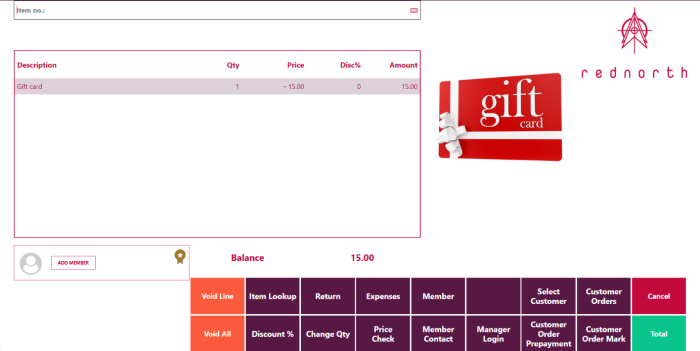
At the LS Central POS, use Item Lookup to add the gift card item (e.g. item number 69000 in the demo data, enter the amount to issue (for example, 15.00), and complete the payment.
-
Open POS Data Entry Type Card for GIFTCARDNO and click No. of entries to open POS Data Entries and locate the created gift card.

Note: The Gift Card code equals LS Central Entry Code.
Redeem the gift card on a Shopify order
-
In the Shopify webstore, add an item to the cart and go to checkout.
-
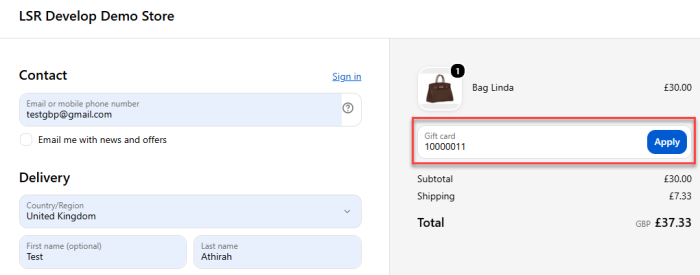
At checkout, apply the gift card code from step 4 as a payment method. If the gift card balance doesn't cover the full order total, complete the remaining balance with another payment method (for example, a card).
-
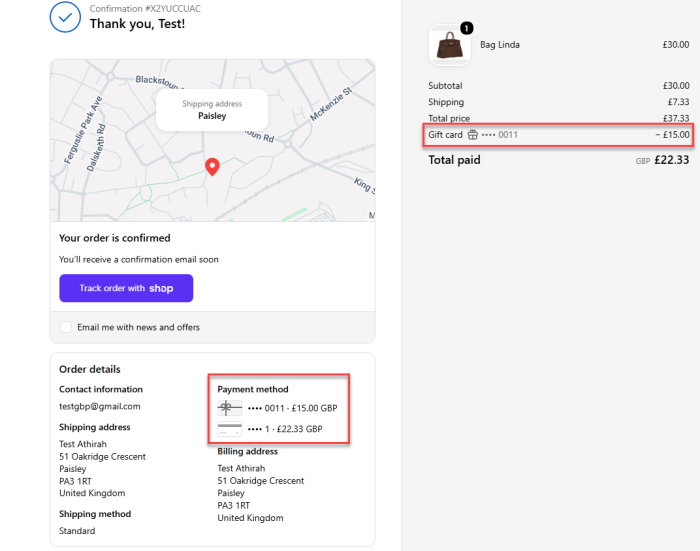
Place the order and confirm the confirmation page shows both the gift card amount and the remaining amount charged to the other payment method.
-
In Business Central, open the Shopify Orders page and navigate to Home - Sync Order from Shopify.
-
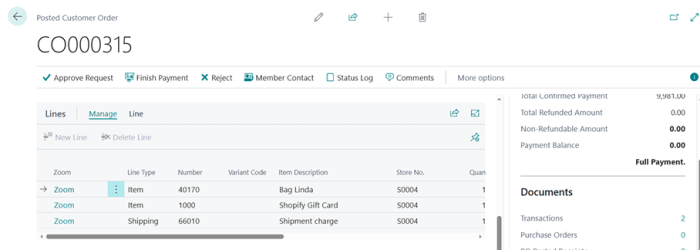
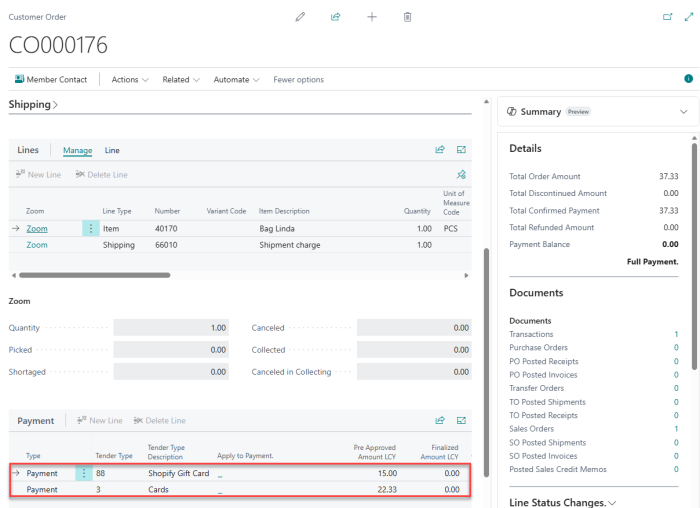
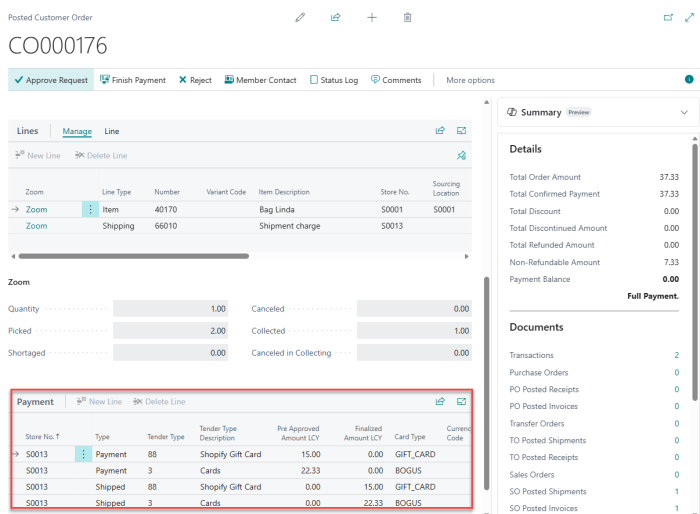
Open the resulting Customer Order and check the Payment lines: the gift card portion should show as a Payment with Card Type GIFT_CARD, for the same amount applied at checkout, and the remaining balance should show under the mapped card tender type.
-
Post the Customer Order and verify the gift card amount and other payment details remain correct on the posted document.
Gift Cards Sold in Shopify
When a customer buys a Gift Card product from the Shopify storefront, a Gift Card item must be sent from Central to Shopify as product.
Demo Gift card item is 69000. When the item is sent to Shopify, you need to open it up the product in Shopify and modify the option setup to include gift card amounts as Shopify does not support manual entered amount as can be done on the LS Central POS.
- Create options with amount like 10, 20, 50 GBP value and add inventory level to these options. LS Central does not handle inventory level for gift card items nor variant setup for amounts so this has to be done manually in Shopify product setup.
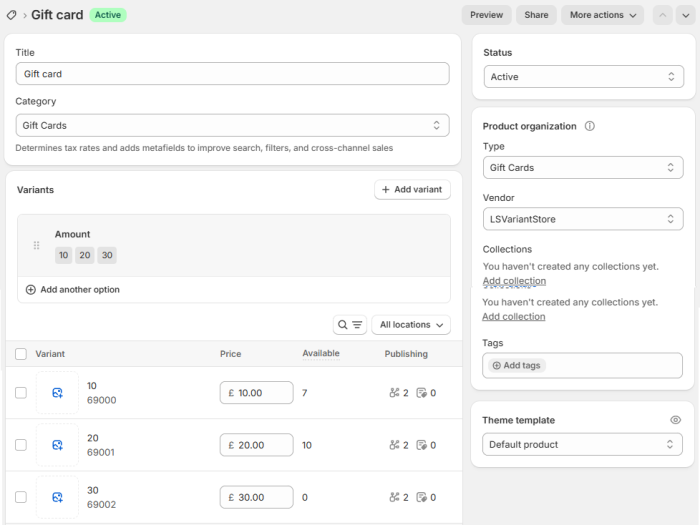
When the connector processes that order line with gift card product into a LS Central Customer Order, it process the item and creates Voucher Entry for the Data Entry that the item is assigned to.
The reason for not using standard Shopify Gift card product, is that when Shopify gift card is used and the order only contains the gift card, the shopify order is completed and closed.
-
BC Shopify Order Sync does not pull closed order so the order will not arrive to LS Central.
-
Thats why it has to be done with LS Central item which LS Central knows how to handle, and Central will take care of closing the order after it has been pulled in both places, if it only contains a gift card item.
Initial Configuration
-
Open the Store List, select the respective stores (e.g., S0013), navigate to Cash Management - Tender Types, and create a new tender type entry for Shopify Gift Card.
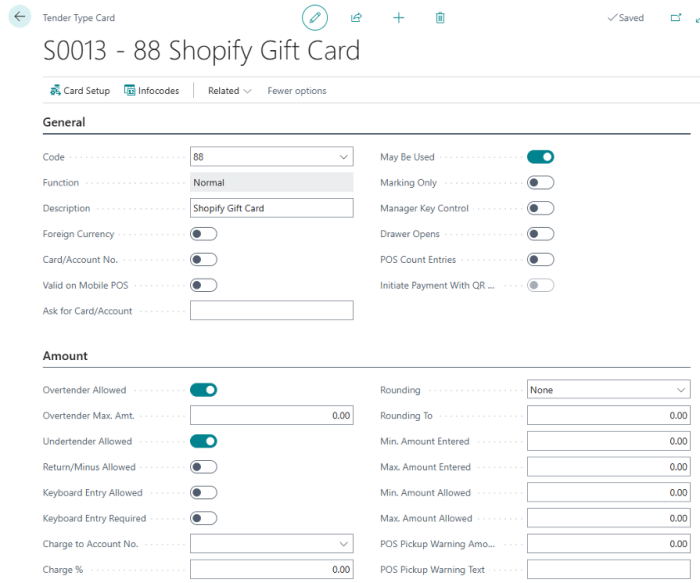
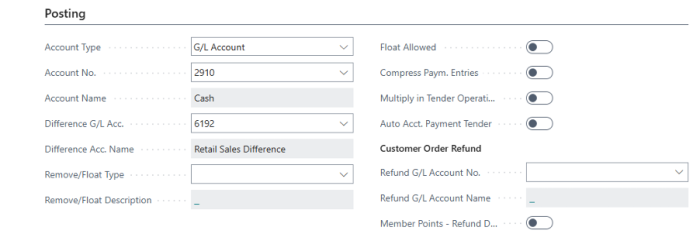
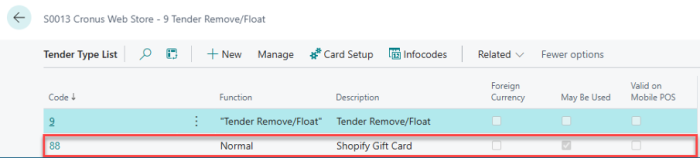
-
On the Shopify Shop Card, under Related - Mapping - Tender Type, map the Shopify gift_card payment gateway created earlier (GIFT_CARD: 88), and under LS Central Extension, set the gift card code and gift card item no. accordingly.
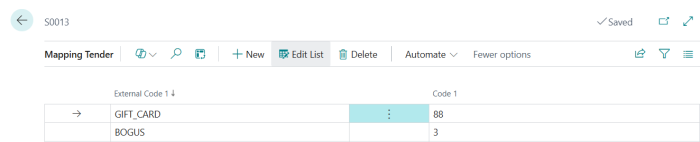
Example: Selling and Redeeming Gift Card Through the Shopify Webstore
This example sets up a gift card product in Shopify and walks through three order scenarios, from a gift-card-only purchase to a mixed order that also pays with a gift card.
Scenario 1: Order with only a gift card (non-physical item)
-
Purchase the gift card (product 69000) in the Shopify webstore.
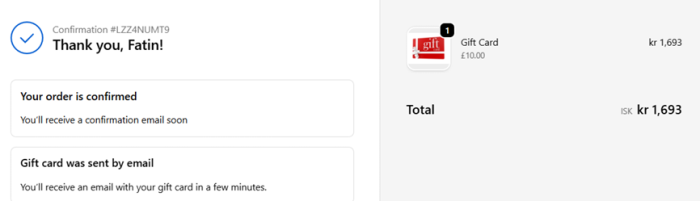
Order is then pulled by LS Central and if it only contains a gift card item, then the order will be fulfilled in Shopify and posted in Customer order.

Scenario 2: Order with a gift card and one physical item
-
In the Shopify webstore, create an order containing the gift card product and one physical item. Shopify marks the order Partially Fulfilled, since the gift card line fulfills immediately but the physical item does not.
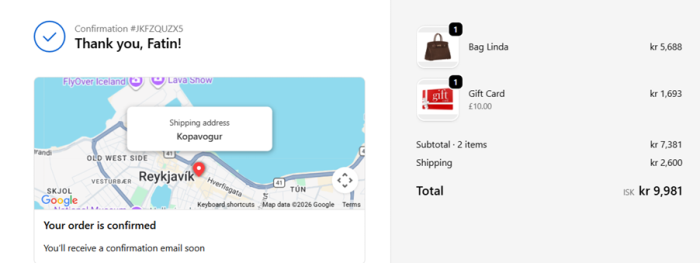

-
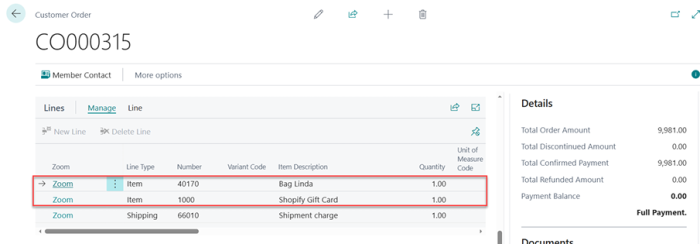
On the Shopify Orders page, use Sync Order From Shopify, then Create Customer Orders. Confirm the Customer Order contains both the gift card item and the physical item as separate lines.

-
Post the Customer Order. Once posted, the Shopify order's fulfillment status should update to Fulfilled.