Some warnings or errors that you may encounter:
-
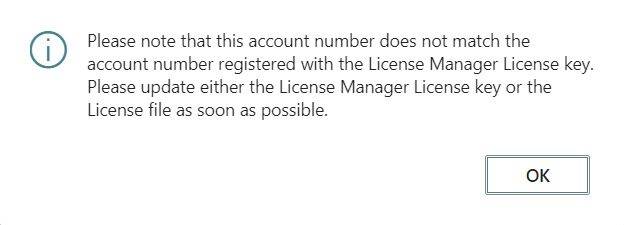
The message below is displayed if you are using a license key that is not assigned to your Tenant ID or to your Microsoft Account Number. This does not stop you from working, but the message is displayed several times until you update your license key.
-
This message is displayed until a license key is activated:

-
This notification is displayed until a license key is activated:

-
This notification is displayed until the field HO Distribution Location is populated in the Retail Setup page:

-
This message is displayed if a call to the License Manager API failed. If the problem persists contact your partner.

-
A Log system is available for License Manager, use this when requested.
Click the Activate Log action on the License Manager Setup page, under the Setup menu, to enable it and Deactivate Log to disable it.
The log history can be accessed from the Log action under the Related menu.
-
This message is displayed if a call to the License Manager API cannot be executed due to security settings activated on Azure portal. If the problem persists, contact your partner for more information.
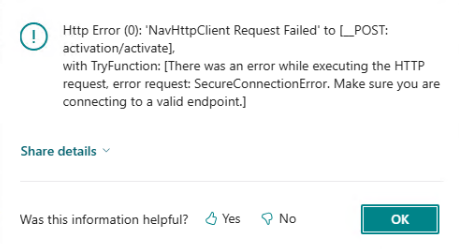
- Even if Allow HttpClient Requests was activated for both LS Central App entries under the Extension Management page, communication between the BC on-premises database and License Manager was blocked by Azure.
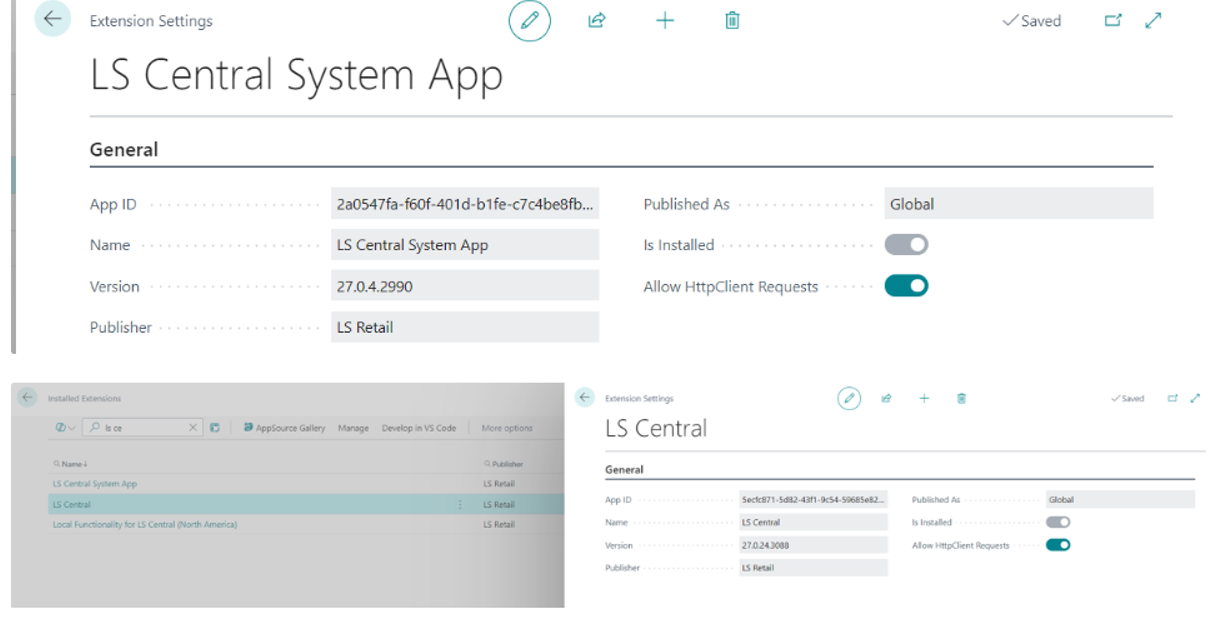
- The Transport Layer Security (TLS) in Azure Database was activated (like a firewall/proxy) to filter communication over Azure infrastructure.
- After the TLS is disabled, the license key can be activated, or the demo trial period can be started, for the LS Central app in a BC on-premises environment.
Offline POS connectivity
If the offline POS cannot connect to Head Office (for example, due to no internet access), the POS will retry the connection at a predefined interval. A check is performed at login to determine whether the license unit has expired; if it has, Head Office is called again.
License release behavior
For an offline POS, license release depends on call-home frequency. If the POS has not contacted Head Office within 24 hours, and another POS, Mobile Inventory device, or back-office user requests a license, the license can be reassigned.
Web Request Logs
Client Logs can be activated on the offline POS from the Web Service Setup page. Once activated, the same page shows the calls made to Head Office, including any errors.
License Manager Activated on the Offline POS
If License Manager has, for any reason, been set up on the offline POS itself, the offline POS will not call Head Office (LMGetLicenseUnit). Since you cannot deactivate License Manager on the company after you activated it, the only current workaround is to copy the POS company, which clears the License Manager setup on that company, and continue to use that company for the POS.
Device Only User cannot sign in to the POS
These messages can appear when a Device Only User signs in to the POS and License Manager cannot validate a Device Unit for that session:
- Your user need to exist as a Retail User. Make sure to assigned a Store No. to it.This is displayed when the signed-in user's account is not linked to a Retail User, or the Retail User has no Store No. assigned. Link the user to a Retail User with a Store No. to resolve this.
- This functionality requires a LS Central Device Unit to be available in the License Manager.This is displayed when no Device Unit is available in the License Manager for this POS session. Add or free up a Device Unit on the Device Units page, reached from the License Manager Setup page, under the Units Setup menu.