In this article
Cancel Renewal Units
This page displays the renewal status of each of the units in the license. Use this page to cancel the automatic renewal.
- In the License Manager Setup page, click the Units Setup menu, and then the Cancellation Details action.

- A page is displayed where you can see the number of LS Units on the License, how many are to be automatically renewed, and how many are going to be canceled.
The full list of units is displayed with the relevant information, to whom the unit is assigned (if applicable), the date when it will expire, and the cancellation status.
Note: These units are for the entire License Key, they are not company or tenant specific.

- To change the cancellation status, use the column Cancel Automatic Renewal. Notice the column Cancellation Status value is updated.
Only rows with Cancellation Status blank or To Be Cancelled can be updated.
Updated but not submitted rows are highlighted in bold.

- To submit your changes, click the Send Cancellation Update action. This communicates with the License Manager API. The rows are updated when the process ends.

- If you close this page without submitting your changes, a pop-up warning window is displayed. If you click Yes, all the changes will be lost.

- Cancellation Status legend:
- A blank unit will be renewed automatically when the expiration date is reached.
- A To Be Cancelled unit was submitted to be canceled by the user, waiting for LS Retail to process the request.
- A Confirmed To Be Cancelled unit cancellation was processed by LS Retail and it will end when the expiration date is reached.
Update and license details
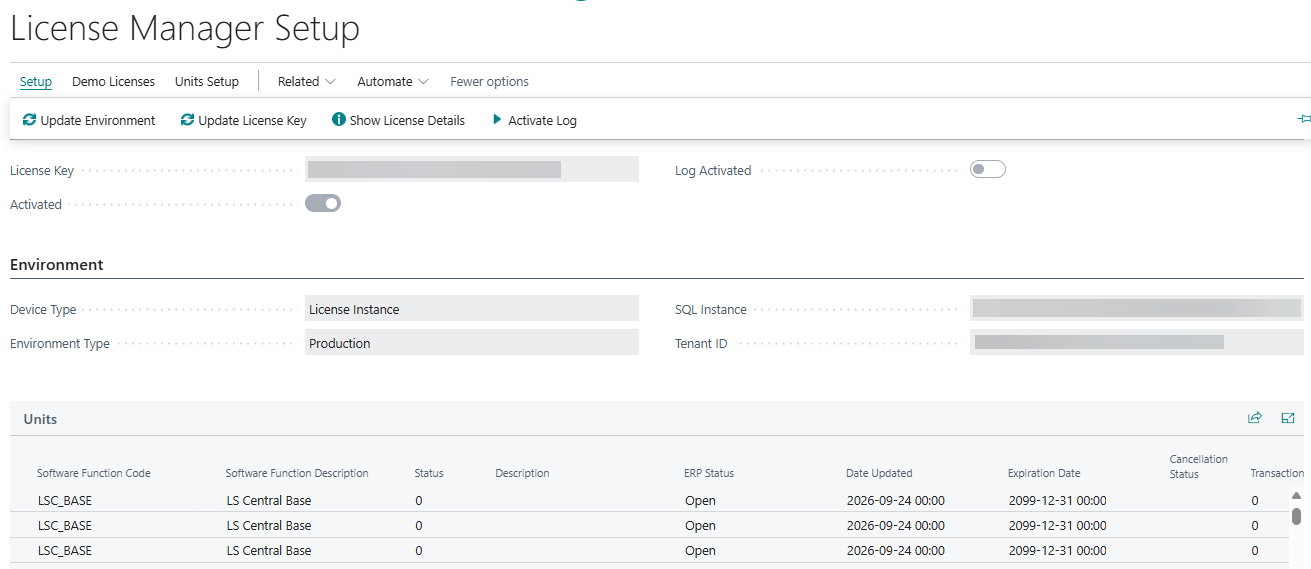
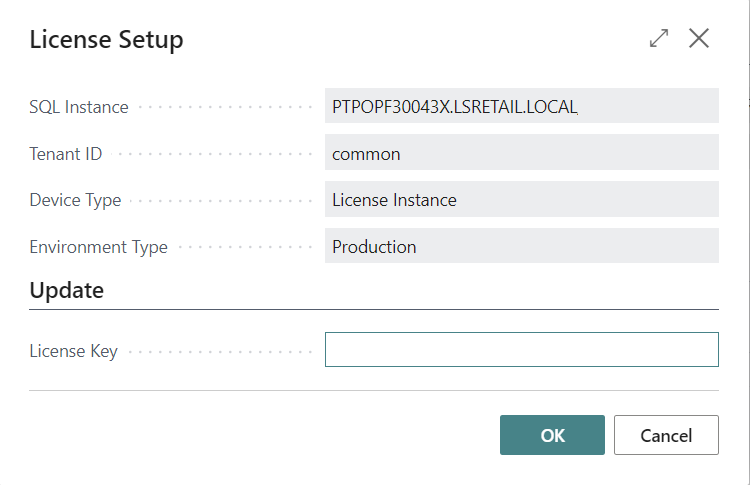
After you activate a license, different actions become available. These actions let you update the environment type and also the license key.
-
Click the Show License Details action on the License Manager Setup page to see more information about the license.
Note: An outside of BC connection is triggered to our License API.
The License Information page also shows a License Refresh group, which specifies how often License Manager checks in with the license server: License Refresh Every X Minutes, and the License Refresh Grace Period Minutes allowed if a check-in is missed, plus a License Refresh Description. The Units part of the page also shows the Last License Refresh Date for each unit.
The Update License Key action on the License Manager Setup page lets you activate a different license key.
Note: Be aware that any Unit assignment done with a current license key is not transferred to the new license key. Before updating your license key, you should consider the need to unassign units first.