In this article:
Initial Printing Configurations
Assigning a Printer Content Profile
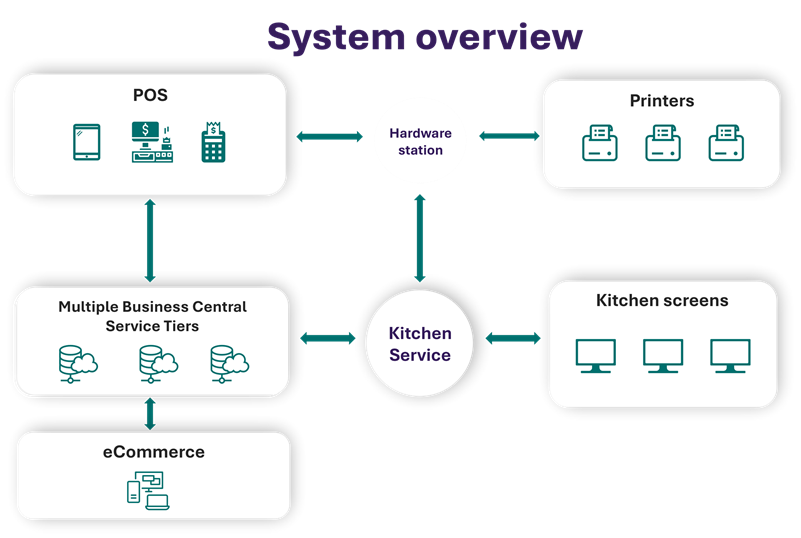
The Web KDS can include receipt printers as kitchen stations and printing can either be done automatically as a part of the routing of items to Kitchen Stations or triggered manually by the press of a button on another kitchen station.
Initial Printing Configurations
1. Hardware Station
The Kitchen printers need to be connected to a Hardware Station that the kitchen order tickets will be sent to. The Web Kitchen Service need to have access to this hardware station.
2. POS Printers
The printers in use in the kitchen need to exist in the POS Printers list.
There are two ways to get the Kitchen printers in this list:
- Create them manually with the correct name, same as the printer is called in the hardware station they are connected to. - OR-
- Create a hardware profile, connect it to the hardware station service and synchronize the hardware and then the POS Printers are automatically created in the list.
3. Kitchen Host
The Kitchen Host contains the connection to the Hardware Station that the kitchen printers are connected to.
- Open the Kitchen Host list
- Create a line for your store/restaurant
- Add all the printers that are in use at the restaurant in the lower list.
4. Printer Kitchen Stations
Create a Kitchen Station of type Printer. Fill in all mandatory fields and make sure to select which printer this station prints to and select the default Printer Content Profile for the station.
5. Restaurant
On the Restaurant Card, Kitchen Stations fast tab, add all the printer kitchen stations to the list.
6. Restart the Kitchen Service to get all new configurations
Automatic Kitchen Printing
A kitchen printer can be configured in the same way as any other kitchen display station, that is the items are printed according to the existing routing rules just like they are displayed on the display stations.
To configure Automatic Kitchen Printing follow all the steps described above. In step 4 also add the routing for the items to be printed to the printer Kitchen Stations. If the printer kitchen station is a part of a preparation line make sure to select which station group is the next station in the preparation line.
Manual Kitchen printing
Printing of orders and items can also be triggered manually by pressing a button on the kitchen display. This requires a printing operation to be selected for a button in the Kitchen Operation Profile. Each button can have a selected Printing Content Profile that defines what the print out looks like. This can be convenient to print item labels or tray order overview tickets.
To configure Manual Kitchen printing:
On the display kitchen station where the printing is triggered from
- Select the printer Kitchen station created in step 4 above as the Bump Printer Station
- Add a printing operation to the Kitchen Operation profile for that station.
The printing operations are the following:- Print Order - On a chit station it prints one kitchen slip with all the items on the order.
- Print and Bump Order - On a chit station it prints one kitchen slip with all the items on the order and bumps the order to next station.
- Print Item - On a line station it prints one kitchen slip for the selected item line.
- Print and bump Item - On a line station it prints one kitchen slip for the selected item line and bumps the item to the next station.
- Print Order Items - On a chit or a line station it prints one kitchen slip for each of the items that are on the same order. So multiple item labels can be printed for the whole order with one button press.
Assigning a Printer Content Profile
A Printer Content Profile only takes effect once it is attached to where printing happens. There are two places to assign one, and they work together as a default-and-override pair:
Kitchen Station (default layout)
On a Kitchen Station set up with the Printer role, select a Printer Content Profile. This is the default layout used for everything that prints through that station's printer.
Operation Profile (per-button override)
On an Operation Profile -- the setup used for print operations such as a specific print button -- you can optionally select a Printer Content Profile as a parameter for that operation.
Which profile wins
When printing is triggered:
- If the operation used to print has a Printer Content Profile selected, that profile is used.
- If the operation has no profile selected, printing falls back to the Printer Content Profile assigned to the printer's Kitchen Station.
- If the printing is automatic, items are routed to the kitchen printer station, the Printer Content Profile assigned to the printer's Kitchen Station is used.