In this article
One dining area, different menus per menu profile
Pop-up menus set on the hospitality service flow
Changing the looks and info of the dining table buttons
To set up the menus for multiple seatings
Dining areas that use Multiple Seatings on a Dining Table show different information on the POS than dining areas with one seating per table. A dining table button shows seats and seated groups instead of one party, and the pop-up menu of a table offers commands for one seating group instead of for the whole table. This topic describes how you give multiple-seatings terminals their own menus without changing the setup of the dining area or the hospitality service flow, and how to change the looks and info of the dining table buttons. The panels, their commands and the pop-up menu for each state are described in The Multi-Seatings POS Panels.
One dining area, different menus per menu profile
Menus on the POS belong to a menu profile, and the same Menu ID can exist in several menu profiles. Which menu the POS opens depends on the menu profile of the POS terminal. The dining area and the service flow only name the Menu ID.
For multiple seatings you use this as follows:
- Keep the Menu IDs that are already set up on the dining area and on the service flow.
- Copy those menus to the menu profile that the multiple-seatings terminals use. In the demo data this is the #HOSPMULTI menu profile. The copies keep the same Menu ID.
- Change the copies so that they fit multiple seatings, for example by showing free seats on a button or by offering the commands for a seating group in a pop-up menu.
The same dining area, with no change to its setup, then shows different menus depending on the active menu profile. A terminal with the multiple-seatings menu profile shows the multiple-seatings menus, and a terminal with another menu profile shows the original menus.
Menus set on the dining area
The menus are set on the Dining Area Card. Copy each menu you use to the multiple-seatings menu profile.
| Dining area field | Used for | Example of changes for multiple seatings |
| Dining Table Button Menu ID | The dining table buttons in the table overview, in graphical or grid layout. In the demo data, #DT-GRAPH-GUEST is the graphical layout with guests. |
In #DT-GRAPH-GUEST, the following statuses are used and show info for the whole table that may include group count, free seats and seat capacity, and the time of an upcoming reservation.
|
| Graphical Tbl. Status Menu ID | The dining table buttons in the graphical layout of the Dining Allocation panel. In the demo data, #DT-ALLOC-GRAPH is the graphical layout. |
In #DT-ALLOC-GRAPH, the following are used and show info for the whole table that may include group count, free seats and seat capacity, and the time of an upcoming reservation.
|
| List View Status Menu ID | The dining table buttons in the list view of the Dining Allocation panel. | As above. |
| Timeline Tbl. Status Menu ID | The dining table buttons in the timeline view of the Dining Allocation panel. | As above. |
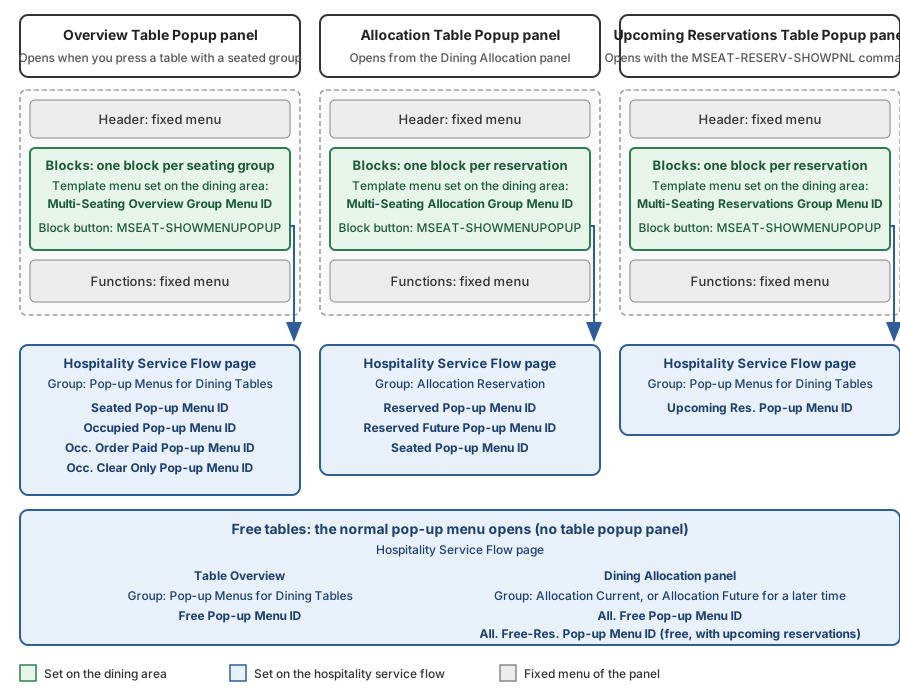
| Multi-Seating Overview Group Menu ID Multi-Seating Allocation Group Menu ID Multi-Seating Reservations Group Menu ID |
The template menus for the blocks on the three multiple-seatings pop-up panels. See The Multi-Seatings POS Panels. | A different layout and a different set of block buttons per menu profile. For example, a tablet can show fewer block buttons and lay the blocks out vertically. |
Pop-up menus set on the hospitality service flow
The pop-up menus are set per state on the Hospitality Service Flow page. The pop-up menus that hold the commands for a seating group or a reservation, and the field that sets each one, are listed per panel and state in Where to put the commands for a seating group or reservation.
These fields also matter for multiple seatings:
| Field | Menu for | Example of changes for multiple seatings |
| Pop-up Menus for Dining Tables: Free Pop-up Menu ID | Table overview: you press a table that is free. | A button that shows how many reservations are upcoming at the table and opens the Upcoming Reservations Table Popup panel (MSEAT-RESERV-SHOWPNL). |
| Allocation Current and Allocation Future: All. Free-Res. Pop-up Menu ID | Dining Allocation panel: you press a table that is free, but has an upcoming reservation. | The same button. |
| Pop-up Menus for Dining Tables: Occ. Clear Only Pop-up Menu ID | The table as a whole. This applies to a table that has manually been put into Occupied mode. | No changes. |
| Pop-up Menus for Dining Tables: On Transferring Pop-up Menu ID | The table that you press as the destination of a transfer. | No changes. |
The same field name can appear in more than one group. For example, Seated Pop-up Menu ID is in the Pop-up Menus for Dining Tables group (Overview Table Popup panel) and in the Allocation Reservation group (Allocation Table Popup panel).
In the Dining Allocation panel, a table that is free, or free with an upcoming reservation, opens its pop-up menu directly. A table that is not free opens the Allocation Table Popup panel, and its blocks use the menus in the Allocation Reservation group. The other menus of the Allocation Current and Allocation Future groups are not used for such a table, because a table with several seatings has no single allocation status.
Note: The service flow also uses menus that are not in the multiple-seatings menu profile, for example #HOSP-POP-TRANSFER for On Transferring Pop-up Menu ID. The POS takes those from the menu profile that has them.
Changing the looks and info of the dining table buttons
How to change the caption, glyphs, colors and fonts of a dining table button is described in Adjusting the Appearance and Info on Dining Table Buttons. Those steps apply to the copies in the multiple-seatings menu profile too. This section covers what is different when a table can have several seatings.
- The statuses. A table with several seatings is not just seated or free, so the status lines of the menu include Partially Seated and Fully Seated, and in the Dining Allocation panel also their upcoming-reservation variants. Set the skin, font and glyphs for each of them. The button shows info for the whole table, not for one group.
- The Guest glyph. It shows the guests seated at the table, summed over all groups, against the seat capacity, for example 6/8. When at least one group is seated, the number of groups is added, for example 6/8 Gr: 2.
- The Reserv. Time glyph. It shows the time of the next reservation at the table, for example R19:30.
- Counts as caption or glyph text. The Dining Table Status fields Seated Groups Text, Available Seats Text, Upcoming Reservations Text and Seating Capacity Text hold plain numbers, without wording. Add the wording in the menu line, for example "Free seats" next to the number.
Tip: Start from the copy of the single-seating menu, and use the POS Menu Comparison – Lines page to compare it with the original and to copy glyph setup between statuses.
To set up the menus for multiple seatings
- Set up the dining area and the service flow for multiple seatings. See How to: Set Up a Dining Area for Multiple Seatings.
- Choose the menu profile for the multiple-seatings terminals. In the demo data this is #HOSPMULTI.
- Copy the dining table button menus from the table above to the menu profile, for example with the Copy to Curr. Profile action on the POS Menu Profile Card. The copies keep their Menu ID. You can also select a menu and use the Create New From action.
- Copy the template menus and the pop-up menus of the service flow in the same way. The fields are listed in Where to put the commands for a seating group or reservation.
- Change the copies to fit multiple seatings. See Changing the looks and info of the dining table buttons.
- Set the menu profile on the POS terminals that use multiple seatings.
Note: Do not change the Menu IDs on the dining area or on the service flow. The terminals that use another menu profile continue to use the original menus.
See also
Multiple Seatings on a Dining Table
How to: Set Up a Dining Area for Multiple Seatings
Adjusting the Appearance and Info on Dining Table Buttons