In this article
How to: Register a Cash Register
Each POS terminal participating in DSFinVK reporting must be registered in Fiskaly as a Cash Register. The Cash Registers subpage appears on the POS Terminal Card under the DSFinV-K FastTab. A terminal typically has one active cash register record.
Cash Register Types
| Type | Description |
| MASTER | Primary register. Directly linked to a TSS and Client ID. |
| SLAVE_WITHOUT_TSS | Subordinate register that delegates signing to the master. Has no own TSS. |
| SLAVE_WITH_TSS | Subordinate register with its own TSS. |
Fields
| Field | Description |
| Type | The cash register type. See the Cash Register Types table above. |
| Status | Whether the cash register is Active or Inactive in Fiskaly. |
| TSS ID | The TSS ID associated with this cash register. Populated automatically from the Fiskaly Client configuration on the same POS terminal. |
| Client ID | The Fiskaly Client ID of this cash register. Populated automatically from the Fiskaly Client configuration. |
| Brand | Hardware manufacturer name. Required before registering. |
| Model | Hardware model. Required before registering. |
| Software Brand | POS software brand. Required before registering. |
| Software Version | POS software version. |
| Base Currency Code | Three-letter ISO currency code (e.g., EUR). Required before registering. |
| Master Client ID | For slave registers: the Client ID of the master register. |
Actions
| Action | Description |
| Insert Cash Register | Registers a new cash register with Fiskaly DSFinVK. |
| Update Cash Register | Updates the existing cash register record in Fiskaly DSFinVK. |
How to: Register a Cash Register
Complete the Fiskaly Client setup on the Sign DE V2 FastTab first. TSS ID and Client ID on the Cash Register are populated from that record.
- Open the POS Terminal Card for the terminal to configure.
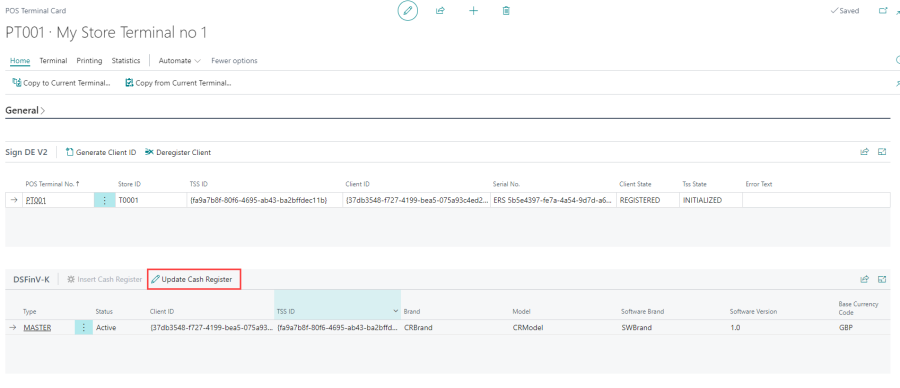
- Go to the DSFinV-K FastTab. The Cash Registers subpage is shown.
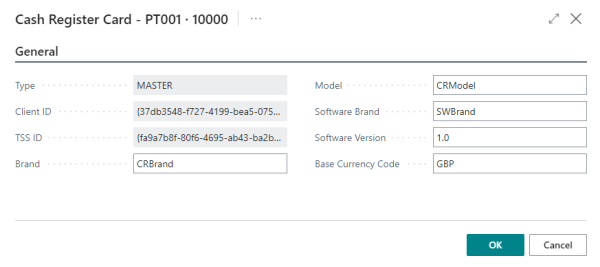
- In the Brand field, enter the hardware manufacturer name.
- In the Model field, enter the hardware model.
- In the Software Brand field, enter the POS software brand.
- In the Software Version field, enter the POS software version.
- In the Base Currency Code field, enter the ISO currency code (e.g., EUR).
- On the action bar of the DSFinV-K FastTab, choose Insert Cash Register.
- Verify that Status shows Active.
Note: If the TSS associated with this terminal is later DISABLED, Status will automatically change to Inactive. A disabled TSS cannot be re-enabled; a new TSS must be generated.
Troubleshooting
No active Master Cash Register found for Store %1
This error occurs when DSFinV-K processing (for example, signing a receipt or transaction) needs the store's master cash register, but no cash register of type MASTER with Status Active is registered for that store.
To resolve this, open the POS Terminal Card for a terminal at the store, go to the DSFinV-K FastTab, and register or activate a MASTER cash register. See How to: Register a Cash Register.
See also
POS Terminal: German Localization Setup