In this article
Transaction type in the export
How to: Recreate Flagged Cash Point Closings
Cash Point Closings are the day-end fiscal export records submitted to the German tax authority via Fiskaly. A Cash Point Closing is created automatically when a statement is posted in LS Central. It covers all Fiskaly transactions between the First Transaction Exp. ID and the Last Transaction Exp. ID recorded during that statement period. The export conforms to the DSFinVK (Digitale Schnittstelle der Finanzverwaltung für Kassensysteme) taxonomy required under KassenSichV.
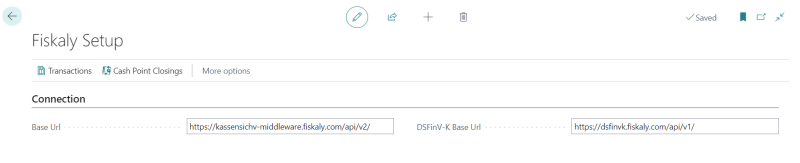
To open Cash Point Closings, Click the  icon, enter Fiskaly Setup, and on the Fiskaly Setup page choose Cash Point Closings from the action bar.
Fields
| Field | Description |
| Closing ID | Unique identifier (GUID) assigned by Fiskaly to this cash point closing. |
| Cash Point Closing Export ID | Sequential integer identifying the closing within the DSFinVK export. |
| State | Current processing state. See the States table below. |
| Error | Error message returned by Fiskaly if the submission failed. |
| Correction Closing Id | The Closing ID of the Cash Point Closing submitted to correct this one, if the original was in ERROR state. |
| Original Closing Id | When this entry is itself a correction, links back to the original closing. |
| Client ID | The Fiskaly Client ID of the POS terminal that originated this closing. |
| Business Date | The business date of the statement that generated this closing. |
| First Transaction Exp. ID | Export ID of the first Fiskaly transaction included in this closing. |
| Last Transaction Exp. ID | Export ID of the last Fiskaly transaction included in this closing. |
| Store No. | The store associated with this cash point closing. |
| Posted Statement No. | The posted statement that triggered this closing. Drill down to open the Posted Statement. |
| Requires Update | Set by upgrade code. This entry needs remediation via Recreate Cash Point Closing. |
States
| State | Description |
| PENDING | Submitted to Fiskaly, awaiting processing. |
| WORKING | Fiskaly is currently processing the closing. |
| COMPLETED | Successfully processed and accepted by Fiskaly. |
| CANCELLED | The closing was cancelled. |
| EXPIRED | Expired before processing could complete. |
| DELETED | Deleted from Fiskaly. |
| ERROR | Submission failed. See the Error field for details. |
Actions
| Action | Description |
| Submit | Submits the selected closing to Fiskaly. |
| Retry Submit | Retries a failed submission. |
| Refresh | Retrieves the current state from Fiskaly and updates the record. |
| Delete Cash Point Closing | Deletes the selected closing from Fiskaly. |
| View Request | Displays the raw JSON payload sent to Fiskaly. Hidden by default. Personalise the page to make it visible. |
| Recreate Cash Point Closing | Soft-deletes the current closing, creates a corrected one with updated income/expense amounts, submits it, and clears Requires Update. |
Transaction type in the export
Each Fiskaly transaction included in a Cash Point Closing is submitted with a type value that classifies the transaction in the DSFinVK export. The LSCDE FiskalyTransactionType enum defines several values, including Beleg (standard receipt) and AVRechnung (invoice).
Currently, every transaction submitted through a Cash Point Closing is tagged with type Beleg, regardless of whether the underlying LS Central document was a sale or a Service Invoice. The AVRechnung value exists on the enum but is not applied when the export is generated, so Service Invoices are not distinctly classified in the exported data — they are exported with the same transaction type as standard sales.
Note: When reviewing the DSFinVK export for stores that post Service Invoices, expect these transactions to appear as Beleg (standard receipt) entries rather than as a separate invoice type.
How to: Recreate Flagged Cash Point Closings
Before running this procedure, ensure Business Case Type is set on every Income/Expense Account used in the store. See Income/Expense Account: Business Case Type.
- Click the icon, enter Fiskaly Setup, and select the relevant link.
- On the Fiskaly Setup page, choose Cash Point Closings.
- Optionally filter by Store No. or Posted Statement No. using the filter pane.
- On the action bar, choose Recreate Cash Point Closing. A request page opens.
- Apply additional filters if needed, then choose OK.
- When the report finishes, verify that State shows COMPLETED and Requires Update is cleared for the affected entries.
Note: After recreating cash point closings, check Fiskaly Transactions for entries where Requires Update is also true. See Fiskaly Transactions.
See also
Income/Expense Account: Business Case Type