When the Print Item Arabic Desc. toggle on the POS Functionality Profile is on, the Arabic description of each item line is printed alongside the English description on the receipt.
Note: Arabic Receipt must be on first. If it is off, item lines print only the English description regardless of this setting.
Turn on the toggle
- Click the
 icon, enter POS Functionality Profile List, and select the relevant link.
 - Open the relevant profile.
- In the Arabic Receipt group, confirm that the Arabic Receipt toggle is on.
- Turn on the Print Item Arabic Desc. toggle.
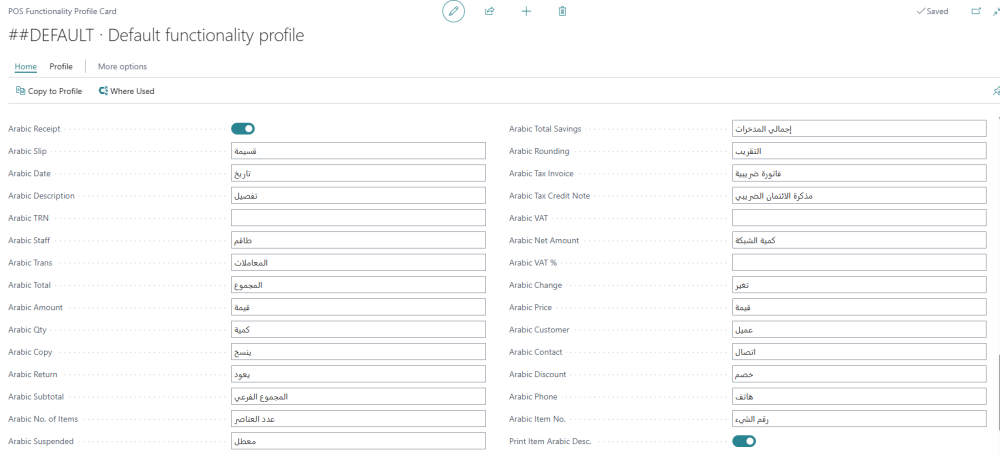
-
Confirm that the Arabic Description field on the same profile contains the Arabic caption you want to use as the description column header.
How the Arabic text is chosen for each line
When the receipt is printed, LS Central picks the Arabic text for each item line as follows:
- If the item has an Arabic Description on its item card, that text is printed alongside the English item description.
- If the item has no Arabic description, the system reads the item's Retail Product Group. If that retail product group has an Arabic Description, the group's Arabic description is printed alongside the English description.
- If neither the item nor its retail product group has an Arabic description, only the English item description is printed.
The Arabic text is printed to the right of the English text on the same line. The receipt is not re-rendered in a right-to-left layout — the Arabic characters appear as a parallel column next to the English column.
Where to set the Arabic descriptions
- On items: Arabic Description for Items.
- On retail product groups: Arabic Description for Retail Product Groups.