In this article
Setup Without Hardware Station
LS Central supports fiscal registration for the Type C fiscal interface using Infrasec Cloud TCS, with or without a Hardware Station. To ensure compliance with fiscal regulations, you must configure the Fiscal Interface Setup for each POS terminal in the store.
To configure the fiscal setup for a terminal:
- Open the POS Terminal Card in LS Central BackOffice.
- Select Related > Fiscal Interface Setup.
- On the Fiscal Interface Setup page, fill in the required fields.
Note: The available setup options vary depending on the selected Register Type.
Setup With Hardware Station
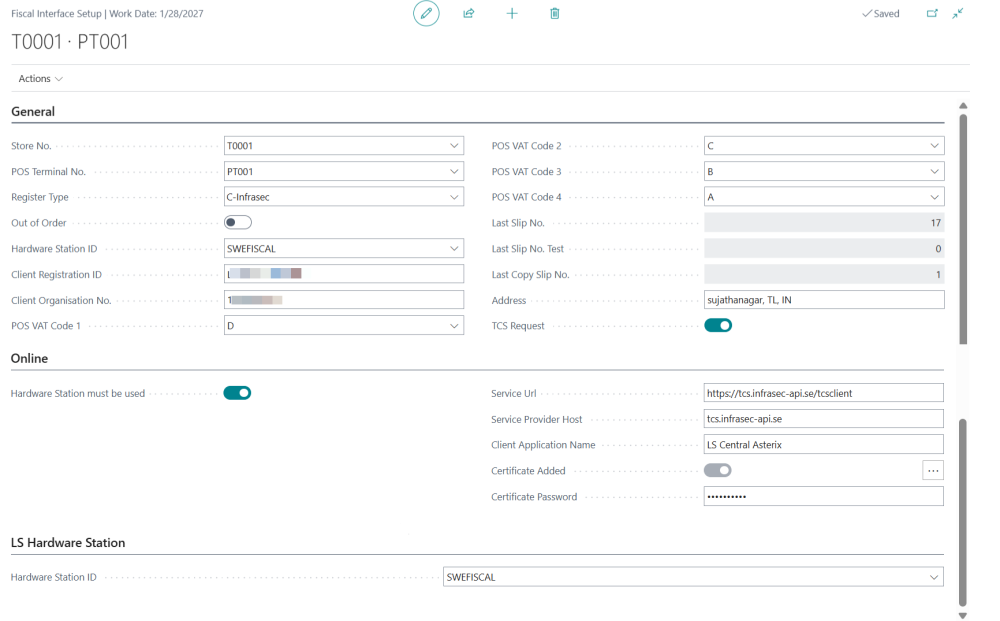
General FastTab
Use the following configuration when setting up Type C fiscal interface with a Hardware Station:
| Field | Description |
|---|---|
| Store No. | Select the store number. |
| POS Terminal No. | Select the POS terminal number. |
| Register Type | Select C-Infrasec. |
| Out of Order | Turn this toggle off. Use it to change the status if the POS encounters an error. |
| Hardware Station ID | Enter the POS Serial Device ID, which must match the Hardware Profile and the Hardware Station Management Portal. |
| Client Registration ID |
Enter the unique alphanumeric ID (up to 16 characters) as specified in the Infrasec registration for this store/POS. Note: The ID may differ between Test and Production environments. Using an incorrect ID prevents transactions from being sent. |
| Client Organisation No. | Enter the 10-digit company organisation number. Do not include hyphens (-).
Note: The ID may differ between Test and Production environments. Using an incorrect ID prevents transactions from being sent. |
| POS VAT Codes | Fill in as required. If this field is empty, fiscal entries are not created. |
| Last Slip No. | Specifies the value of the last Slip Number field. |
| Last Slip No. Test | Specifies the last Slip Number value used for Test. |
| Address | Configure the address of the POS register. If not entered, the POS register must have a valid address defined in the IDM system. |
| TCS Request | Enable the TCS Request toggle to use the TCS API of Infrasec. |
Online FastTab
| Field | Description |
|---|---|
| Hardware Station must be used | Enable this toggle. This toggle must be turned on if you plan on using Type C with Hardware Station. |
| Service URL |
Provided by Infrasec. When using direct connection: |
| Service Provider Host | Provided by Infrasec:
|
| Client Application Name | Enter a name (up to 30-characters), for example, LS Central. |
| Certificate Added | Use the assist button to import the certificate as provided by Infrasec. You must enter the Certificate password before import. Once imported, the field status changes to Enabled. |
| Certificate Password | Enter the password received with the Infrasec certificate for the store/POS. |
Note:
- Fill out the fields in the form.
- Make sure to enter the correct password in the Certificate Password field.
- When you have entered the password, import the certificate file you have from Infrasec.
- Certificates are required for Type C setups with Hardware Station.
- The same certificate and password are used for TCS requests.
LS Hardware Station FastTab
| Field | Description |
|---|---|
| Hardware Station ID | Enter the POS Serial Device ID, the same value used in the Hardware Profile and the Hardware Station Management Portal. |
Setup Without Hardware Station
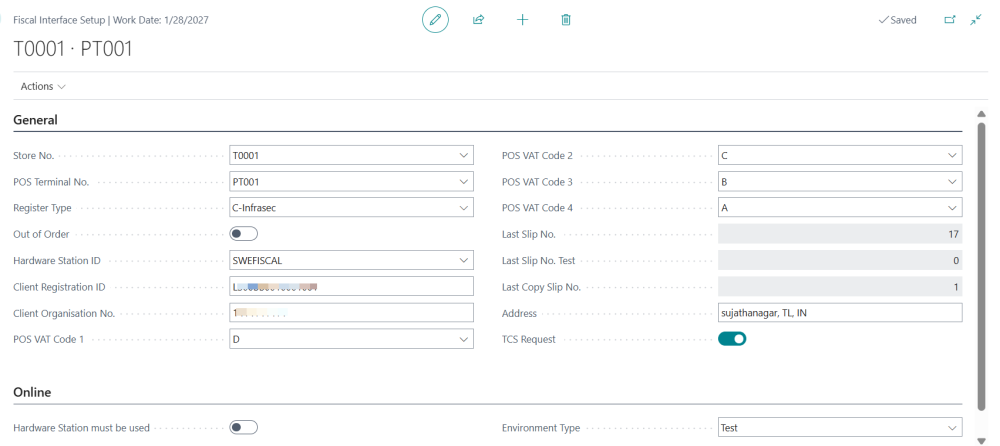
General FastTab
Use the following configuration when setting up Type C fiscal interface without a Hardware Station:
| Field | Description |
|---|---|
| Store No. | Select the store number. |
| POS Terminal No. | Select the POS terminal number. |
| Register Type | Select C-Infrasec. |
| Out of Order | Turn this toggle off. Use it to change the status if the POS encounters an error. |
| Hardware Station ID | The hardware station ID is not necessary. |
| Client Registration ID |
Enter the unique alphanumeric ID (up to 16 characters) as specified in the Infrasec registration for this store/POS. Note: The ID may differ between Test and Production environments. Using an incorrect ID prevents transactions from being sent. |
| Client Organisation No. |
Enter a 10-digit numeric ID. Do not include hyphens (-). Note: The ID may differ between Test and Production environments. Using an incorrect ID prevents transactions from being sent. |
| POS VAT Codes | Fill in as required. If this field is empty, fiscal entries will not be created. |
| Last Slip No. | Specifies the value of the last Slip Number field. |
| Last Slip No. Test | Specifies the last Slip Number value used for Test. |
| Address | Configure the address of the POS register. If not entered, the POS register must have a valid address defined in the IDM system. |
| TCS Request | Enable the TCS Request toggle to use the TCS API of Infrasec. |
Online FastTab
| Field | Description |
|---|---|
| Hardware Station must be used | Disable this toggle. |
| Environment Type | Select one of the following: None, Production, Test. |