Configure the Hardware Station
The Planet Tax Free integration includes an LSWebSocketConnect.dll file that allows the POS to communicate with Planet through the Hardware Station Service (HWS).
To enable this communication, you must create a serial device in the Hardware Station, link the DLL to that device, and connect the device to the hardware profile used by the POS.
For background information on the Hardware Station and how to add a serial device, see the LS Central Hardware Station documentation.
Configure the Hardware Station
To prepare the Hardware Station for the Planet Tax Free integration:
- Install the LS Hardware Station on the POS computer or on a server reachable from the POS.
- Copy LSWebSocketConnect.dll to C:\Program Files (x86)\LS Retail\LSHardwareStation\Devices\OPOS\.
- Restart the LS Hardware Station service.
- Set the service Startup Type to Automatic.
Note: The Hardware Station service must be restarted after the DLL is copied to its folder and before you create the serial device.
Create a serial device in the Hardware Station Management Portal
- Open the Hardware Station Management Portal at http://localhost:8088/ and log in.
- Create a new Serial Device.
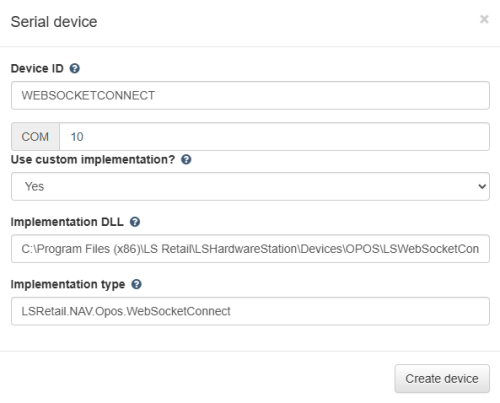
- In Implementation DLL, enter C:\Program Files (x86)\LS Retail\LSHardwareStation\Devices\OPOS\LSWebSocketConnect.dll.
- In Implementation Type, enter LSRetail.NAV.Opos.WebSocketConnect.
- Select Create device, then Load the serial device.
Hardware Profile for the POS
Connect the new serial device to the POS hardware profile so the POS can reach Planet through the Hardware Station.
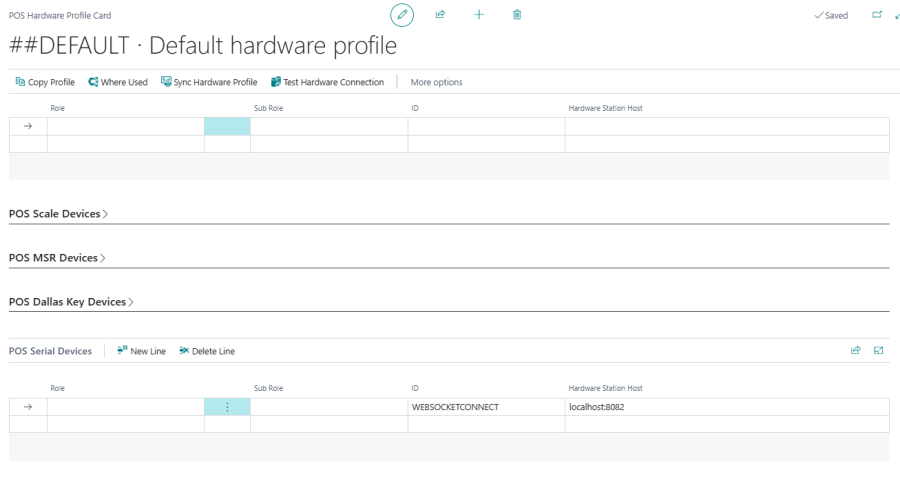
Note: Use the same device ID on the hardware profile that you used in the Hardware Station Management Portal.