Once a transaction has been finalized in the POS, you can see the payment information in the Transaction Register page. To see the details of the POS transaction:
-
Click the
 icon, enter Transaction Register and select the relevant link.. The tax information can be viewed in the Sales Entries FastTab.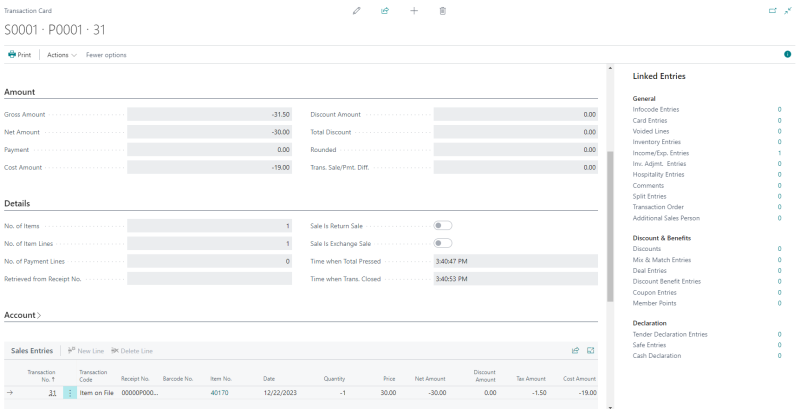
-
Select SalesTax Entries from the functions menu to view more detailed sales tax entries. Here you can see how the taxes are calculated based on the tax area code, tax jurisdiction code, tax group code, and tax liability of each transaction performed.

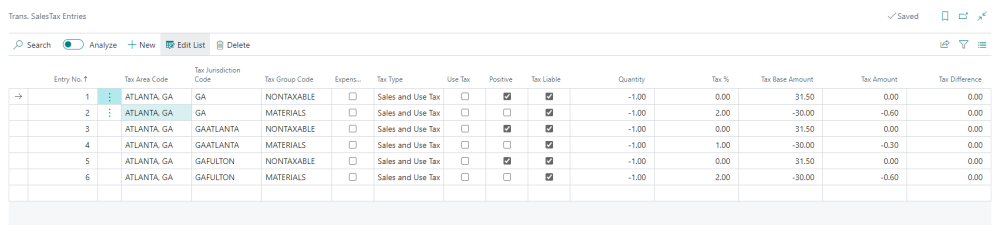
For regular sales with a selected customer, sales tax is calculated based on the customer's Tax Area Code when the customer is tax liable and has a Tax Area Code specified. If the customer is not tax liable, or is tax liable but does not have a Tax Area Code specified, the store's Tax Area Code is used instead. For Customer Orders with items shipped to customers, sales tax is computed according to the Customer's Tax Area or Zip Code.
Rounding of sales tax amounts on the receipt
Sales tax is calculated and rounded per transaction line. Because each line is rounded to the currency's rounding precision individually, a small remainder (the difference between the exact calculated tax and the rounded amount) is left over after each line is rounded.
This remainder is not discarded. It is carried forward and added to the Tax Amount of a later line that has the same Tax Area Code and Tax Group Code, once the accumulated remainder reaches a full rounding unit. The same carry-forward rounding is applied when tax amounts are summarized by tax jurisdiction, as shown in the SalesTax Entries window.
As a result, the tax amount on a POS receipt may not equal the simple sum of each line's net amount multiplied by its tax percentage and rounded independently. The rounding remainder is redistributed across the transaction's lines instead of being dropped, so that the total sales tax charged matches the calculated tax as closely as possible.
Tax name shown on the receipt for Canadian stores
On receipts for stores using the Canadian localization, if only one tax jurisdiction applies to a transaction, the receipt shows that jurisdiction's specific tax name — for example, GST or QST — instead of the generic Sales Tax label. The label is taken from the Print Description field on the Tax Jurisdiction card.
When more than one tax jurisdiction applies to a transaction, each jurisdiction still prints on its own line using its own tax name. This jurisdiction-specific labeling for a single applicable tax is specific to the Canadian localization; other localizations continue to use the generic Sales Tax label when only one tax jurisdiction applies.
Sales tax lines in statement posting
When you post a statement, the sales tax collected on the statement's transactions is posted to the sales tax accounts of the tax jurisdictions. Sales tax lines that post to the same G/L account are combined into a single line when they also have the same posting groups, dimensions, document number, currency, and customer order ID.
This applies even when the lines come from different tax areas that share a tax jurisdiction. For example, Canadian provinces whose tax areas both use the GST jurisdiction post to the same G/L account, so their tax is combined into one line. This also applies to returns made in a different tax area than the original sale.
The amounts posted to each G/L account are not affected by the combining. The only difference is that the Tax Area Code on a combined line shows the tax area of the first line that was added to it.