Communication with the Spanish tax authority (AEAT) under the SII regime is mutually authenticated using a digital certificate issued to the taxpayer. Without a valid certificate uploaded into LS Central, no SII submission can succeed - the job that uploads pending documents will fail with the message "Could not get certificate, please make sure that it is configured in the SII Setup."
The certificate (and its password) are stored in Isolated Storage at company scope, never directly in a table.
In this article
How to upload the SII certificate
How to replace the certificate
How to verify a certificate is loaded
How to upload the SII certificate
You need a digital certificate file (typically .pfx or .p12 format) and its password. Both are issued together by the certification authority.
- Click the
 icon, enter SII Setup and select the relevant link.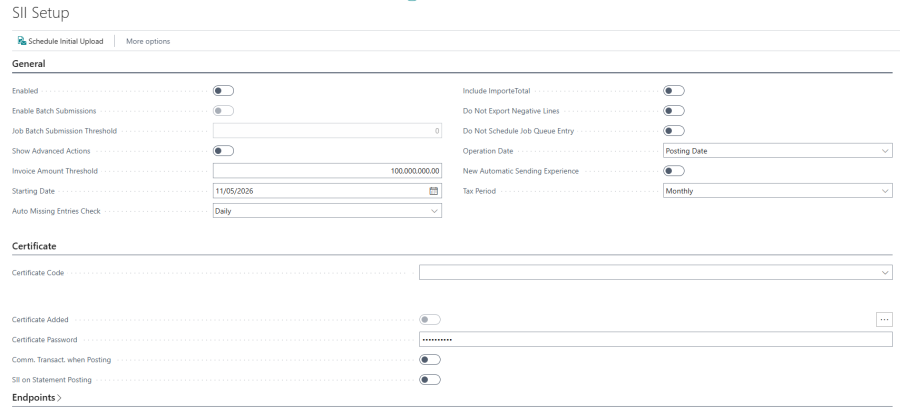
- The Spain localization adds the certificate fields directly after the standard Certificate field on the SII Setup page (alongside an LS Retail heading). Scroll to the Certificate Added and Certificate Password fields.
- In the Certificate Password field, type the password for the certificate file.
- Important: The password must be entered before you upload the certificate file. The password is required to wrap the certificate in Isolated Storage.
- On the Certificate Added field, click the AssistEdit button. A file selection dialog opens.
- Pick the certificate file and confirm. Once the upload succeeds, the Certificate Added field displays as Yes.
How to replace the certificate
Certificates from AEAT have a fixed validity period (typically two years). Replace the certificate before the expiration date to avoid SII communication failures.
- Open the SII Setup page.
- Type the new certificate password in the Certificate Password field.
- Click the AssistEdit button on Certificate Added and pick the new certificate file.
The new certificate replaces the previous one in Isolated Storage immediately. There is no separate "remove" step.
How to verify a certificate is loaded
- The Certificate Added field on SII Setup is set to Yes when a certificate exists in Isolated Storage.
- To functionally verify the certificate, schedule the SII Pending Documents Job and inspect the SII Session records produced. A successful Session contains a non-empty Response XML.
Note: The certificate is shared by all SII communications from the company - there is no per-store certificate. Multi-company tenants need a certificate uploaded once per company.