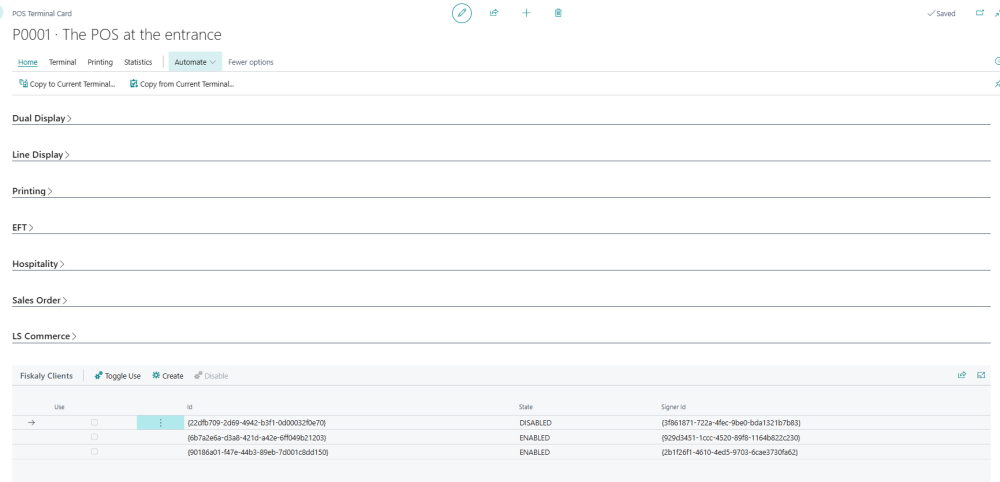
In Fiskaly SIGN ES, a client is linked to a POS terminal. To issue invoices, each POS terminal must be associated with one client ID and at least one signer.
Clients in Fiskaly SIGN ES can be in one of two states: ENABLED or DISABLED.
In this article
How to create a new Client
To register a new client entry:
- Click the
 icon, enter POS Terminal List, and select the relevant link.
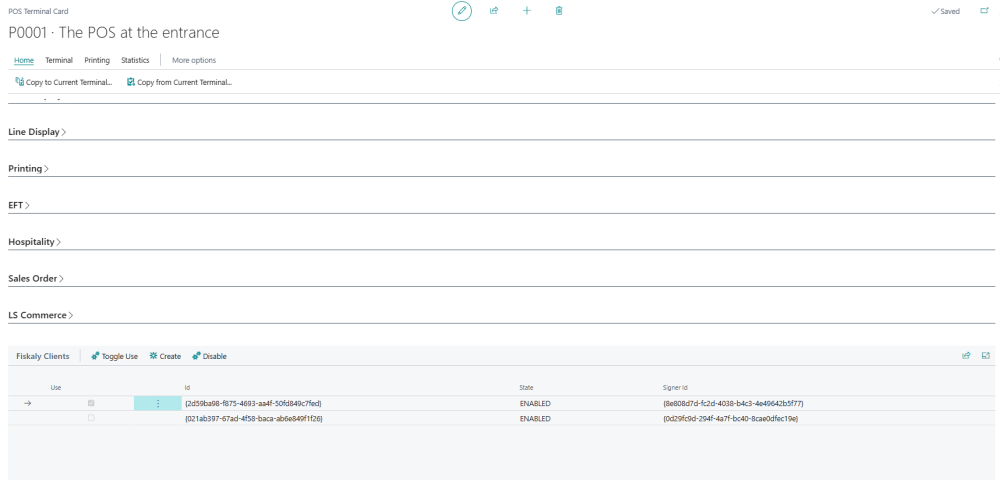
 - On the Fiskaly Clients FastTab:
- Select the Store ID and Signer ID.
- Click Create to generate the client entry.
- Select the client and click Toggle Use to activate it for the terminal. Tip: The currently active client is marked with a checked Use box.
How to disable a Client
Disabling a client is necessary when a terminal is no longer used for fiscal transactions or when reassigning it to a new signer. Disabling deactivates the selected client and prevents it from issuing invoices.
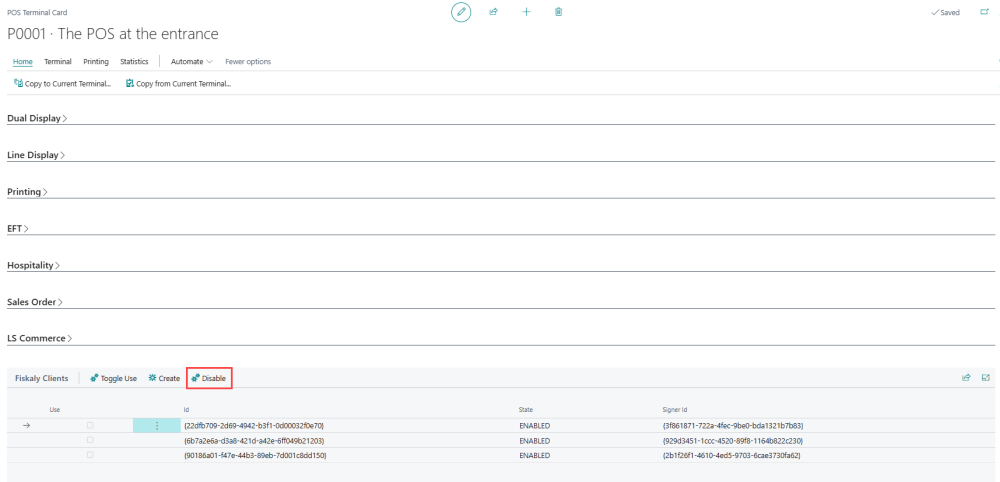
- On the Fiskaly Clients FastTab, click Disable for the selected client. This action deactivates the client ID and unlinks it from the signer.
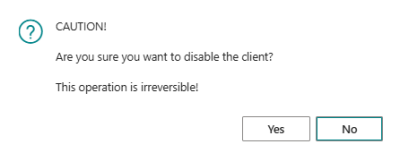
- When prompted, select Yes to confirm. Note: This operation is irreversible once confirmed.
- The status changes from ENABLED to DISABLED.