eCommerce - Shopify provides local delivery as an out-of-the-box shipping method on checkout.
This feature lets you:
- Set up the routing rules that will be used to fulfill an order.
- Support local delivery from other sources than a main web store.
With this feature:
-
Shopify users can set up two or more active locations in Shopify to enable order routing. After that, navigate to Settings - Shipping and delivery - Local delivery page to support local delivery for these locations.
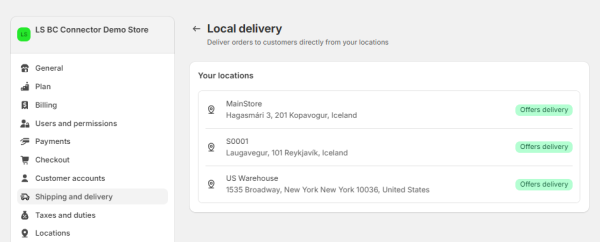
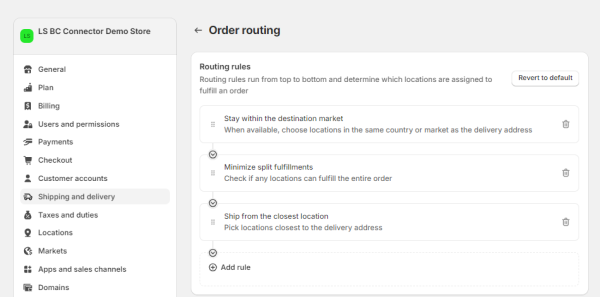
- Then, the most important step is to set up the routing rules: navigate to Settings - Shipping and delivery - Order routing page:
- Next, finalize an order using a delivery address near the store you want to ship from, and select Local Delivery as the shipping method, and fill in the relevant information to ensure a successful delivery.
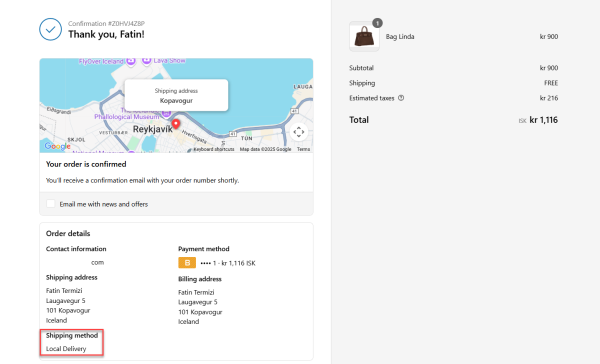
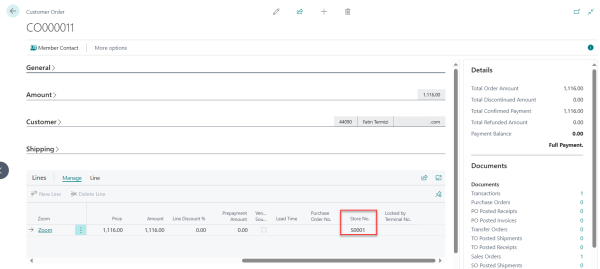
Note: In the example, the delivery address is for shipping to Kopavogur, so in LS Central, the store number is S0001 as specified in the order routing rule, following the closest location shipping rule.
- Proceed to the Shopify Administration page, then navigate to Pull - Orders to import the order into LS Central.
- From the Customer Order page, select the newly pulled order. The order lines will reflect the closest store based on routing logic. Once confirmed, post the order to fulfill it.
- Open Shopify and navigate to the Orders page. Find the order recently posted from Central and click to view it. The order should appear as Fulfilled, with the location correctly set to the intended store S0001.
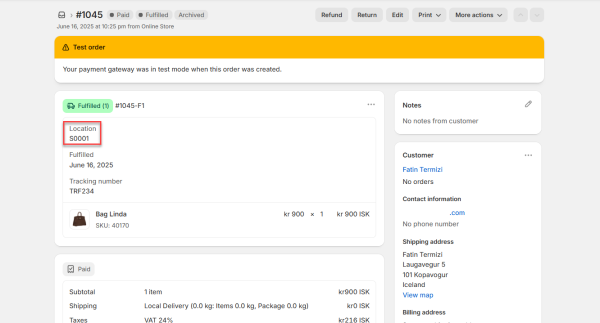
- If the store assigned to the order changes in Business Central after the order was first routed - for example, if the Customer Order lines are re-sourced to a different location while the order is still open - the newly assigned store is synced back to Shopify automatically. LS Central moves the corresponding Shopify fulfillment order to the matching Shopify location, so the location shown on the Shopify order stays aligned with the store that will actually fulfill it in Business Central.
Note: This only applies to orders that are set to ship (not Click and Collect), and only while the Shopify fulfillment order is still Open. Multi-location Sourcing Active must also be enabled on the Customer Order Setup page.