In this article
To Send Normal Item to Shopify
To Send Variant Item to Shopify
The Shopify Business Central Connector supports several replication processes that keep product, inventory, and pricing information synchronized between Business Central and Shopify. These replications ensure that Shopify always reflects the latest item data maintained in Business Central, enabling accurate product availability, pricing, and customer experience across your online store.
Note: Shopify Business Central does not use LS Central Item distribution method to send data to Shopify.
The Replication feature lets you:
- Synchronize product data from Business Central to Shopify, including standard items and items with variants.
- Synchronize inventory levels maintained in Business Central so they are accurately reflected in Shopify.
- Synchronize Shopify with the latest prices or market‑specific price lists defined in Business Central.
- To sync LS Images and extra LS Meta Data, run Code unit 71079036 "LSC Shpfy Products" in LS Central scheduler.
Note: Enable Inventory Tracked on the Shopify Shop Card before sending items to Shopify. If this setting is not enabled, inventory tracking and inventory synchronization may not function correctly for the replicated items.

To Send Normal Item to Shopify
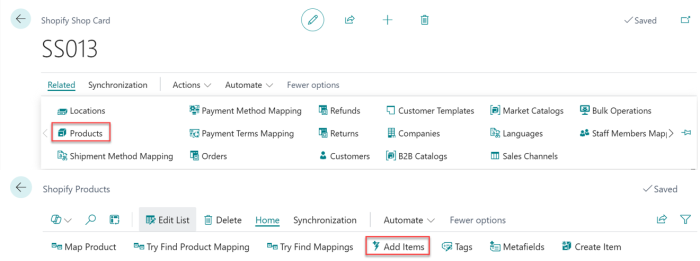
- Open the Shopify Shop Card page and navigate to Related - Products. On the Shopify Products page, select Home - Add Items, then choose the item you want to send to Shopify as a product.
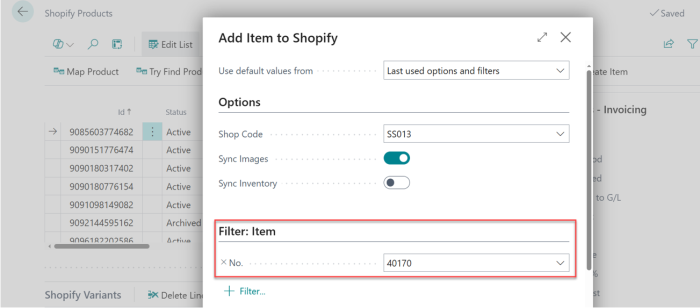
- Select the item (e.g. 40170 – Bag Linda) to be added to Shopify from the drop-down menu. Image synchronization can be enabled at this stage, while inventory synchronization is explained in the following section.
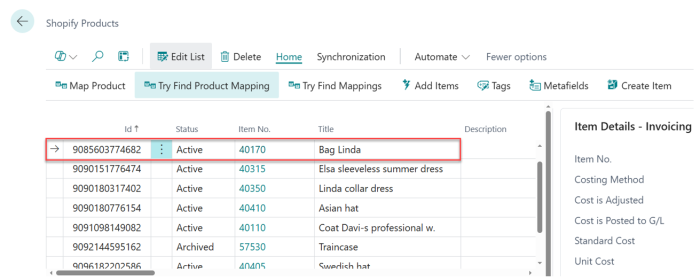
- Scroll down the table on the Shopify Products page and verify that the previously added item Bag Linda appears in the list.
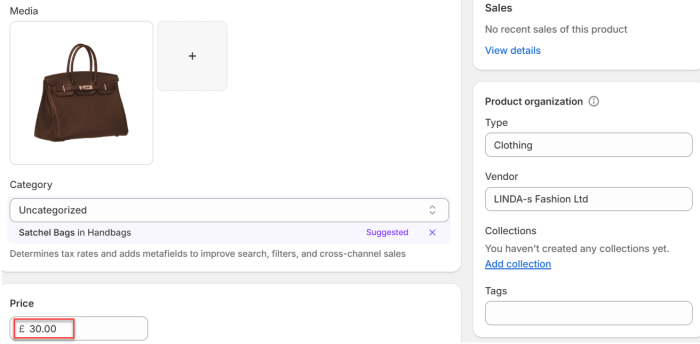
- Open Shopify Admin, navigate to Products and verify that Bag Linda has been successfully sent to Shopify.

Note: The image was synchronized automatically because the Sync Images option was enabled. Inventory synchronization will be covered in the next section.
To Send Variant Item to Shopify
To use LS Central Variant Framework with Items, instead of default single Variant mode that Shopify Business Central supports, check Use LS Variant Framework check in Shopify Shop Card.
- Open the Shopify Shop Card page and navigate to Related - Products. On the Shopify Products page, select Home - Add Items, then choose the variant item you want to send to Shopify as a product.
- Select the item (e.g. 40040 – Blouse Linda professional wear) to be added to Shopify from the drop-down menu and choose the appropriate item category code. Enable image synchronization before clicking OK.
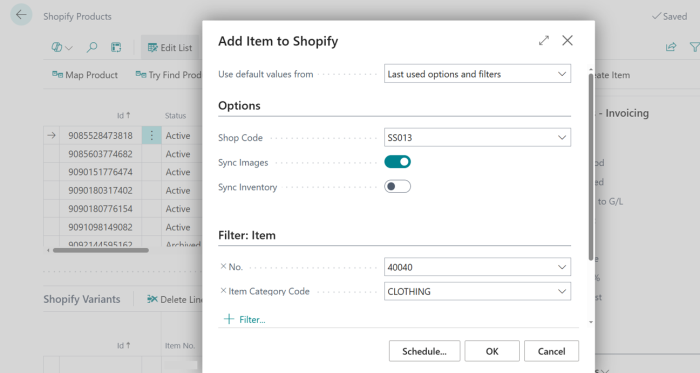
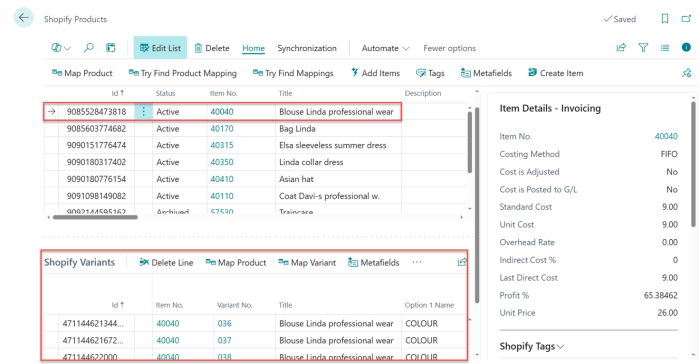
- Scroll down the table on the Shopify Products page and verify that the previously added item Blouse Linda professional wear appears in the list.
- Open Shopify Admin, navigate to Products and verify that Blouse Linda professional wear has been successfully sent to Shopify.

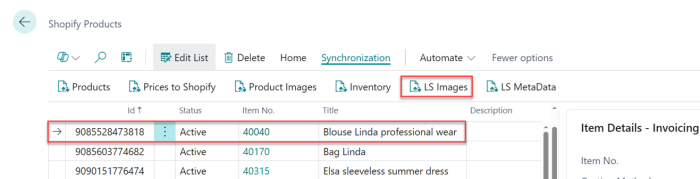
Note: If images for all variants are not successfully uploaded to Shopify, select the item row in the table and navigate to Synchronization - LS Images to resend them.
To Send Inventory to Shopify
Inventory Calculation Method
The eCommerce - Shopify Business Central Connector for LS Central supports two inventory calculation methods when synchronizing inventory to Shopify. The inventory calculation method is configured on the Location Card using the Stock Calculation setting.
The following options are available:
-
Standard Business Central Inventory Calculation – Uses the standard Business Central inventory calculation to determine the available inventory quantity sent to Shopify.
-
LS Retail Inventory Calculation – Uses LS Retail Calculation logic to determine the available inventory quantity. This calculation can take sourcing locations into account during inventory updates, providing inventory quantities that align with LS Central's inventory and sourcing location during inventory updates.

Note: The Stock Calculation setting is configured per location. Ensure that locations participating in Shopify inventory synchronization are configured with the appropriate calculation method based on the desired inventory behavior.
- Open the Item Journal page and post the inventory for the items that have been added to Shopify.
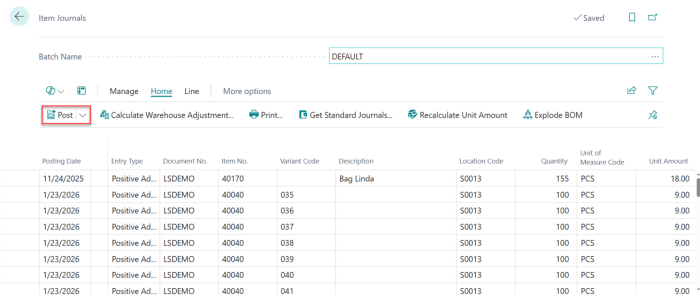
- Go to the Shopify Shop Card page and navigate to Synchronization - Sync Inventory to synchronize all inventory with Shopify. Wait until the Job Queue Log displays a Success status before verifying the updated inventory levels in Shopify.
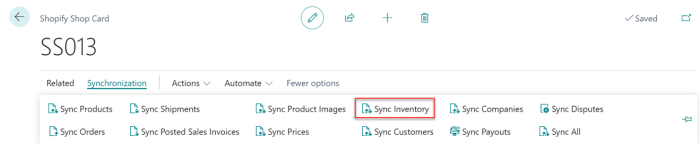
Note: To upload inventory for a single product, select the item row on the Shopify Products page, then navigate to Synchronization - Inventory to run an inventory update for that specific item.
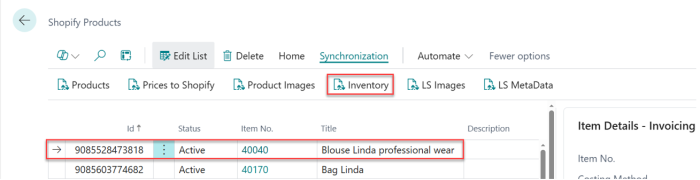
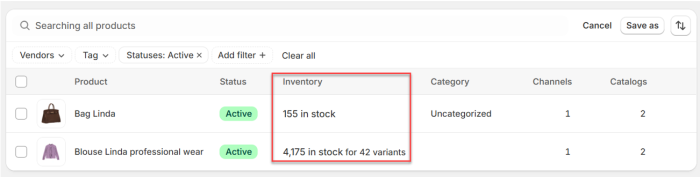
- Open Shopify Admin, navigate to Products and verify that the inventory has been successfully synchronized and uploaded for the respective products.
To Send Prices to Shopify
- Open the Retail Item List page and update the item price. For example, change the price of 40170 – Bag Linda. After modifying the price, verify the line to confirm that the update has been applied.


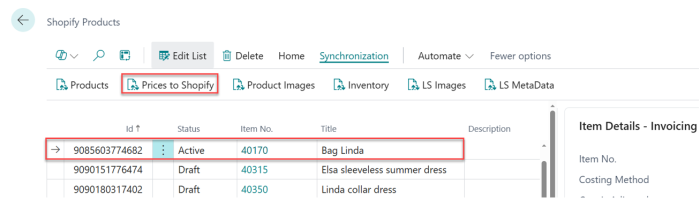
- Go to the Shopify Shop Card page and navigate to Synchronization - Prices to Shopify to synchronize the selected item’s price. Wait until the Job Queue Log displays a Success status before verifying the price in Shopify.
- Open Shopify Admin, navigate to Products and and verify that the price for Bag Linda has been successfully updated and synchronized.