In this article
Retrieve Order from Shopify to Business Central
Order Management ensures that orders created in Shopify are imported into Microsoft Dynamics 365 Business Central, where they can be processed and fulfilled. The Shopify Business Central Connector synchronizes order data between the two systems, allowing retailers to manage sales orders, fulfillment activities, and shipment updates directly from Business Central.
The Order Management feature lets you:
- Retrieve new orders from Shopify into Business Central for processing.
- Update Shopify with order status changes made in Business Central.
- Synchronize fulfillment updates from Shopify back into Business Central.
Order Replication
Shopify orders are replicated into Business Central to maintain consistency across both platforms. Replication covers order import and two-way status updates.
Order Import
- Orders placed in Shopify are imported into Business Central and can be created as Customer Order.
- Import can be executed:
- Automatically by the scheduler job. To process Customer orders, run Code Unit 71079035 "LSC Shpfy Order" in LS Central scheduler.
- Manually from either on the Shopify Order page or Shopify Shop Card page.
Order Synchronization
-
Cancellations
- Canceling an order in Business Central cancels it in Shopify.
- Orders canceled in Shopify are replicated back into Business Central through the scheduler or manual sync order.
-
Shipments
- Posting the order in Business Central marks it as Fulfilled in Shopify.
- Tracking numbers are synced back into Shopify either through the scheduler or manual sync shipment on Shopify Orders page in Business Central.
-
Processed Orders
- Orders already marked as Fulfilled in Shopify are replicated into Business Central as posted customer orders, including the tracking number.
Retrieve Order from Shopify to Business Central
When a customer places an order in Shopify, the order is imported into Business Central as a Shopify order. The import can run automatically through scheduled Job Queue processes when Auto Sync Orders is enabled, or it can be triggered manually from the Shopify Orders page.
Note:
-
Initially, the connector creates Shopify orders in the Shopify Orders staging table in Business Central. From these staging records, you can create LS Customer Order and/or Sales Order.
To retrieve normal shipping order from Shopify to BC Central:
-
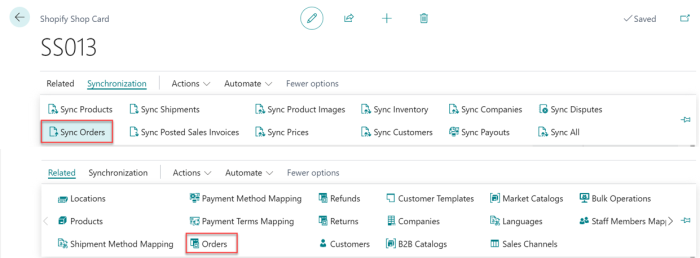
After creating a normal shipping order in Shopify, open the Shopify Shop Card in Business Central and navigate to Synchronization - Sync Order to pull orders from Shopify. Wait until the Job Queue Log shows a Success status. Then navigate to Related - Orders to view the synchronized orders.
-
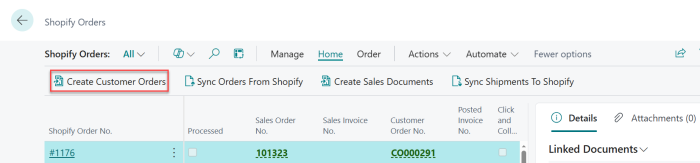
Select the row of the most recently synced order and navigate to Home - Create Customer Orders to generate the Sales Order No. and Customer Order No.
-
Navigate to Orders - Customer Order and proceed with posting. Once posting is completed, the Sales Order automatically generates a Posted Invoice No., marks the Processed checkbox, and updates the corresponding order in Shopify to Fulfilled status.


-
Then select Sync Shipment to Shopify and enter the tracking number on the SO Posted Shipment. The tracking number will be updated automatically in Shopify after the sync is completed.
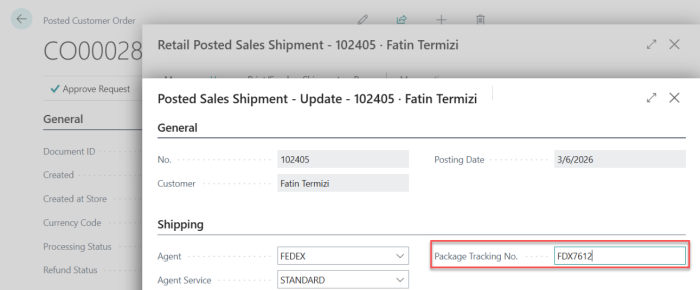
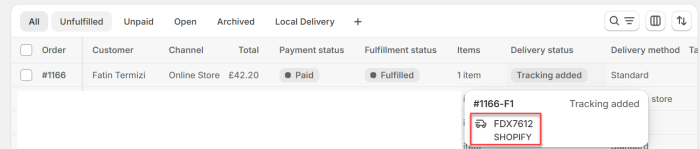
Note: Perform Sync Fulfillment before updating the tracking number. This ensures the fulfillment has the correct status before the tracking information is updated.
-
After that, click Sync Order from Shopify. Only then will the Closed column be marked; otherwise, it will not be updated.

To retrieve C&C order from Shopify to BC Central:
-
After creating a C&C order in Shopify, open the Shopify Shop Card in Business Central and navigate to Related - Orders. Then navigate to Home - Sync Order from Shopify to synchronize the order from Shopify.

-
Select the newly synchronized order and navigate to Home - Create Customer Orders to generate Customer Order No..
-
Open Run POS and begin the Click & Collect process. After confirming the order pick in POS, an email is received confirming that the order is ready for pickup. When opening the order in Shopify, it is marked as Ready for Pickup.

-
Complete the C&C process on POS automatically marks the Processed checkbox and updates the corresponding Shopify order to Fulfilled status.


-
After that, click Sync Order from Shopify. Only then will the Closed column be marked; otherwise, it will not be updated.

To retrieve local delivery order from Shopify to BC Central:
-
After creating a local delivery order in Shopify, open the Shopify Shop Card in Business Central and navigate to Related - Orders. Then navigate to Home - Sync Order from Shopify to synchronize the order from Shopify.
-
Select the newly synchronized order and navigate to Home - Create Customer Orders to generate the Sales Order No. and Customer Order No..
-
Navigate to Orders - Customer Order and proceed with posting. Once posting is completed, the Sales Order automatically generates a Posted Invoice No., marks the Processed checkbox, and updates the corresponding order in Shopify to Fulfilled status.


-
After that, click Sync Order from Shopify. Only then will the Closed column be marked; otherwise, it will not be updated.

To retrieve use pos for local delivery order from Shopify to BC Central:
-
Before syncing orders from Shopify to Business Central, ensure that the Use POS for Local Delivery option is enabled on the Shopify Shop Card.
-
Create a local delivery order in Shopify, open the Shopify Shop Card in Business Central and navigate to Related - Orders. Then navigate to Home - Sync Order from Shopify.
-
Select the newly synchronized order and navigate to Home - Create Customer Orders to generate Customer Order No..
-
Open Run POS and begin the posting process. Once posting is completed, it automatically marks the Processed checkbox, and updates the corresponding order in Shopify to Fulfilled status.


-
After that, click Sync Order from Shopify. Only then will the Closed column be marked; otherwise, it will not be updated.

To retrieve different currency market order from Shopify to BC Central:
-
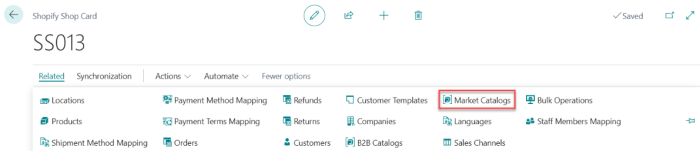
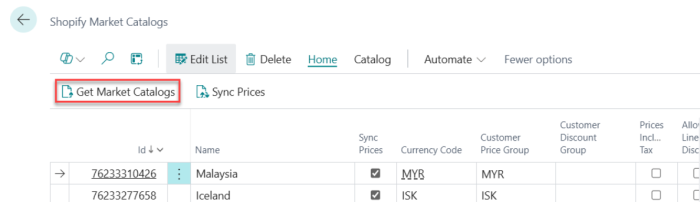
Open the Shopify Shop Card and navigate to Related - Market Catalogs, then select Get Market Catalogs.
-
Open the Shopify online store, select an item from the Iceland market, choose normal shipping, and proceed to checkout.
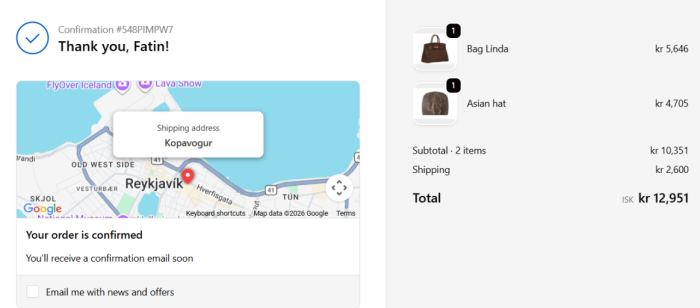
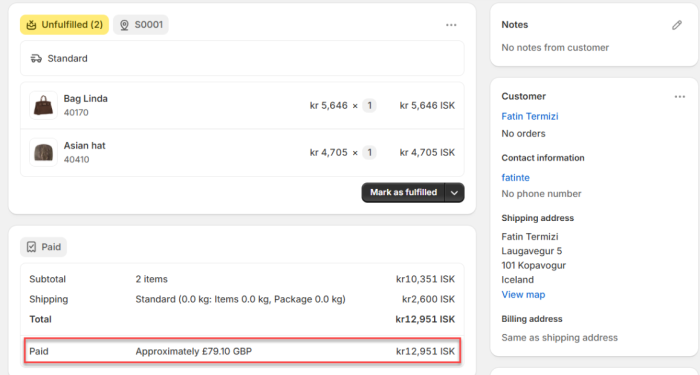
Note: Base: GBP, Market: ISK.
-
Open the Shopify Shop Card in Business Central and navigate to Related - Orders. Then navigate to Home - Sync Order from Shopify.
-
Select the newly synchronized order and navigate to Home - Create Customer Orders to generate the Sales Order No. and Customer Order No.
-
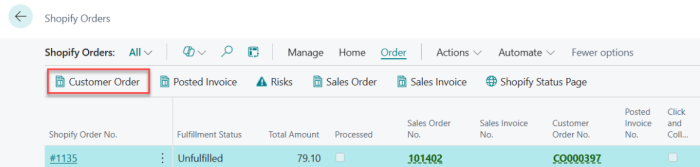
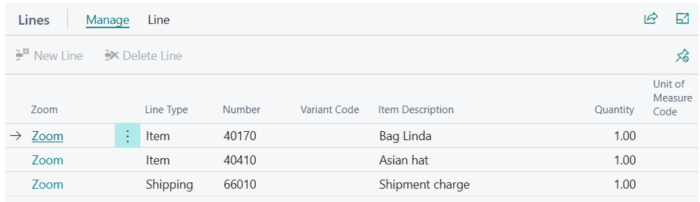
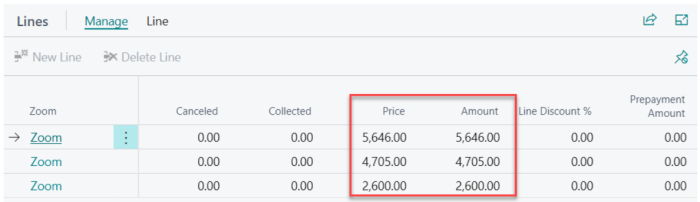
Go to Order - Customer Order to view the order and confirm that the pricing is accurate on both the Customer Order and Sales Order pages, ensuring it is displayed in Icelandic Krona.

-
Proceed with posting. Once posting is completed, the Sales Order automatically generates a Posted Invoice No., marks the Processed checkbox, and updates the corresponding order in Shopify to Fulfilled status.


-
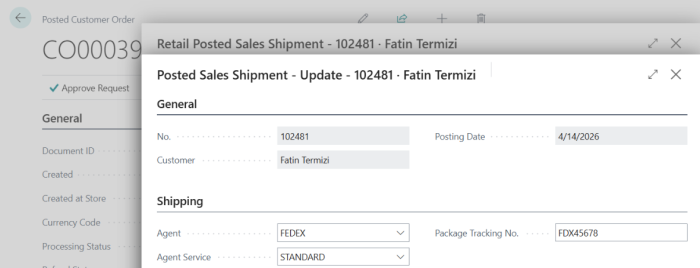
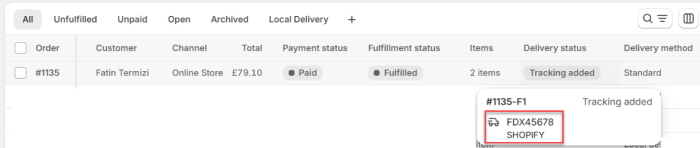
Then select Sync Shipment to Shopify and enter the tracking number on the SO Posted Shipment. The tracking number will be updated automatically in Shopify after the sync is completed.
-
After that, click Sync Order from Shopify. Only then will the Closed column be marked; otherwise, it will not be updated.
