In this article
Create Market and Catalog in Shopify
Configure Market Catalog and Sales Price Lists in Central
The Shopify Business Central Connector supports synchronizing prices from Business Central to Shopify Markets. Sales Price Lists defined in Business Central are mapped to Shopify Market Catalogs, allowing Business Central to calculate and publish prices for each market. Shopify Markets and their corresponding catalogs must be configured in Shopify Admin before they can be synchronized.
The Market Support feature lets you:
- Retrieve Shopify Market Catalogs directly into Business Central using the Get Catalogs action.
- Synchronize prices for each Shopify Market by linking Business Central Sales Price Lists to Shopify Market Catalogs.
- Support multi‑currency pricing, enabling Business Central to publish prices in the currency defined for each Shopify Market.
Create Market and Catalog in Shopify
To configure market and catalogs in Shopify:
-
In Shopify Admin, open the Markets page from the left navigation panel and create the markets required for your business, such as Malaysia, Iceland, or the United Kingdom.
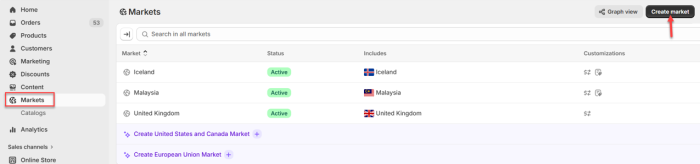
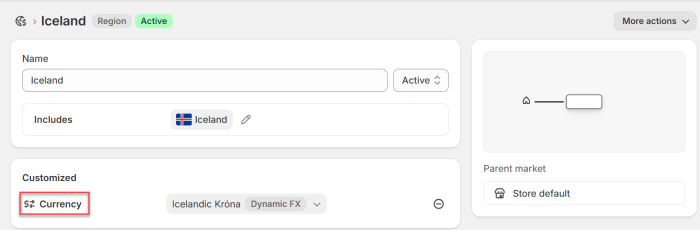
Note: Enable Do not round prices in the currency dropdown to prevent unintended price-rounding issues.
- Under Markets, select the option to create a catalog and assign it to the corresponding markets.

Configure Market Catalog and Sales Price Lists in Central
To Configure Market Catalog and Sales Price Lists in Central
-
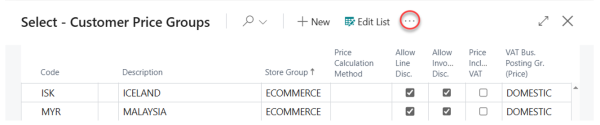
In Business Central, navigate to Related - Market Catalogs - Get Market Catalogs to retrieve the market catalogs from Shopify. In the Customer Price Group column, create a new entry named according to the relevant currency code and enter the necessary details. Then select More options (...) - Customer Price Group - Sales Price Lists to open the associated price list.
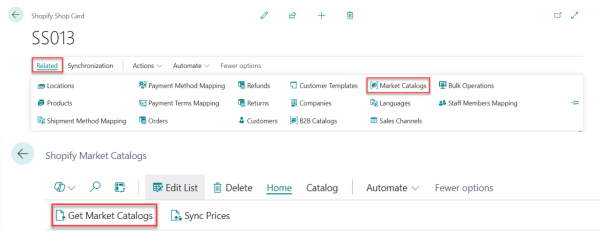
Note: If the Markets Catalogs action is not visible on the Shopify Shop Card. Click the
 icon, and enter Markets Catalogs to access the page directly.
 -
On the Sales Price List page, choose Add New Entry and complete the fields in the General section.
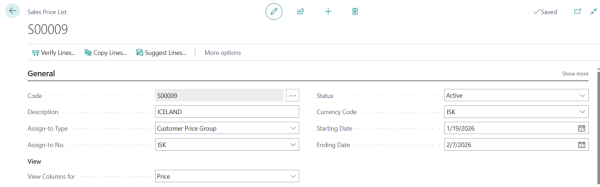
Note: Ensure that the Currency Code field is defined and matches the currency code configured on the Shopify Market Catalogs page to avoid pricing or synchronization inconsistencies.
-
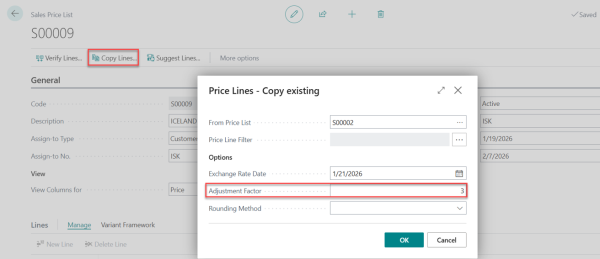
You can add Sales Price List lines manually, or choose Copy Lines to copy entries from an existing price list. Select the price list you want to copy from and specify the Exchange Rate Date (you may leave it as is), Adjustment Factor, and Rounding Method. Example: Enter an Adjustment Factor of 3 to set prices at three times their original value.
-
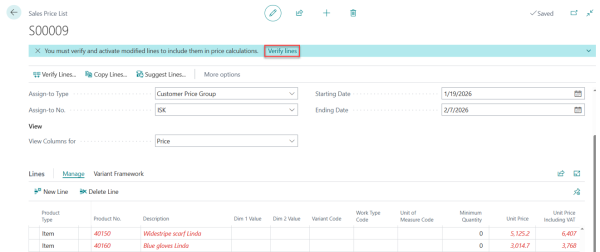
Select Verify Lines to validate the price list.
-
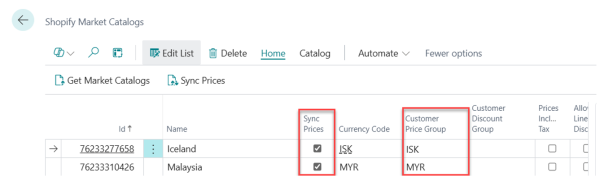
Return to the Shopify Market Catalogs page, enable Sync Prices for each row, and select the appropriate Customer Price Group for each catalog entry.
-
Navigate to Home - Sync Prices to synchronize the latest Sales Price Lists to Shopify.
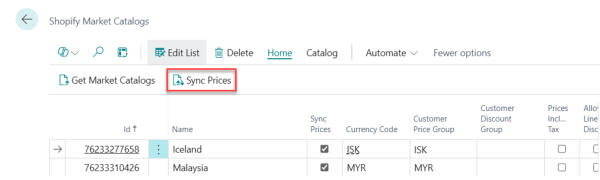
Note: Only line with Sync Prices enabled will be processed.
-
Open your Shopify Admin - Markets - Catalogs to view the updated item prices.
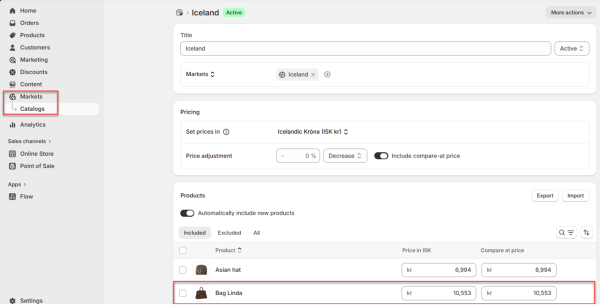
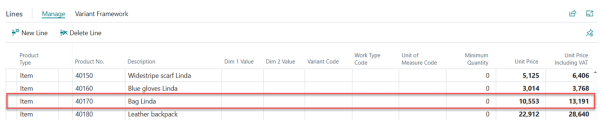
Note: Prices should reflect the same values as in Business Central.