In this article
View settings on the roster plan
Understanding the Total section
To remove an employee from work assignment
To assign an employee on vacation or sick leave
Other actions on the roster plan
To start planning you need to create a Roster for the planning period. Rosters are set for one month at a time as the planning container.
You can, however, also to do weekly planning, even though the roster placeholder is per month, since analysis views and total views support both weekly and monthly summaries and are not calculated per roster, but rather based on the date period.
To create a new roster
- Click the Rosters menu option in the Staff Management role center, and click New - New Roster. A dialog box opens where you select a month to create a new roster for.
Note: The year is not editable and is set in the Current Work Year field in the Staff Management Setup. -
Select your current month for testing purposes, and after clicking OK you should get a roster page similar to this one:
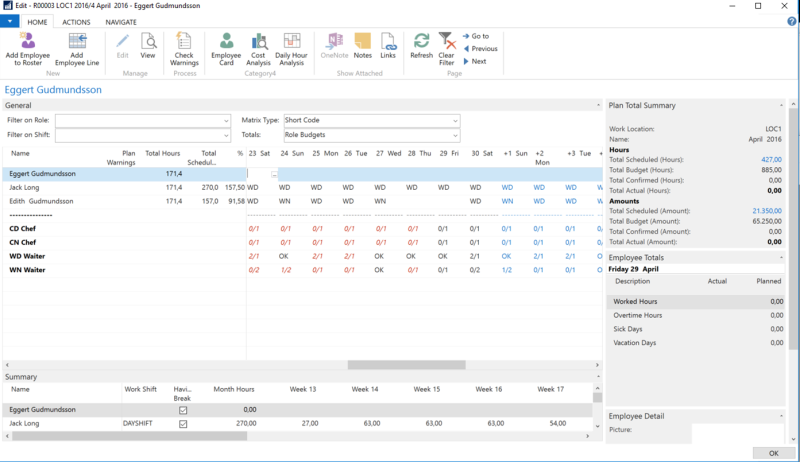
In the above sample Jack Long is assigned to fixed shift (DAYSHIFT) and Edith is assigned on a shift Pattern1, and those two are already automatically scheduled. Eggert, however, does not have any default setup, see Work Shift and Shift Pattern for how this automatic assignment is determined.
Note: In the Process - Prev Period - Next Period selection you can move between scheduling periods, that is between months (rosters) in month view, and between weeks in week view. If the next or previous period belongs to another roster month, the view will open the new roster for editing.
Note: You can only edit days that belong to the currently active roster in view. You can use the Total Section setting to turn off total summary to increase entry performance while you schedule manually.
View settings on the roster plan
The View Settings FastTab at the top of the roster plan controls what is shown in the matrix:
| Setting | Description |
|---|---|
| Filter on Role / Filter on Shift | Limit the matrix to a single work role or work shift, to make it easier to plan a specific part of the roster. |
| Matrix Type | Selects what the short codes in the matrix cells represent, for example role/shift or hours, or switches the matrix to show an external view (see Understanding the Total section). |
| Totals | Selects what the Total line for each role and shift shows. See Understanding the Total section. |
| Period | Shows the full month, or one week at a time. Tip: Use the week view when editing the roster, since it has better performance and is faster to work in than the full month view. |
| Total Section | Shows or hides the Total lines. Turn this off while manually scheduling a large roster, to increase entry performance. |
Understanding the Total section
Each work role and shift combination has a Total line in the matrix, in addition to the individual employee lines. What the Total line presents for each day is controlled by the Totals setting on the View Settings FastTab:
- Role Budgets: The default option. Shows how many employees are currently assigned for the role and shift on that day, compared to how many are needed, for example 2/3. The "needed" number comes from the Location Role Budgets set up for the work location, role, shift, and weekday. Once enough employees are assigned to meet the budget, the line shows the confirmation sign configured in the role budget setup instead of the counts.
- Skill Levels: Shows the combined Skill Level of the employees currently assigned to the role and shift, as set up per employee under the Work Roles action on the Employee Card (see Work Role).
- Cost Amounts: Shows the estimated cost of the employees currently assigned, based on the role's or employee's average cost.
- Adjustment: Shows any manual role budget adjustment entered for that role, shift, and day.
- Hours: Shows the total scheduled hours for the role and shift on that day.
- Over / Under: Shows by how many employees the role and shift is currently over- or understaffed compared to the role budget.
- External Reference: Shows a value coming from outside Staff Management, see below.
You can also add your own, external information to the Total line. Click the External View action, and select one of the views set up by your administrator. Once selected, the Totals setting automatically switches to External Reference, and the matrix shows the value returned for each role, shift, and day by the selected external view.
- These external views are set up by an implementation partner or administrator; they can be configured to run custom logic (for example, retrieving a target headcount or a value from an external planning or budgeting system) and to display either a number or a text value.
Tip: When you select the Total line for a role and shift and click the Assist Edit action, you can directly Assign to Work, send a shift request by SMS or e-mail to eligible employees, review existing employee work requests for that role and shift, or jump straight to Edit role budget to adjust the number of people needed.
To assign an employee to work
- Open a roster plan to assign an employee to work.
- Select the employee (line) you want to assign, and select the date (field) involved.
In the field you have multiple options:
- Enter the Short Code for the role or shift (for example CD for Chef on Day shift).
- Enter the time directly in military time (for example 10-14) and the default role will be used. If there is no default role for the employee, a list of roles is presented.
- Click the Assist Edit action to open a menu with Assign to Work, Request to Work, View Schedule, View Unavailability, Clear Entry, and Edit. Selecting Assign to Work leads you through the selection of role and shift. Any additional external actions set up by your administrator are also listed here.
- Enter the role and sub shift (CD-1 for Cashier Day, sub shift 1). Note: Sub shifts must be defined for the shift.
- Select the Total line for the role or shift , click the Assist Edit action, and select Assign to work. A dialog box is displayed with all employees that are available for the role and shift on the selected date.
- Click and select the employee or employees you want to assign, and click OK to confirm.
Note: If the employee is not listed in the roster, you can add him or her to the list using the Add Employee to Roster action. Also, if you need to have a selection of multiple shifts for one employee in one day, you must use the Add Employee Line action to create a new line for the selected employee where you can have additional assignments for the same date.
Tip: If an employee is not available the first two hours on a specific day, for example from 9-11 am, and you want to assign a day shift to the same employee, you must enter the time directly in the roster field for that date on the employee line (12-18). If you enter the short code for the shift in the field, the system will return an error saying that the employee is not available for a shift on that specific date.
You can also enter a short code as long as the hours of the shift assigned by the short code are outside the scope of the employee's unavailability. If, however, you try to assign with the Assist Edit action, the employee's unavailability of the day would prevent assignment to the same day.
To remove an employee from work assignment
- Simply select the employee line and the matrix field (date) involved, and blank the cell with the Delete key or space bar. You can also use the Assist Edit action and the Clear Entry option.
To assign an employee on vacation or sick leave
-
On the Employee card, click the Non Availability action and there create requests for unavailability:

- You can set up preferences for employees when they wish not to be available: simply leave the Type field empty and make sure you enter the comment text. See example above.
- For certain assignments when the employee is not available for work, fill out the Type field, and specify date and time.
- Finally, click the Confirm action. If there is any work scheduled for the same period, you will be notified with a list of the assignments. If you accepted by clicking OK, those entries will be converted to unavailability (vacation or sick leave, for example).
Note: You can Unconfirm at any time and cancel the entry, if needed. You cannot edit confirmed entries, unless you change them to unconfirmed first.
The entries will be shown in the roster with a notification (the comment) or identified with the unavailability sign (VAC, SCK and so on) in the matrix.
To request employees to work
In the Roster schedule view there are multiple options to make a request to an employee:
- You can select an employee and a date, click the Assist Edit button in the field, and select the Request employee to work option
- You can select a entire line (role/shift) and a date, click the Assist Edit button, and select Send shift request either via email or text message to multiple employees who are able to cover the role and shift.
Note: The employees can accept or deny the requests, either from the clock in/out interface or through the employee portal functionality.
Other actions on the roster plan
In addition to the field-level options described above, the following actions are available on the roster plan:
| Action | Description |
|---|---|
| Employee Card / Resource Card | Open the Employees, or the Resources card if the employee is also a booking resource, for the selected line. |
| Employee Roster / Employee Entries | Review or edit the selected employee's roster assignments from a list view, where roles can also be changed. |
| Employee Hour Registration | Review the selected employee's actual time registrations for the roster period. |
| Employee Unavailability | Review the selected employee's vacation and other unavailability for the period. |
| Role Budgets | Open the Location Role Budgets for the work location. |
| Employee Work History, Cost Analysis, Actual vs Budget Graph, Daily Hour Analysis, Week Totals | Analysis views for the roster: work history totals, cost analysis, a graph comparing actual to budgeted cost, a daily hour breakdown, and a week-by-week totals view. |
| Add Employee to Roster | Add an employee from the region who is not currently listed in the roster. |
| Add Employee Line | Add an extra line for an employee who is already on the roster, so more than one shift can be scheduled for the employee on the same day. |
| Delete Line | Remove an employee's line from the roster view. The base line for an employee cannot be deleted while additional schedule lines still exist for the same employee. |
| Edit Employee Hours | Edit the exact from/to hours for the selected employee's assignment, instead of using a short code. |
| Check Warnings | Re-run the configured planning warnings (for example rest-period or overtime warnings) for the whole roster period, and refresh the Warnings column. |
| Add Shift/Role | Add a work role or work shift to the roster's role budget view. Only needed after a new role or shift has been added to the setup after the roster was created; the roster plan page must be closed and reopened afterwards. |
| Process Role Budget Adjustment | Manually process pending role budget adjustments. This can also run automatically, depending on setup. |
| Print the roster report for the period. | |
| Copy from Employee, Copy from Shift, Copy from Roster, Copy All from Roster, Move from Employee | Copy (or move) schedule entries from an employee, from a shift, or from another roster, to save time when a new period repeats a previous one. |
To confirm a roster plan
Before the roster plan can be used as reference for the time registration, you must confirm the roster. This can be done even if the plan is not be 100% ready, and also if the plan might change after the confirmation date.
You must confirm the plan before the month starts, so the employees can be presented with their expected work plan. At that point the cost of the plan is also registered as confirmed cost. You can always, however, modify the roster, but the system starts to log any changes to the roster once it has been confirmed.
- To view the log, go to the Navigate action menu and click Roster Log.
- To confirm, go to the Rosters menu option in the Staff Management role center, and place the selection cursor on the roster involved. Click the Confirm action to confirm.
Now your roster plan can be used as reference and the employees can start registering their hours to the period.
To close a roster plan
In the Roster list, you can select to Close the roster. This will remove it from the roster list and it will only be accessible through the Posted Entries section of the role center.
You cannot edit the roster after it has been posted. You should only use this action when the roster period has passed and it is 100% certain that no further changes are needed. All analysis possibilities of the roster will still be available.