Cash in Drawer (CID) is the running total of all physical cash currently in the POS drawer. It reflects the starting float plus all cash received in sales, minus any amounts already removed. Cashiers and managers can view the CID at any time during the day, add cash to the drawer with a Float Entry, or remove excess cash with Remove Tender. Which staff members can perform each action is controlled by permission settings on the Staff Permission Group.
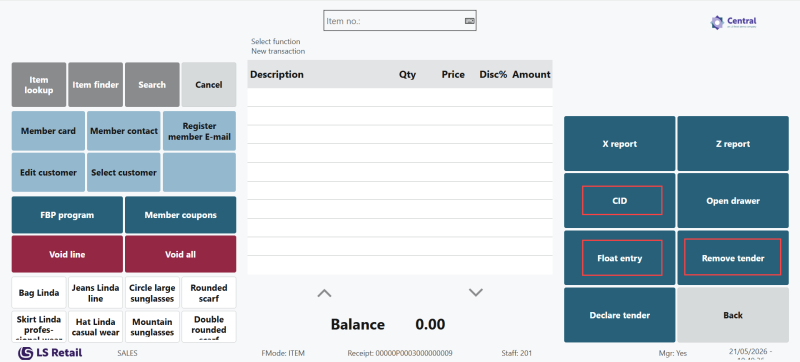
Viewing the CID on the POS
To view the current Cash in Drawer balance during a shift, press the CID button on the POS tender panel. The panel displays the running drawer total. Visibility of the transaction amount within the CID view can be restricted: set Show Trans. Amount to Yes on the staff member's permission group to allow them to see individual transaction amounts alongside the running total.
To enter a float (Float Entry)
A Float Entry adds cash to the drawer, typically at the start of a shift or to top up change during the day. The amount is recorded as a safe transaction of type Float Entry and creates a corresponding Safe Ledger Entry.
- On the POS, press the Float Entry button. The float entry counting panel opens.
- Enter the amount being added to the drawer. Depending on the setup, you can enter by denomination or as a single total.
- Press Post to confirm. The drawer total is updated and the transaction is posted to the safe register.
To remove tender (Remove Tender)
A Remove Tender (also called a mid-day skim) takes a specified amount of cash out of the drawer and records it as removed from the POS. Use this to reduce the cash level in the drawer during busy trading periods without waiting until end of day.
- On the POS, press the Remove Tender button. The remove tender counting panel opens.
- Enter the amount being removed from the drawer. Depending on the setup, you can enter by denomination or as a single total.
- Press Post to confirm. The drawer total is reduced and the removal is posted to the safe register as a Remove Tender transaction.
Staff permission fields
The following fields on the Staff Permission Group control access to CID-related actions. You can find these settings by searching for Staff Permission Groups and opening the relevant group record.
- Tender Declaration — controls whether the staff member can perform an end-of-day tender declaration. Set to Yes to allow.
- Floating Declaration — controls whether the staff member can perform a floating tender declaration, moving the drawer float between terminals. Set to Yes to allow.
- CID-Report Printing — controls whether the staff member can print a CID report. Set to Yes to allow.
- Show Trans. Amount — controls whether the staff member can see the transaction amount within the CID view. Set to Yes to allow.
Note: Setting Manager Privileges to Yes on a Staff Permission Group automatically grants Tender Declaration and Floating Declaration permissions along with all other manager-level rights.
See also
How to: Start Safe Management in a Store