In this article
Troubleshooting the Offline POS installation
Error #1 - Error when running the NewLicensePackage.ps1
Error #2 - Failure when installing the ls-central-pos-webservice-auto-subscription v1.0.0 package
Troubleshooting Azure Storage Account connection
Testing the connection to the Storage Account using a PowerShell script
Troubleshooting Send Transactions using Storage Queue
Testing the connection to the Azure Service Bus using a PowerShell script
Troubleshooting the Offline POS installation
Error #1 - Error when running the NewLicensePackage.ps1
When running the NewLicensePackage.ps1 script (or any other script) you might get the following error:
Import-Module: The specified module 'LsPackageTools\LicensePackageCreator' was not loaded because no valid module file was found in any module directory.
At C:\LS Retail\Offline POS\NewLicensePackage.ps1:31 char:1
+ Import-Module LsPackageTools\LicensePackageCreator
Explanation
This might happen if you have used the Update Service Server installer downloaded from the Update Service page in the LS Retail Partner Portal and you might have missed to install part of the components available:

How to fix
Run the installer again and install the Package Tools for Update Service component.
If the PowerShell console is open during the package tools installation, you need to close and reopen it before re-running the script.
Error #2 - Failure when installing the ls-central-pos-webservice-auto-subscription v1.0.0 package
When running the installer on the POS, the installation process might have failed when installing the ls-central-pos-webservice-auto-subscription v1.0.0 package, causing the whole installation process to rollback. If you look at the logs, you should have something similar to this:
2025-03-24 14:08:50:982 0007 4 /Agent(6700): Running "Install" for package ls-central-pos-webservice-auto-subscription v1.0.0 (POS).
2025-03-24 14:08:50:982 0008 4 /Agent(6700): - Function: Install-Package.
2025-03-24 14:08:50:983 0007 4 /Agent(6700): - ScriptPath: Package.psm1.
2025-03-24 14:08:50:983 0004 4 /Agent(6700): - Parameters:
2025-03-24 14:08:50:983 0007 4 /Agent(6700): - CompanyName: POS
2025-03-24 14:10:01:740 0023 4 /Agent(6700): PSWarning: 2: [31;1mInvoke-NAVCodeunit: [0m
[31;1m[36;1mLine |[0m
[31;1m[36;1m[36;1m 15 | [0m $output = [36;1mInvoke-NAVCodeunit @cmdletArgs[0m;[0m
[31;1m[36;1m[36;1m[0m[36;1m[0m[36;1m | [31;1m ~~~~~~~~~~~~~~~~~~~~~~~~~~~~~~[0m
[31;1m[36;1m[36;1m[0m[36;1m[0m[36;1m[31;1m[31;1m[36;1m | [31;1mHttp Error (500): 'Internal Server Error' to [GET: https://api.businesscentral.dynamics.com/V2.0/<tenant id>/Production/WS/CRONUS%20International%20Ltd./Codeunit/RetailMessageGetActiveList?Tenant=<tenant id> CorrelationId: bd0ce0f7-5ae5-4800-ae13-243aa5f5e474.[0m
[31;1m[36;1m[36;1m[0m[36;1m[0m[36;1m[31;1m[31;1m[36;1m[31;1mStatus: 400 (Http Error (500): 'Internal Server Error' to [GET: https://api.businesscentral.dynamics.com/V2.0/<tenant id>/Production/WS/CRONUS%20International%20Ltd./Codeunit/RetailMessageGetActiveList?Tenant=<tenant id>)[0m
[31;1m[36;1m[36;1m[0m[36;1m[0m[36;1m[31;1m[31;1m[36;1m[31;1mErrorCode: Application_DialogException[0m
[31;1m[36;1m[36;1m[0m[36;1m[0m[36;1m[31;1m[31;1m[36;1m[31;1m[0m
[31;1m[36;1m[36;1m[0m[36;1m[0m[36;1m[31;1m[31;1m[36;1m[31;1mContent:[0m
[31;1m[36;1m[36;1m[0m[36;1m[0m[36;1m[31;1m[31;1m[36;1m[31;1m{"error":{"code":"Application_DialogException","message":"Http Error (500): 'Internal Server Error' to [GET: https://api.businesscentral.dynamics.com/V2.0/<tenant id>/Production/WS/CRONUS%20International%20Ltd./Codeunit/RetailMessageGetActiveList?Tenant=<tenant id> CorrelationId: bd0ce0f7-5ae5-4800-ae13-243aa5f5e474."}}[0m
Explanation
The error is not that obvious but most commonly this is related to issues in the Service-to-Service (S2S - OAuth2) authentication set up in the Head Office.
The reason why usually the RetailMessageGetActiveList endpoint is listed in the error is because this is the first web service being subscribed to.
How to fix
Follow the checklist to understand what might be causing the issue:
- Double-check the user permissions for the Service-to-Service user configured in the Microsoft Entra Application Card, in the Headoffice. Under User Permission Sets, if there is a company assigned to the Permission Set, clear the Company field.
- Double-check if the Client ID and the Client Secret for the S2S authentication are properly set. To test the S2S authentication and to test the connection to a web service endpoint, you can use the script below, running it on a PowerShell console.
Note:
You must update the variables at the top to match your environment and your credentials:
#########################
# Variables to update
#########################
$clientid           = "<client id>"
$clientsecret       = "<client secret>"
$tenant             = "<tenant id>"
$environmentName    = "<environment name>"
$companyName        = "<company name>"

#########################
# Other variables
#########################
$scope        = "https://api.businesscentral.dynamics.com/.default"
$baseurl      = "https://api.businesscentral.dynamics.com/v2.0/$tenant/$environmentName"

# Get access token
$body = @{grant_type="client_credentials";scope=$scope;client_id=$ClientID;client_secret=$ClientSecret}
$oauth = Invoke-RestMethod -Method Post -Uri $("https://login.microsoftonline.com/$tenant/oauth2/v2.0/token") -Body $body
$oauth.access_token

# Test Web Services subscription
try
{
  $ws_url = "$baseurl/WS/$companyName/Codeunit/RetailMessageGetActiveList"
  $headers = @{
    "Authorization" = "Bearer " + $oauth.access_token
  }
  $response = Invoke-WebRequest `
    -Method Post `
    -Uri $("$ws_url") `
    -Headers $headers
  $response
}
catch {
  $reader = New-Object System.IO.StreamReader($_.Exception.Response.GetResponseStream())
  $reader.BaseStream.Position = 0
  $reader.DiscardBufferedData()
  $reader.ReadToEnd()
}
For more information see S2S Authentication Troubleshooting.
Troubleshooting Azure Storage Account connection
When running the WEBREPLICATION job (or similar, using codeunit 99009521 - LSC Web Repl. Functions), you get an error.
To check the error, open the Web Replication Request Queue page and from there access the Distribution Queue.
In the Web Replication Distribution Queue page you can see the last error in the Last Error field.
Testing the connection to the Storage Account using a PowerShell script
Sometimes it can be handy to test the connection to the Storage Account outside of Business Central, to understand if the error is related to Business Central or not.
To test the connection to Storage Account you can use the script below, running it in a PowerShell console:
Note: You must update the variables at the top to match your storage account name and access key:
    Install-Module Az.Storage  # Only needed the first time, if module is not installed
    Import-Module Az.Storage  # Most likely not needed as the module should automatically be imported when running the cmdlet

    $azStorageAccountName = "<storage account name>"
    $azStorageAccountKey = "<storage account access key>"
    $azContainerName = "<storage account container>"

    $connectionContext = New-AzStorageContext -StorageAccountName $azStorageAccountName -StorageAccountKey $azStorageAccountKey

    # Get a list of containers in a storage account
    Get-AzStorageContainer -Context $connectionContext

    # Get a list of blobs in a container
    Get-AzStorageBlob -Container $azContainerName -Context $connectionContext
Known Errors
Error #1
Could not list container.
Explanation
This error might happen when running the WEBREPLICATION job (codeunit 99009521 - LSC Web Repl. Functions) in a Sandbox environment.
The replication mechanism uses a standard feature to communicate with the Azure Storage Account resource in Azure, that is included in the System Application. In the Extension Management page, in the Extension Settings page, there is a field called Allow HttpClient Requests. As per the documentation, this field specifies whether the runtime should allow this extension to make HTTP requests through the HttpClient data type when running in a non-production environment and it should enabled for the Microsoft System Application extension.
How to fix
Open the Extension Management page, search for the System Application extension by Microsoft, open the Extension Settings page for this extension by clicking on the extension name and enable the Allow HttpClient Requests field.
Error #2
Could not list container..\\Response Code: 403 This request is not authorized to perform this operation.
Explanation
This error might happen for at least two different reasons:
- The storage account access key entered in the Web Replication Azure Storage Setup page is incorrect.
- There is some restriction in the storage account that is preventing the Head Office (or the POS) to connect to the Storage Account.
How to fix
Follow the checklist to understand what might be causing the issue:
- If the issue is related to the storage account access key, you need to re-enter the key, making sure it is correct.
- If the issue is related to restrictions in the network access to the storage account, you need to review the Networking settings:
- In a web browser, enter your organization's Azure portal (portal.azure.com).
- In Azure services, click Storage accounts (you might need to use the Search feature or click More services to find it).
- Open the Storage account you need to check the networking settings for.
- In the Security + networking tab:
- In the Networking section, under Firewalls and virtual networks, check your settings.
For testing purposes only, you might try to enable the option Enabled from all networks and test the replication again.
Note: To restrict network access to the storage account from LS Central SaaS (Business Central online), Microsoft recommends the usage of service tags. However, access from the POS to the Storage Account also needs to be granted and needs to be configured accordingly.
Network access configuration is outside the scope of this article. For more information see: Microsoft Learn - Use Azure security service tags to restrict network access from/to Business Central
Troubleshooting Send Transactions using Storage Queue
Testing the connection to the Azure Service Bus using a PowerShell script
Sometimes it can be handy to test the connection to the Azure Service Bus outside of Business Central, to understand if the error is related to Business Central or not.
To test the connection to Azure Service Bus you can follow the steps below:
- Create a Powershell script file called Test-AzureServiceBus.ps1 and add the following content:
param(
    [Parameter(Mandatory=$true)]
    [string]$Namespace,      # e.g. mycompanybus

    [Parameter(Mandatory=$true)]
    [string]$QueueName,      # e.g. pos_transactions

    [Parameter(Mandatory=$true)]
    [string]$KeyName,        # shared access policy name (e.g. manage_policy)

    [Parameter(Mandatory=$true)]
    [string]$KeyValue        # primary key from the policy
)

function New-ServiceBusSasToken {
    param(
        [string]$ResourceUri,
        [string]$KeyName,
        [string]$KeyValue,
        [int]$ExpiryInSeconds = 3600
    )

    $expiry = [int][double]::Parse((Get-Date).ToUniversalTime().AddSeconds($ExpiryInSeconds).Subtract([datetime]'1970-01-01').TotalSeconds.ToString("0"))
    $encodedResourceUri = [System.Web.HttpUtility]::UrlEncode($ResourceUri).ToLower()

    $stringToSign = $encodedResourceUri + "`n" + $expiry

    $hmac = New-Object System.Security.Cryptography.HMACSHA256
    $hmac.Key = [Text.Encoding]::ASCII.GetBytes($KeyValue)
    $signatureBytes = $hmac.ComputeHash([Text.Encoding]::UTF8.GetBytes($stringToSign))
    $signature = [System.Web.HttpUtility]::UrlEncode([Convert]::ToBase64String($signatureBytes))

    return "SharedAccessSignature sr=$encodedResourceUri&sig=$signature&se=$expiry&skn=$KeyName"
}

Add-Type -AssemblyName System.Web

$resourceUri = "https://$Namespace.servicebus.windows.net/$QueueName"
$token = New-ServiceBusSasToken -ResourceUri $resourceUri -KeyName $KeyName -KeyValue $KeyValue

$headers = @{
    Authorization = $token
    "Content-Type" = "application/json"
}

$body = '{"test":"lscentral-connectivity-check","timestamp":"' + (Get-Date).ToUniversalTime().ToString("o") + '"}'

try {
    $response = Invoke-WebRequest `
        -Method Post `
        -Uri "$resourceUri/messages" `
        -Headers $headers `
        -Body $body `
        -UseBasicParsing

    Write-Host "Success: Credentials are valid and message was queued successfully."
    Write-Host "HTTP Status:" $response.StatusCode
}
catch {
    if ($_.Exception.Response) {
        $statusCode = [int]$_.Exception.Response.StatusCode
        Write-Host "Failed: HTTP Status $statusCode"

        $reader = New-Object System.IO.StreamReader($_.Exception.Response.GetResponseStream())
        $responseBody = $reader.ReadToEnd()
        $reader.Close()

        Write-Host "Response:"
        Write-Host $responseBody
    }
    else {
        Write-Host "Failed:"
        Write-Host $_.Exception.Message
    }
}- After creating the file, use it to create a test message in the Azure Service Bus Queue:
.\Test-AzureServiceBus.ps1 `
  -Namespace "<service bus namespace name>" `
  -QueueName "<queue name - i.e. pos_transactions>" `
  -KeyName "manage_policy" `
  -KeyValue "<Shared access policy key>"
Note: You must update the placeholders with the data provided when creating the Azure Service Bus and the Service Bus Queue.
After running the script, you should:
- Get a successful response:
Success: Credentials are valid and message was queued successfully.
HTTP Status: 201
- If successfully executed, the script adds a test message into the Service Bus Queue
- In Azure Portal, open the Service Bus Queue and under Service Bus Explorer click on Peek from start to list all the messages in the Queue. The last message in the queue should be the one that was created when the script was ran.
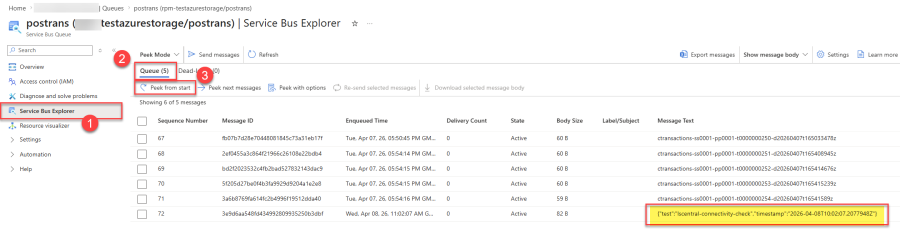
Note: Managing messages in Service Bus Queue using Service Bus Explorer (or other tools) is outside the scope of this article. For more information see: Microsoft Learn - Use Service Bus Explorer to run data operations on Service Bus
Known Errors
Error #1 - Unauthorized
Unauthorized error
Explanation
The Unauthorized error usually means that there's something wrong with credentials. Here we described a few scenarios where the Unauthorized error was thrown and we detailed a few checkpoints for you to check.
Note: Some of the fixes might still be applicable even if the error is not exactly the same.
How to fix
- If in the Transaction External Message Log, after running the IMPORT_TRANS scheduled job (codeunit 10001409 - LSC Import Trans. From Ext.), you get a Read Next Message: Unauthorized error:
- Double check the documentation on how to create a new Azure Service Bus Namespace and Queue, and double check that you properly filled in the fields in the in the Web Replication Azure Storage Setup page, in LS Central
- Confirm that the Shared access policies have been created at the Service Bus Queue level (and not at the Service Bus Namespace level)
- For more information see How to: Set Up an Azure Service Bus