Analytics Setup in LS Central
Explore the key features and updates in Analytics using the links below:
- Analytics Setup
- General Settings
- Tasks Configuration
- Azure Service Tier Settings
- Analytics Companies
- Analytics Tasks
- Actions and Operations
- Getting data from Setup page to Analytics
- Analytics URLs
- Best Practices
Analytics Setup
The Analytics Setup page added in LS Central v 28.0 is the central configuration hub for Analytics for LS Central. It also provides controls for managing data lifecycle, including configuring automated data retention to keep your data warehouse lean and performant.
In the Analytics Setup page you can:
- Enable / Disable Analytics in general
- Enable / Disable modules, like Hotels, Bookings, etc.
- Enable / Disable companies
- Trigger a Factory Reset for Analytics
- Specify the Azure SQL Service Tier for calculation and non-calculation periods
- Configure automated data retention to purge transactional data older than a specified number of days
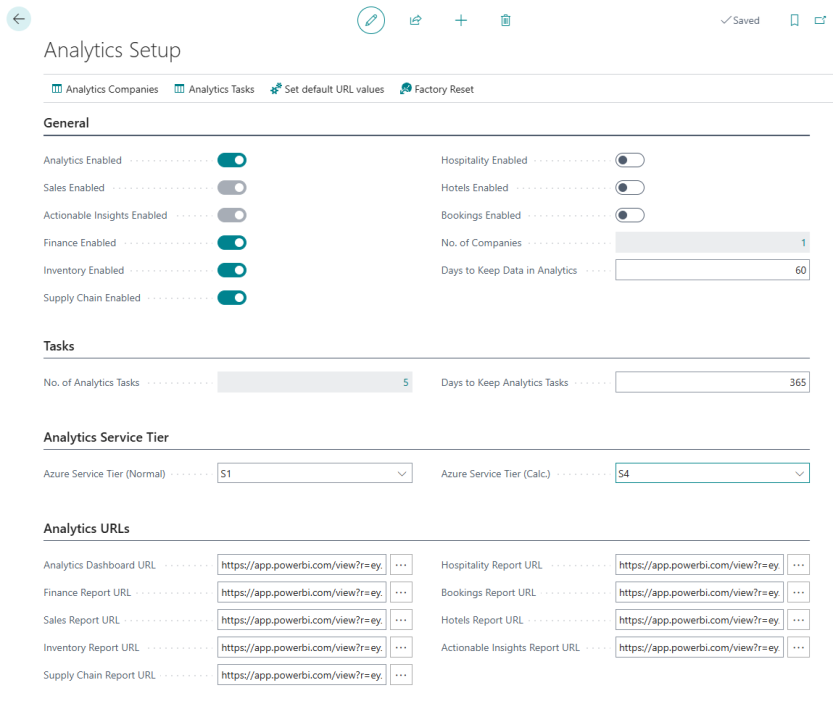
General Settings
Analytics Enabled
Turns Analytics on or off for the entire system. When disabled, all feature flags are automatically turned off and all companies are disabled.
You can then enable or disable specific analytics features based on your business needs:
| Feature | Description | Notes |
|---|---|---|
| Sales Enabled | Calculates sales-related fact and dimension tables | Always enabled when Analytics is on |
| Sales Enabled | Calculates sales-related fact and dimension tables | Always enabled when Analytics is on |
| Actionable Insights Enabled | Calculates tables for actionable business insights | Always enabled when Analytics is on |
| Finance Enabled | Calculates finance and accounting tables | Optional |
| Inventory Enabled | Calculates inventory-related tables | Linked with Supply Chain |
| Supply Chain Enabled | Calculates supply chain tables | Linked with Inventory |
| Hospitality Enabled | Calculates hospitality module tables | Optional |
| Hotels Enabled | Calculates hotel management tables | Optional |
| Bookings Enabled | Calculates booking-related tables | Optional |
Note: Inventory and Supply Chain are linked – enabling one automatically enables the other.
No. of Companies
Displays the number of companies configured in the Analytics system. Click the field to drill down to the Analytics Companies list.
Days to Keep Data in Analytics
To optimize database storage and maintain query performance, Analytics includes a built-in automated data retention mechanism. This field controls the data retention lifecycle for transactional data stored in the data warehouse.
- Default / Zero value: If this field is set to 0, data retention is disabled and historical data is kept indefinitely.
- Non-zero value: When you enter a positive integer (X), the system automatically purges transactional data older than X days from the data warehouse once the data retention pipeline has been enabled.
The new Data Retention pipeline is used to delete data from certain staging and fact tables based on the "Days to Keep Data in Analytics" parameter in the Analytics control page in LS Central. If the value of the parameter is 0, then no data is deleted, otherwise all data older than the amount of days specified is deleted from the staging and fact tables listed here. The pipeline uses the 4 new procedures added, listed below, to delete data.
Please note that this pipeline has to be enabled manually, this is done so that no one accidentally sets a value in the control page which results in data being deleted from the Analytics data warehouse.
Tables Covered by Data Retention
The retention procedures operate across the following staging and data warehouse tables, grouped by data domain:
| Procedure | Staging Tables (stg$) | Data Warehouse Tables ([DW]) |
|---|---|---|
| AnalyticsPurgeOldSalesData |
stg$Trans_ Sales Entry stg$Transaction Header stg$Sales Invoice Line stg$Sales Invoice Header stg$Sales Cr_Memo Line stg$Sales Cr_Memo Header |
[DW].[FactSalesPosted] |
| AnalyticsPurgeOldPurchaseData |
stg$Purchase Line stg$Purchase Header stg$Purchase Line Archive stg$Purchase Header Archive stg$Purch_ Rcpt_ Line stg$Purch_ Rcpt_ Header stg$Purch_ Inv_ Line stg$Purch_ Inv_ Header stg$Purch_ Cr_ Memo Line stg$Purch_ Cr_ Memo Hdr_ |
[DW].[fPurchaseOrders] [DW].[fPurchaseReceipts] [DW].[fPurchaseInvoice] [DW].[fPurchaseCreditMemo] |
| AnalyticsPurgeOldHospitalityData |
stg$Din_ Area Plan Statistics stg$Dining Table Receipt Entry stg$Dining Table History Entry stg$Din_ Tbl_ Rcpt_ Entry Arch stg$Din_ Tbl_ Hist_ Entry Arch stg$Din_ Tbl_ Hist_ Entry Res_ stg$Din Tbl Hist Entry Res Arc stg$Din_ Reserv_ History Entry stg$KDS Modified Status stg$KOT Line Routing stg$KOT Line stg$KOT Header |
[DW].[fDiningAreaPlanStatistics] [DW].[fDiningReservation] [DW].[fKOTLines] |
| AnalyticsPurgeOldTransferData |
stg$Transfer Line stg$Transfer Header stg$Transfer Shipment Line stg$Transfer Shipment Header stg$Transfer Receipt Line stg$Transfer Receipt Header |
[DW].[fTransferOrders] [DW].[fTransferOrderShipments] [DW].[fTransferOrderReceipts] |
Tasks Configuration
No. of Analytics Tasks
Shows the current number of Analytics Tasks in the system. These tasks track operations like company activation, deactivation, and factory resets.
Days to Keep Analytics Tasks
Specifies how many days to retain Analytics Task history before automatic cleanup. Default is 365 days, a value of zero keeps all tasks.
Analytics Tasks can be deleted manually from the Analytics Tasks page or by using the Codeunit 10012035 in the Scheduler.
Azure Service Tier Settings
Optimize performance by automatically switching between Azure SQL service tiers during analytics processing.
Azure Service Tier (Calc.)
The Azure SQL service tier to use during Analytics pipeline processing and data warehouse calculations. A higher tier provides better performance for intensive calculations, but it will also increase the cost of the database for the duration it is scaled up.
Available DTU Standard Tiers in Azure: S0, S1, S2, S3, S4, S6, S7, S9, S12
You can view more about the price of the different tiers under the Cost Components and Calculator page.
Azure Service Tier (Normal)
The Azure SQL service tier to use during normal operation when Analytics is not actively processing. Use a lower tier to optimize costs.
How it works:
- Before running Analytics pipelines, the system automatically switches to the Calculation tier
- After processing completes, it switches back to the Normal tier
- Leave blank to disable automatic tier switching
Analytics Companies
The Analytics Companies page manages which companies participate in Analytics processing.
Analytics can be enabled or disabled individually for each company in your Business Central environment
Managing Companies
Viewing Companies
- Navigate to Analytics Companies from the Analytics Setup page
- The list shows all companies in your Business Central instance
- Each company has an Analytics Enabled checkbox
Enabling a Company
- Locate the company in the list
- Check the Analytics Enabled field
- The system automatically creates an activation task with task type "CMP_ACTIVATE"
(Previous activation/deactivation tasks for this company become obsolete)
Disabling a Company
- Locate the company in the list
- Uncheck the Analytics Enabled field
- The system automatically creates a deactivation task with task type "CMP_DEACTIVATE"
(Previous activation/deactivation tasks for this company become obsolete)
Update Companies Action
Use the Update Companies action to refresh the company list if you have added new Companies to LS Central that you want to include in Analytics.
Analytics Tasks
The Analytics Tasks page provides visibility into Analytics operations and serves as an audit trail.
Each task contains:
| Field | Description |
|---|---|
| Entry No. | Unique sequential identifier |
| Task Name | Type of task (CMP_ACTIVATE, CMP_DEACTIVATE, FACTORY_RESET) |
| Parameter | Additional information (e.g., company name) |
| Created at | Date and time when the task was created |
| Created by | User ID who created the task |
| Completed (Internal) | Internal flag indicating task completion |
| Obsolete | Marks tasks that are no longer relevant |
Managing Tasks
Delete Tasks (Days to keep)
Deletes all Analytics Tasks older than the retention period specified in Analytics Setup.
Delete Obsolete Tasks
Deletes all tasks marked as Obsolete.
Actions and Operations
Factory Reset Action
Initiates a complete factory reset of the Analytics system. This creates a FACTORY_RESET task that instructs the Analytics pipeline to:
-
Clear all calculated data warehouse tables
-
Rebuild the data warehouse from scratch
-
Recalculate all dimensions and fact tables
Warning: This is a destructive operation that will remove all calculated analytics data. Use only when necessary.
Also, please note that since the files exported using bc2adls are deleted after the staging process has completed. You will need to reset and export all tables at the same time you perform the Factory reset task. This is explained in more detail in the bc2adls operations page.
Getting data from Setup page to Analytics
Now that you have enabled features, set parameters you need to push the data from LS Central to Analytics.
The Analytics Setup tables are not company specific and are called:
- LSC Analytics Company$5ecfc871-5d82-43f1-9c54-59685e82318d
- LSC Analytics Setup$5ecfc871-5d82-43f1-9c54-59685e82318d
- LSC Analytics Task$5ecfc871-5d82-43f1-9c54-59685e82318d
The data from these tables is pushed/pulled into Analytics by query, replication or export depending on the LS Central platform and data export method:
LS Central On-prem
The two pipelines that utilize the setup page data, query the LS Central source tables directly.
Replication using Data Director
The two pipelines, that utilize the setup page data, query the prestaging tables created during Analytics setup.
To populate these tables normal subjobs must be created for the three tables and added to the INS_NORMAL_FULL job
BC2ADLS
If you are running BC2ADLS export you need to add the three tables to the bc2adls export configuration in your production environment and export the data to the storage account.
New pipelines
Once the data has been added to the prestaging tables it will be picked up by new pipelines that should be run instead of the Initial load and Scheduled run pipelines.
The pipelines are called:
-
Initial load with Control Page processing
-
Scheduled run with Control Page processing
These pipelines consider the information that has been added to the control page before the intial load and then since the last scheduled run.
If you are using the control page to setup Analytics then you should use the new pipelines for the Initial load and the Scheduled run trigger.
Analytics URLs
The Analytics URLs section stores the direct links to the Power BI reports included in the Analytics for LS Central product package. Entering the URLs here makes them accessible directly from within LS Central, allowing users to open the relevant report without leaving the system.
Each field corresponds to a specific report:
| Field | Description |
|---|---|
| Analytics Dashboard URL | Link to the main Analytics Dashboard Power BI report, providing a consolidated overview of key business metrics. Open report |
| Finance Report URL | Link to the Finance Power BI report covering accounting and financial data. Open report |
| Sales Report URL | Link to the Sales Power BI report covering sales transactions and performance. Open report |
| Inventory Report URL | Link to the Inventory Power BI report covering stock levels and inventory movements. Open report |
| Supply Chain Report URL | Link to the Supply Chain Power BI report covering purchasing, receipts, and supply chain operations. Open report |
| Hospitality Report URL | Link to the Hospitality Power BI report covering dining, reservations, and kitchen operations. Open report |
| Bookings Report URL | Link to the Bookings Power BI report covering booking-related data and activity. Open report |
| Hotels Report URL | Link to the Hotels Power BI report covering hotel management data. Open report |
| Actionable Insights Report URL | Link to the Actionable Insights Power BI report surfacing recommended actions based on business data. Open report |
Note: The URLs are available from your Analytics for LS Central product package. Only populate the fields for the modules you have enabled.
Best Practices
Performance Optimization
1. Use Service Tier Switching
-
Configure higher tier for quicker transformations and calculations (e.g., S9 or S12)
-
Configure lower tier for normal operation (e.g., S0 or S1) but be aware of the max size of the database on different tiers.
-
A database that exceeds 250 GB can not be scaled below S3 and if scaling down fails then the database remains at the high pricing tier.
-
-
Reduces costs while maintaining performance
2. Enable Only Needed Features
-
Don't enable features you don't actively use
-
Reduces processing time and resource consumption by the ETL processes in the Azure data factory
3. Selective Company Enablement
-
Start with production companies
-
Exclude test and development companies unless needed
4. Configure Data Retention
-
Set Days to Keep Data in Analytics to a value that reflects your reporting and compliance requirements
-
Keeping only the data you need reduces database size, lowers Azure SQL storage costs, and improves query performance
-
Leave the value at 0 if you require full historical data or have not yet determined your retention policy